When a new user’s account is activated, the user receives an email from the TMS Helpdesk with an activation link. The link is only valid for 24 hours and can only be clicked once.
If the user does not click on the link during these 24 hours, the link will become invalid. The user can, however, use the “Lost password” function to reset his password.
To complete the activation, the user will need to click on the activation link. By clicking on the latter, an internet page will open and redirect the user to TMS, where he will have to set his personal password.
The new password must be in line with the FIFA password policy and fulfil the following criteria:
It must contain a minimum of eight characters, including at least:
- One capital letter
- One lower case letter
- One special character e.g.: +/()*=&[]$@_%-#
- One number
Example: FIFAtms-20
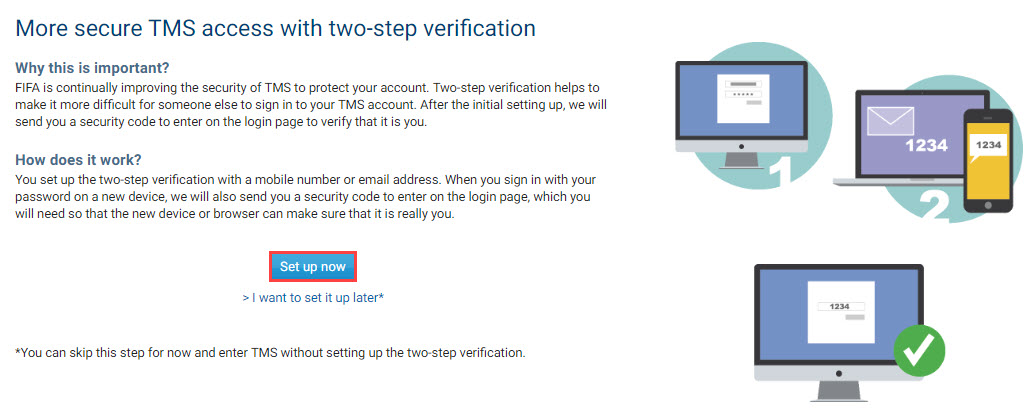
Set up the two-step verification by clicking on “Set up now” (see Two-step verification):
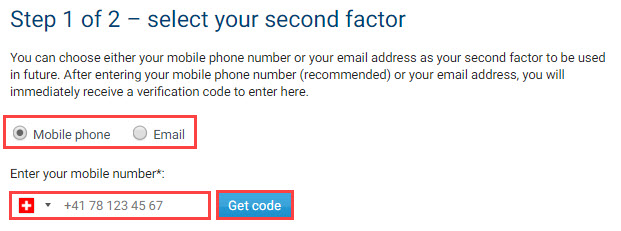
Select a method by which you wish to receive your security code (mobile phone number or email address):
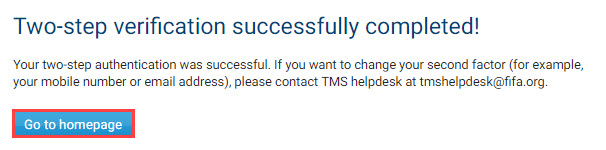
Enter the code received via SMS or email and click on “Confirm code”:
Access and navigate in TMS:
Upon the first login, the system will display the terms of use of FIFA services and the TMS service descriptions. In order to access the system, the user must agree to them by ticking the relevant box. The user will also declare that he or she has been trained in the use of TMS by ticking the relevant box.