Table of contents
If a transfer contains incorrect information, the instruction must be cancelled in TMS. To do this, check the status of the instruction and follow the procedures below.
Note: if a document uploaded is incorrect or incomplete, it is not necessary to cancel the transfer. The relevant party can upload the correct document even after the transfer has been confirmed (see “Transfer documents in TMS: mandatory documents, upload rules and evidence”).
Pursuant to FIFA Circular no. 1917 concerning the interim regulatory framework on the RSTP, irrespective of any contractual dispute, and taking due account of the principle of sporting integrity and the applicable registration periods, a player will always be able to move to a new association and continue their career with a new club. Therefore, a transfer cannot be cancelled solely on a contractual dispute or because there has not been a mutual agreement to terminate a contract. In all cases, the issuance of an ITC will be without prejudice to any contractual dispute between the parties.
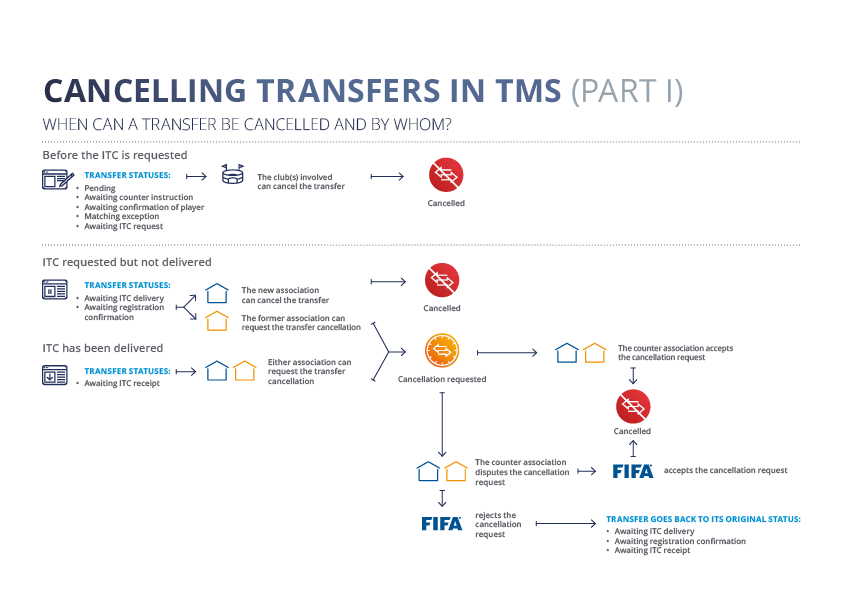
Before the ITC request or transfer approval
Transfer statuses in international transfers:
- “Pending”
- “Awaiting counter instruction”
- “Awaiting confirmation of player”
- “Matching exception”
- “Awaiting ITC request”
Transfer statuses in domestic transfers:
- “Pending”
- “Awaiting agent information”
- “Awaiting counter instruction”
- “Awaiting confirmation of player”
- “Matching exception”
- “Awaiting transfer approval”
In these statuses, the relevant club(s) (or the new association, in the case of international amateur transfers) can cancel the transfer. To do so, search for the relevant transfer and click on “Cancel”.
Enter cancellation remarks in the relevant field and click on “Yes”.
Transfers in “Pending” status will be deleted from the system once cancelled. With all other transfer statuses, the instruction will be updated to “Cancelled”. If two transfer instructions have already matched, both instructions will be cancelled as soon as one party cancels the transfer. Cancelled instructions can only be viewed by selecting the “Include completed transfers” checkbox from the Transfers > Overview tab.
During the ITC process or after transfer approval
Transfer statuses in international transfers:
- “Awaiting ITC delivery”
- “Awaiting registration confirmation”
In these statuses, the new association can cancel the transfer, whereas the former association must request the transfer cancellation and await the response of the new association.
- “Awaiting ITC receipt”
In this status, either of the relevant associations can request the transfer cancellation. The counter association will then be able to either accept or dispute the cancellation.
Transfer statuses in domestic transfers:
- “Closed”
- “Closed – Awaiting Payments”
- “On Loan – Awaiting Conclusion”
- “On Loan – Awaiting Payments”
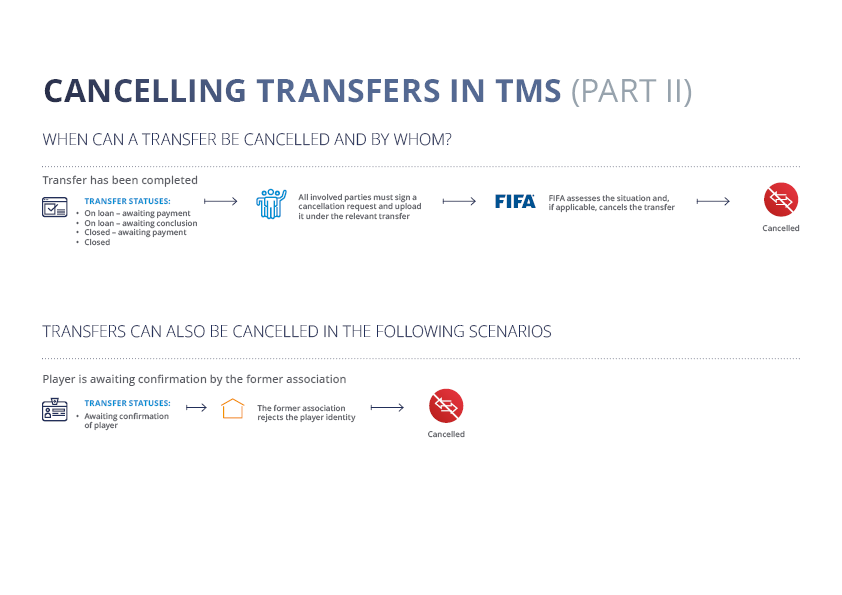
After the approval, the domestic transfer can only be cancelled by the Member Association.
Cancelling an international transfer
Note: as a general rule, transfers containing incorrect information must be cancelled. However, in amateur transfers, the player’s former association is asked to review the transfer instruction and update, if applicable, the releasing club and the status of the player at their former club during the ITC delivery. As such, it is not possible to request cancellation on the basis that they contain incorrect information.
After determining whether your organisation is authorised to cancel the transfer or only request its cancellation, locate the relevant transfer in TMS and select “Cancel transfer”.
Scroll to the bottom of the transfer instruction and click either “Cancel transfer” or “Request cancellation”, depending on your role. Select the applicable cancellation reason(s), provide any relevant remarks in the designated field, and then click “Cancel transfer” or “Request cancellation” once more to confirm the action.
Upon successful submission, the transfer status will update to either “Cancelled” or “Cancellation requested”, reflecting the action taken.
Note: If an international transfer is in “Awaiting ITC delivery” status, the 72-hour timeframe for ITC delivery will be suspended as soon as a cancellation request is submitted.
Accepting the cancellation request
To accept the cancellation request, the counter association must locate the relevant transfer and click “Accept cancellation”, then scroll to the bottom of the transfer instruction and click again on “Accept cancellation”. In the confirmation window, select “Accept cancellation” once more to finalise the cancellation. The transfer status will then change to “Cancelled”.
Disputing the cancellation request
To dispute a cancellation request, the counter association must locate the relevant transfer and select “Upload documents”. Then, scroll to the bottom of the transfer instruction and click “Add documents”.
When uploading the document, select “Cancellation dispute” as the document category and upload a letter outlining the reason(s) for disputing the cancellation request. Once the document has been attached, click “Upload document” to complete the submission.
A copy of the dispute letter must also be sent to the TMS Helpdesk for review by Regulatory Compliance. Following this review, a decision will be made to either accept or reject the cancellation request, and the status of the transfer will change accordingly to reflect the decision.
Withdrawing the cancellation request
When the status of a transfer is “Cancellation requested”, the Member Association that requested the cancellation can withdraw the cancellation request.
To do so, search for the relevant transfer and click on “View details”. Then, scroll to the bottom of the transfer and click on “Withdraw cancellation request”. A confirmation screen will open to finalise the withdrawal.
Once the cancellation request has been withdrawn, the status of the transfer will revert to the status that applied before the cancellation request.
Cancelling a domestic transfer
After determining that your organisation is authorised to cancel the transfer, locate the relevant transfer in DTMS and select “Cancel”.
A confirmation window will appear prompting you to confirm the cancellation. Enter any relevant remarks in the designated field and then click “Yes” to proceed.
Once the cancellation has been successfully submitted, the transfer status will update to “Cancelled”. The only exception applies to transfers in “Pending” status, which will be removed from the system upon cancellation rather than being marked as cancelled.
Note: transfers where the Member Association has rejected the player during the player confirmation stage will also be reflected as “Cancelled”.
The diagram below provides an overview of who can cancel a transfer and when: