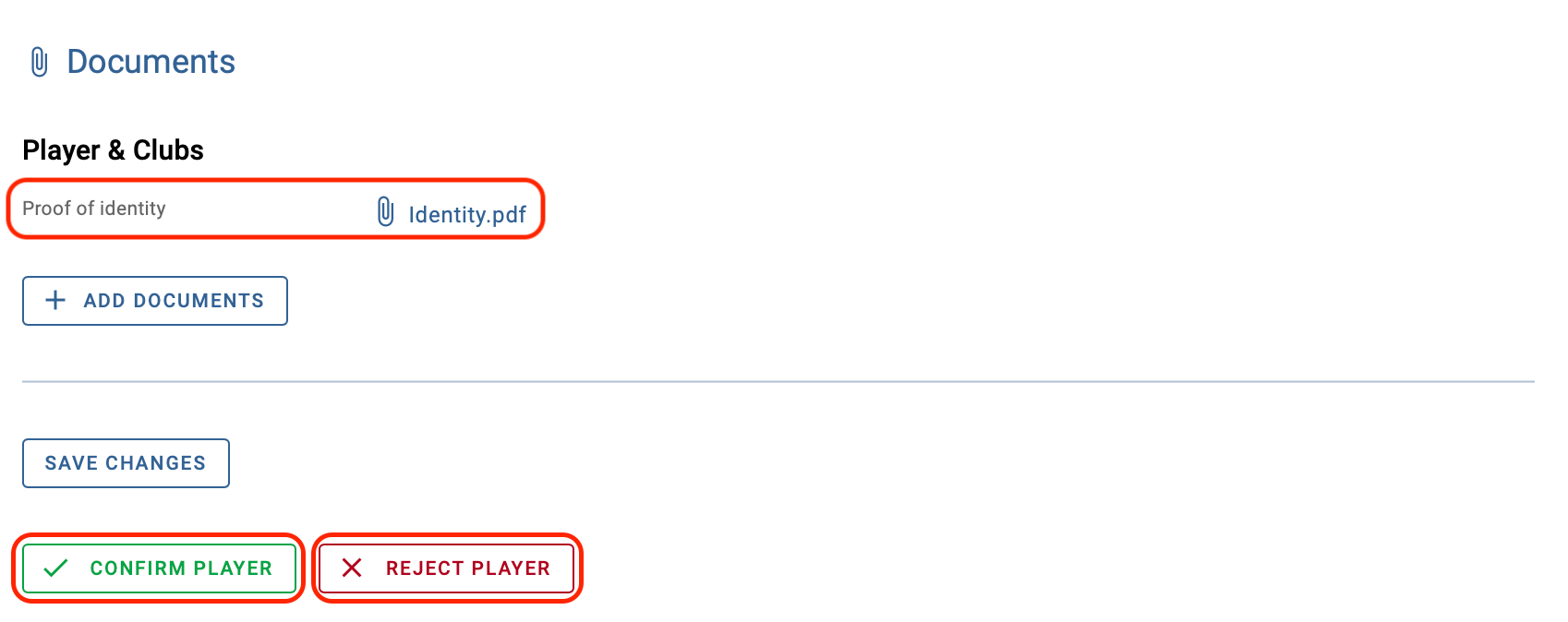
The TMS database contains over 100,000 players. If a player is not found in the system, the instructing club has the option to create a new player manually. When a new player is created in TMS, the Member Association with which the player is currently registered is responsible for verifying the details of the player’s identity according to its own records. It will then confirm or reject those details in TMS. Until the relevant Member Association has taken this step, the transfer will not be able to proceed to the next stage in TMS.
Once the relevant transfer has been confirmed and paired (if applicable), the former Member Association (in the case of an international transfer) or your Member Association (in the case of a domestic transfer) is required to confirm the player’s details to affirm that this player was indeed last registered with that Member Association and that their details are correct. The relevant Member Association receives a notification on its dashboard and has the option to either confirm or reject those details.
Note: the relevant Member Association is required to perform a thorough player check against its own National Registration System (NRS) before confirming the player's details. Thus, it is important that each Member Association has a complete and effective NRS.
The relevant Member Association may reject the player if:
- the player was never registered with the Member Association; or
- the player was at one time registered with the Member Association but has since been transferred to a club affiliated to another Member Association.
By confirming the player, you are affirming that this player was indeed last registered with your Member Association and that the details of their identity (name, nationality, date of birth) are correct. By rejecting the player, you are affirming that the player is not registered with your Member Association at that time.
Note: If the new player is a duplicate, you may confirm the player without delay. Immediately contact the TMS Helpdesk to request that both players be merged.
If the player was last registered with your Member Association, but some of their identity details appear to be incorrect, these details should be edited in TMS before confirming the player. The player should not be rejected based on incorrect details if they were last registered with your Member Association.
To finalise the player confirmation step, click on “Confirm player” next to the relevant instruction.

You will be taken to the “Summary” section in the transfer instruction where you can view the player's details.
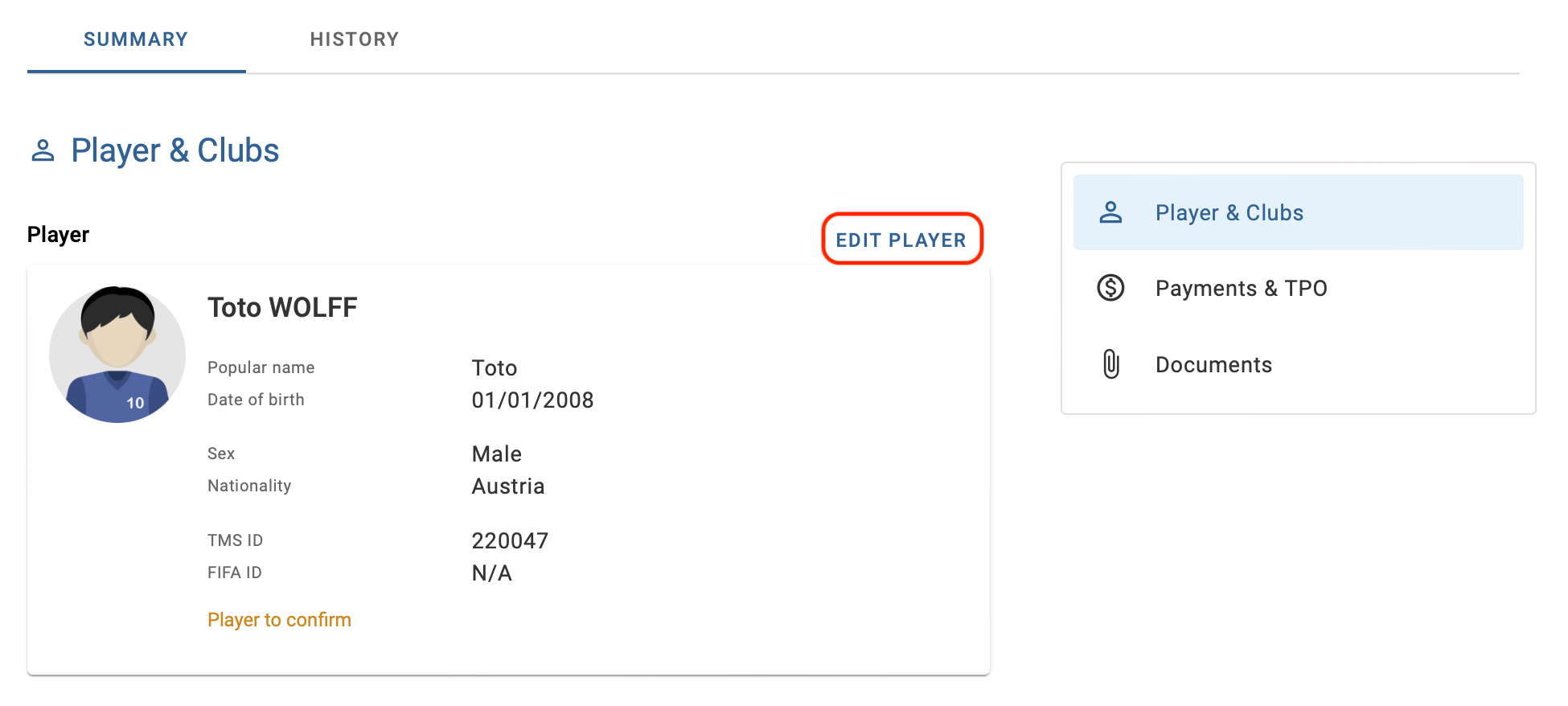
Table of contents
Editing the player’s details
To update the player details, click on “Edit player”. The player’s information should match their proof of identity uploaded in the instruction by the new club.
Each Member Association must have an electronic player registration system and must assign each player a FIFA ID when the player is first registered. This FIFA ID should be added to the profile of the newly created player in TMS to minimise player duplication.
Assigning the FIFA ID at this stage is essential to ensure the accuracy and traceability of the player. If the responsible Member Association does not assign the FIFA ID during the player confirmation stage, additional steps will be required later in the process:
- For international transfers, the responsible Member Association will need to contact the new Member Association by email during the ITC process to communicate the player's FIFA ID.
- For domestic transfers, the responsible Member Association will first need to assign a FIFA ID to the player through the player duplication process in the Association Task Manager before it can approve the transfer.
To avoid these additional administrative steps and potential delays, the FIFA ID should be assigned during the player confirmation stage whenever possible.
Note: Only existing FIFA IDs may be added to the player details. If the relevant Member Association has not created a FIFA ID for the player, it should do so in its electronic player registration system before assigning it to the player in TMS.
The FIFA ID is assigned to the player profile when you click on “Save”.
When saving the updated player details, TMS might identify potential duplicates that already exist in TMS. Review these duplicates and either proceed with your player entry or select one of the existing players in TMS.
Note: The creation of a new player with a FIFA ID that already exists in TMS is not allowed.
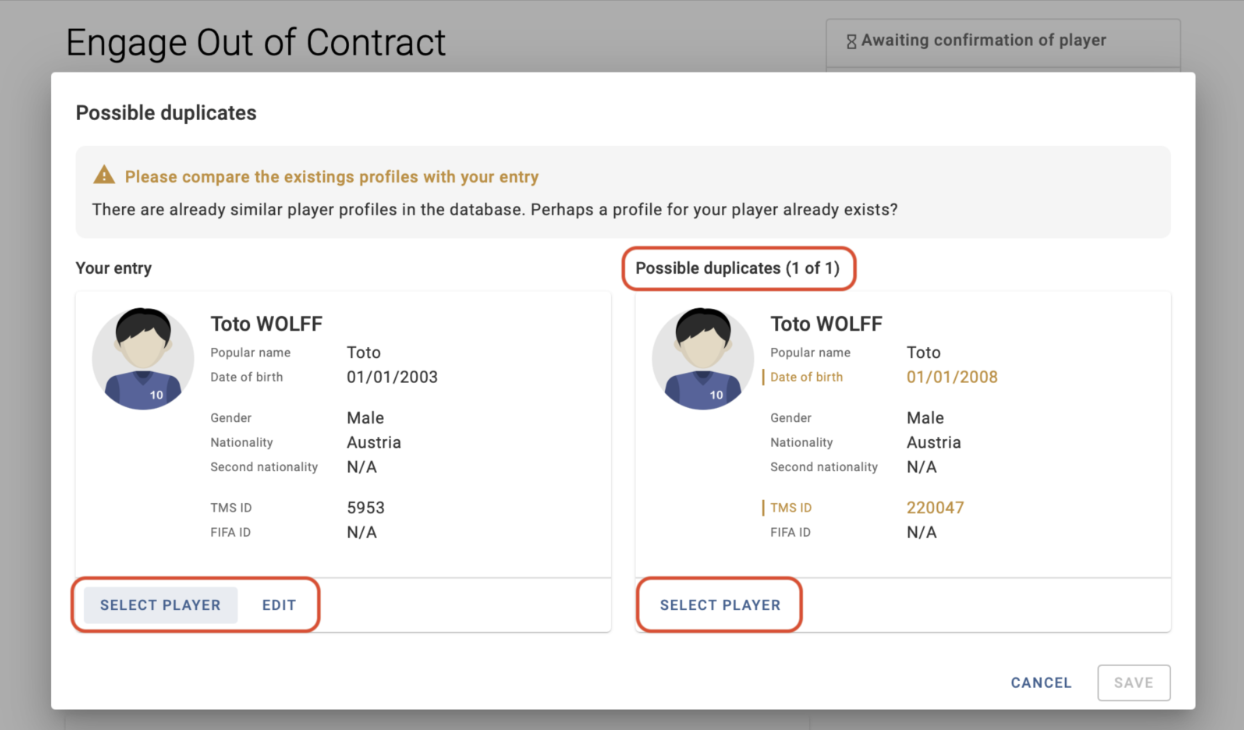
Once the FIFA ID is added, TMS will automatically import the player details (name, date of birth, gender and nationality) from the electronic player registration system of the Member Association that stores the data of the FIFA ID, i.e. the data owner. Imported information will override any existing data in TMS. To ensure that the correct FIFA ID has been assigned to the player, you must check that the information imported from the NRS via the automatic synchronisation is correct before finalising the player confirmation.
Should TMS be unable to import the player details due to connection issues with the electronic player registration system of the relevant Member Association, the FIFA ID will be assigned, but the player details will not be automatically synchronised during player confirmation. You will need to update the player details manually.
Once you have verified that the player details are accurate, scroll to the bottom of the page to proceed with the player confirmation.
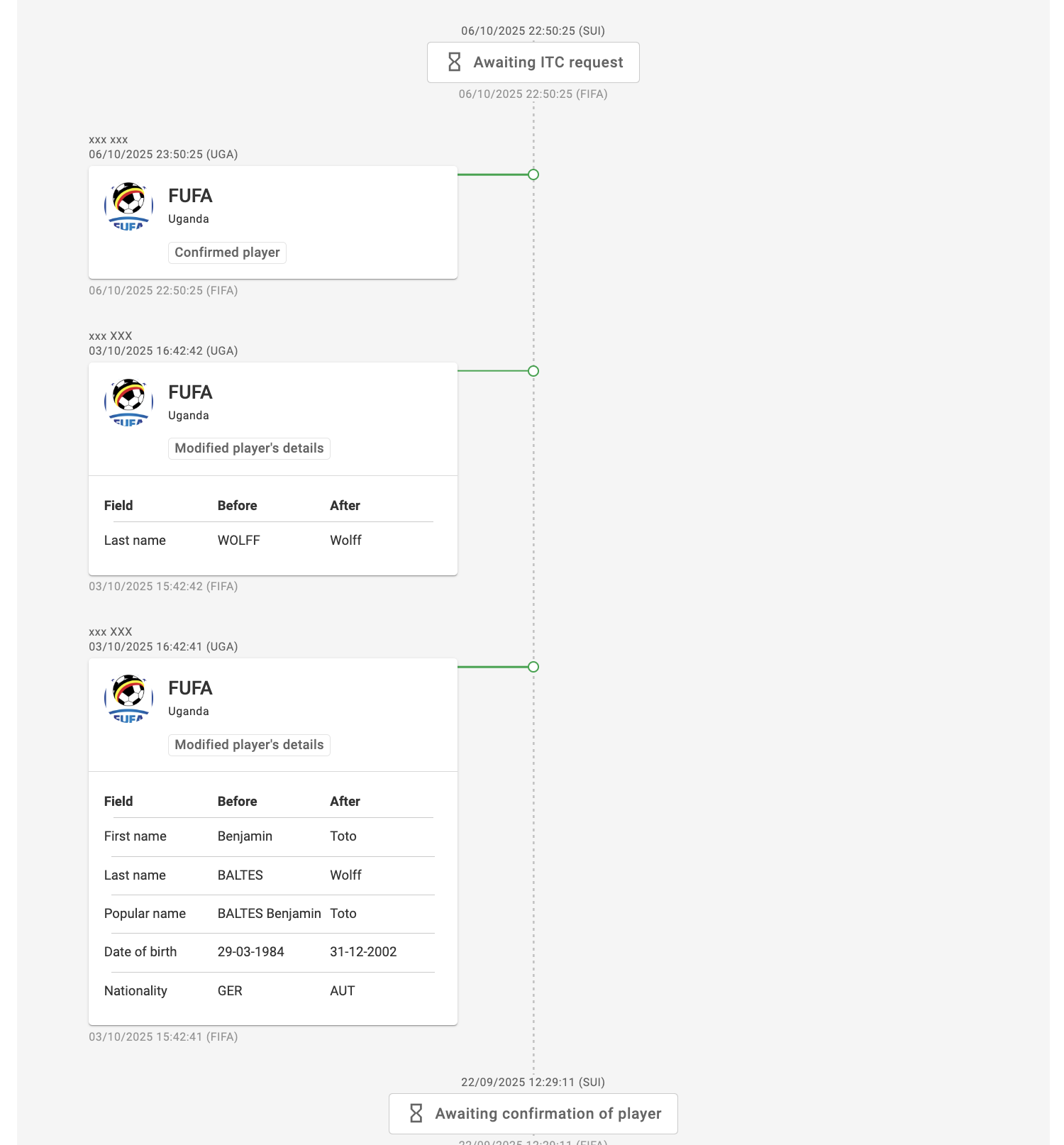
Note: Updates to the player's details will be reflected in the transfer instruction and in the player profile under the “Stakeholders” tab. A summary of the changes to the player profile, if any, is recorded in the transfer history.
Confirming the player
When confirming a player without an assigned FIFA ID, the Member Association will be prompted to add this information to the player profile before finalising the confirmation.
While Member Associations can proceed without adding the FIFA ID, we strongly encourage that this information be added during this step to minimise player duplication, facilitate player traceability and improve TMS data quality.
Clicking “Add FIFA ID” will revert users to the player edit menu.
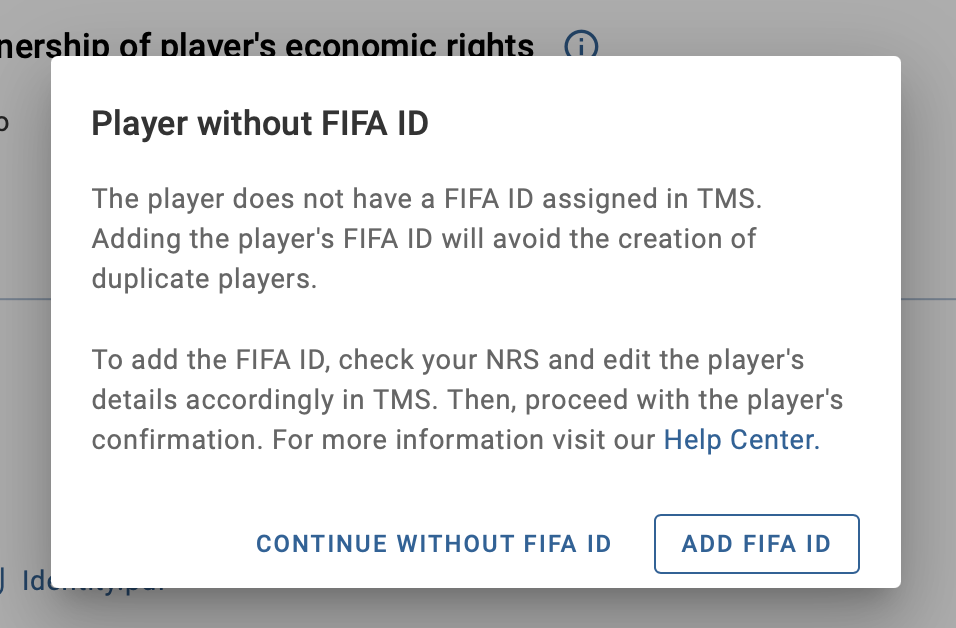
Once a FIFA ID is added or if the Member Association continues without adding the FIFA ID, you will be asked to approve your selection by clicking on “Confirm player” once again.
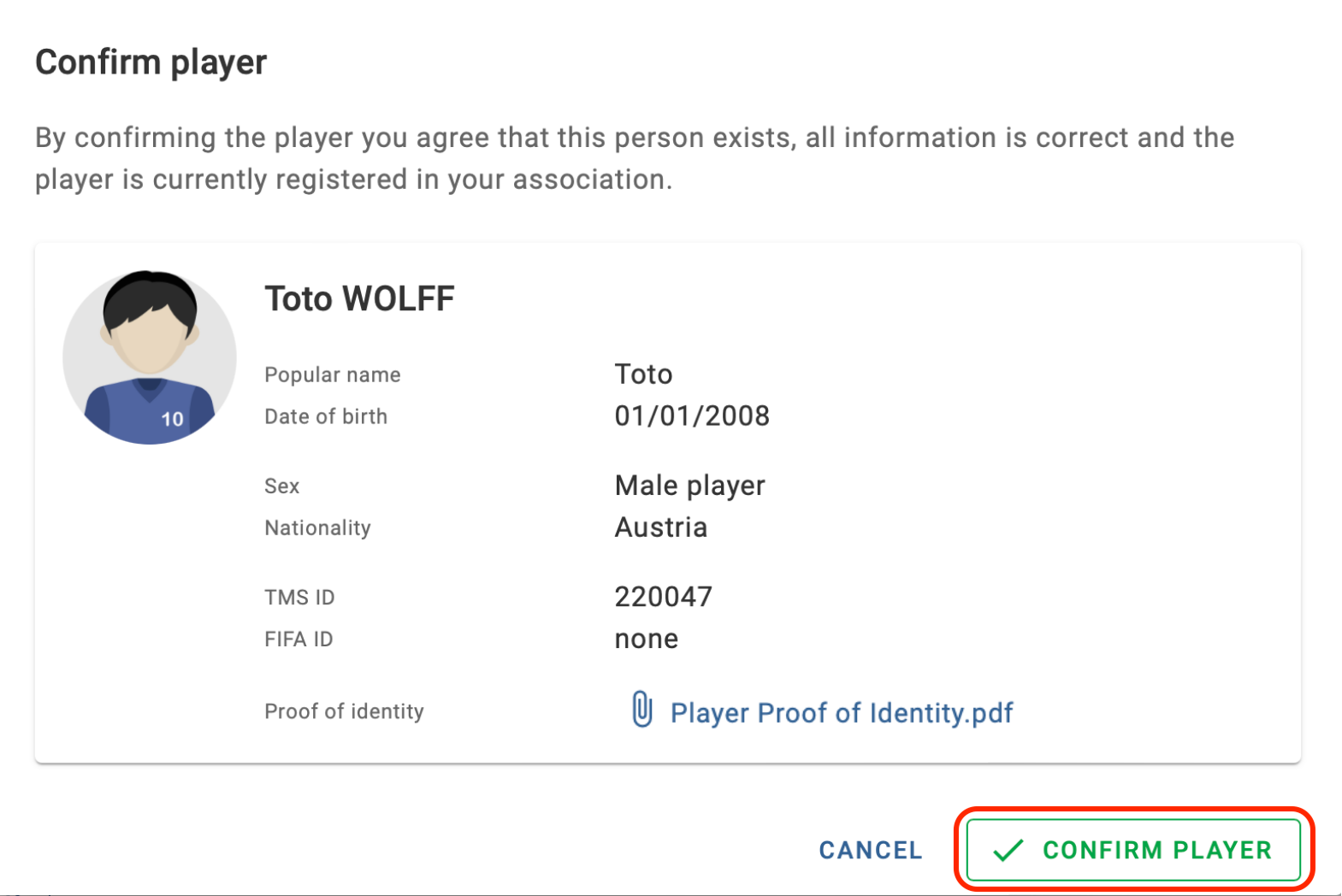
Once you have confirmed the player’s details, the transfer status will change to “Awaiting ITC request” for international transfers or “Awaiting transfer approval” for domestic transfers.
Rejecting the player
A Member Association should reject a player only if the player was not last registered with that Member Association at the time of the transfer. If the player details require an update, the relevant Member Association must edit the player information in TMS and then proceed to confirm the player.
When rejecting a player, users need to enter a valid reason for rejection in the “Remarks” field and approve the selection by clicking on “Reject player” once again.
When a player confirmation is rejected, the transfer will be cancelled and will need to be re‑entered by the club(s) with the correct former Member Association and/or player ID.
Amateur player confirmation
You will be taken to the “Summary” section of the transfer instruction, where you can review the player’s details. The player confirmation process for amateur players is generally the same as that for professional players. However, in international amateur transfers, the former club can be updated if the information displayed is incorrect.
If all player details are correct, follow the process described above to approve or reject the player during the player confirmation stage. If the former club information is incorrect, follow the instructions below to update it.
Updating the player’s former club (international transfers only)
If the player’s former club in an international amateur transfer is incorrect, the former Member Association may click on “Update former club” during the player confirmation process.
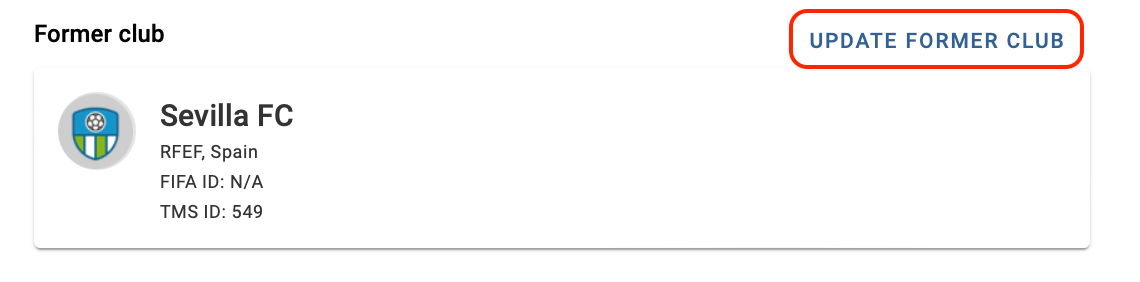
Select the former club by entering its FIFA ID. If the club already exists in the TMS database, it will appear in the drop-down menu. Click on the club in the drop-down menu, then click “Update club” to continue.
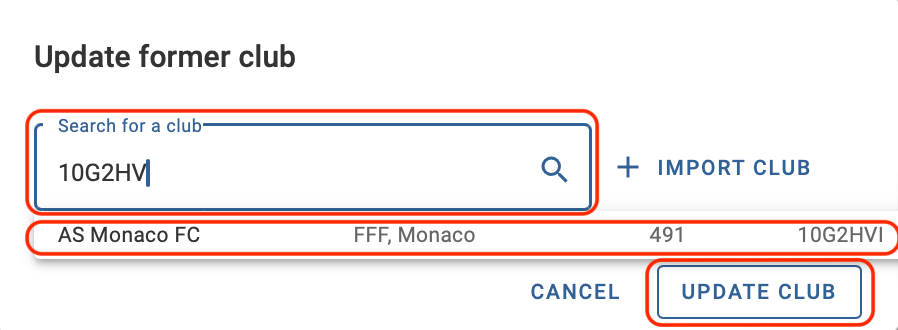
If the club does not exist in the TMS database, nothing will appear in the drop-down menu. To proceed, import the club by searching via the club’s FIFA ID and clicking on “Import club”. If the FIFA ID is correct, the fields will populate with the relevant details. Click on “Update club” to continue.
Once the details have been updated, scroll to the bottom of the instruction to finalise the player confirmation step by selecting the relevant option.