Table of contents
After a domestic transfer is submitted in DTMS by the relevant clubs, it will either enter “Awaiting Transfer Approval” status or a validation exception status. In either case, the transfer must be reviewed by the Member Association, which will then be responsible for approving or rejecting the transfer.
Transfers in “Awaiting transfer approval” status
Navigate to the domestic transfer in the Transfers > Overview tab and click “Update transfer details”.
From here, you can review the transfer history for a chronological overview of the actions completed and the next action to perform to proceed with the transfer. The instruction summary contains all of the information entered regarding the player, the former club, the new club and the payments.
Once you are ready, click “Approve Transfer” or “Reject Transfer” as appropriate.
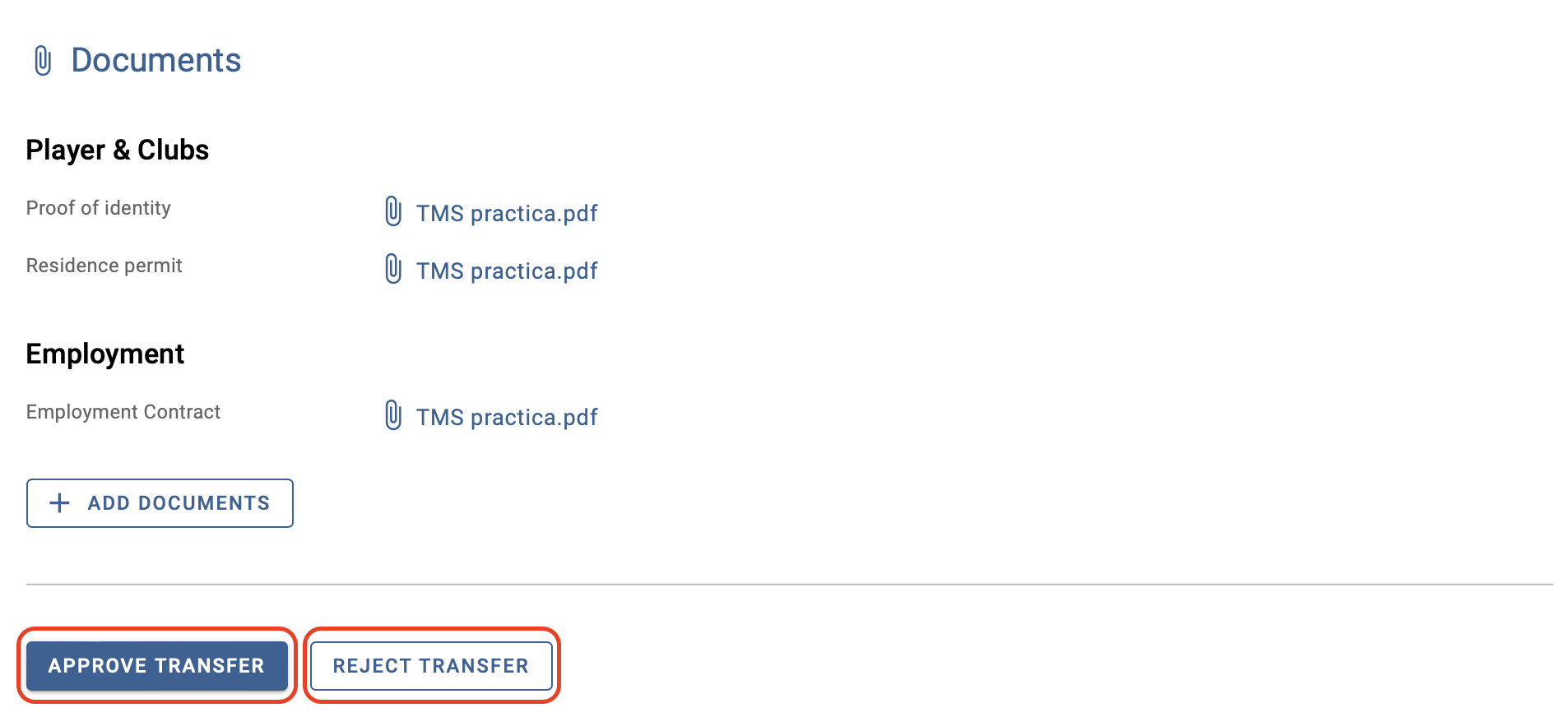
Approve transfer
A domestic transfer can only be approved when the registration period is open. If you wish to approve the transfer, click “Approve Transfer”. The system will display a notification confirming whether the registration period is currently open, and the transfer can proceed.
If necessary, enter optional remarks in the corresponding field before selecting “Approve Transfer” once again.
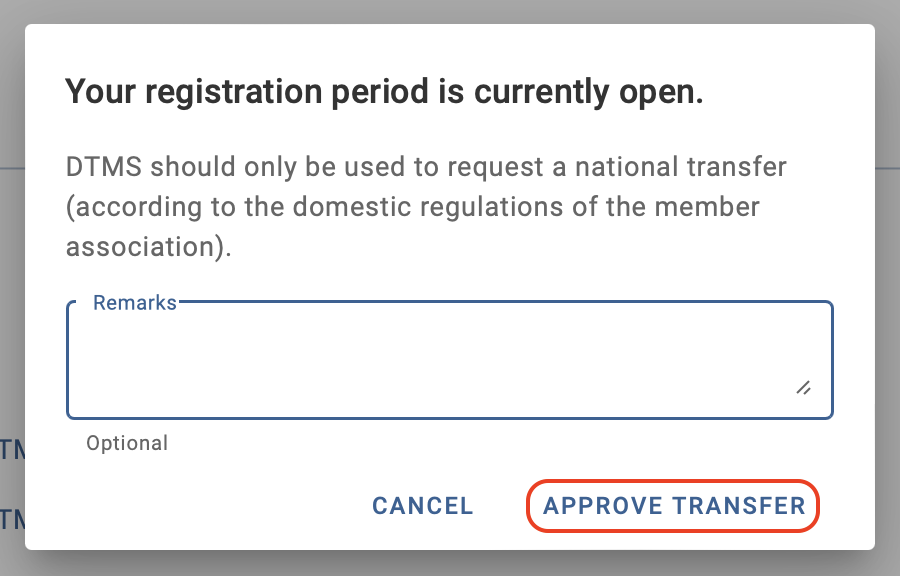
Once you have approved the transfer and there is no validation exception, its status will be “Awaiting registration confirmation”.
Reject transfer
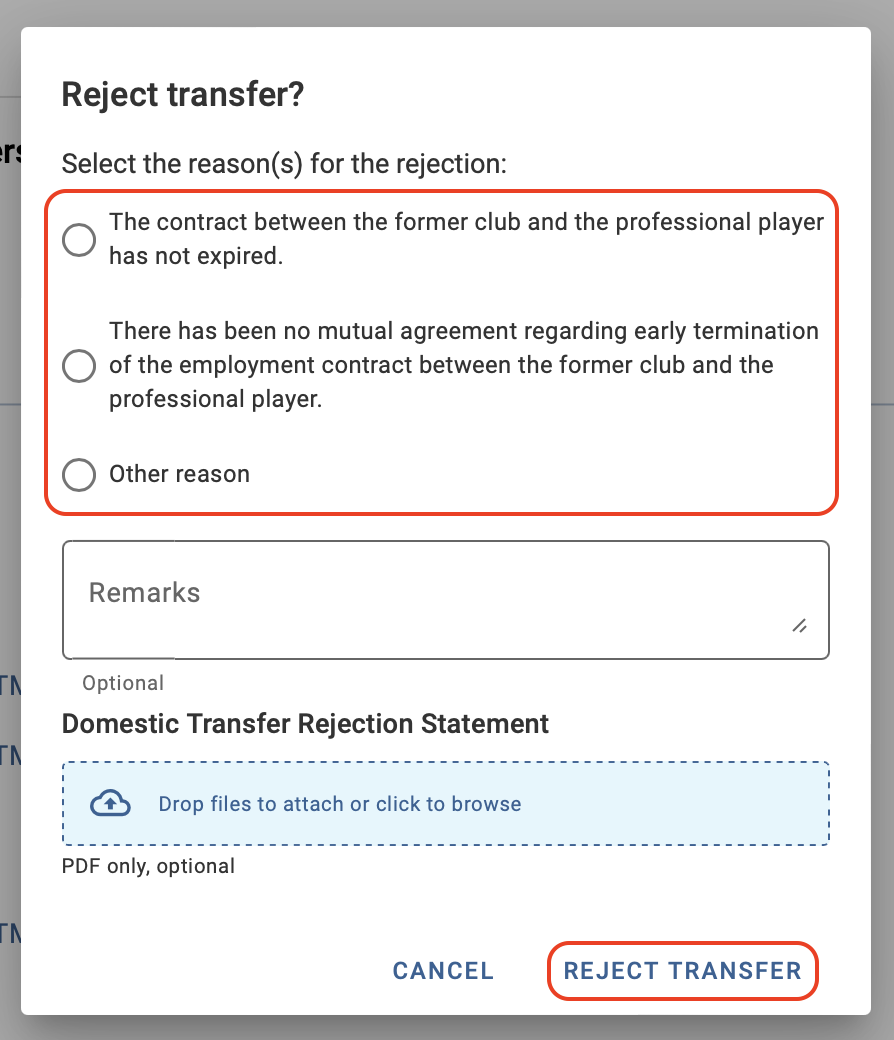
If you wish to reject the transfer, once you click on “Reject Transfer”, another window will open asking you to confirm your rejection. You will have to select one of the valid reasons according to your national regulations to reject a domestic transfer.
You may enter optional remarks in the corresponding box and upload a statement supporting your decision before clicking “Reject Transfer”. The status will then change to “Rejected”.
Transfers in validation exception status
Navigate to the domestic transfer in validation exception status under Transfers > Overview and click “Update Transfer Details”. Review the supporting documentation uploaded to the transfer and, when ready, click “Authorize” or “Reject”, as appropriate.
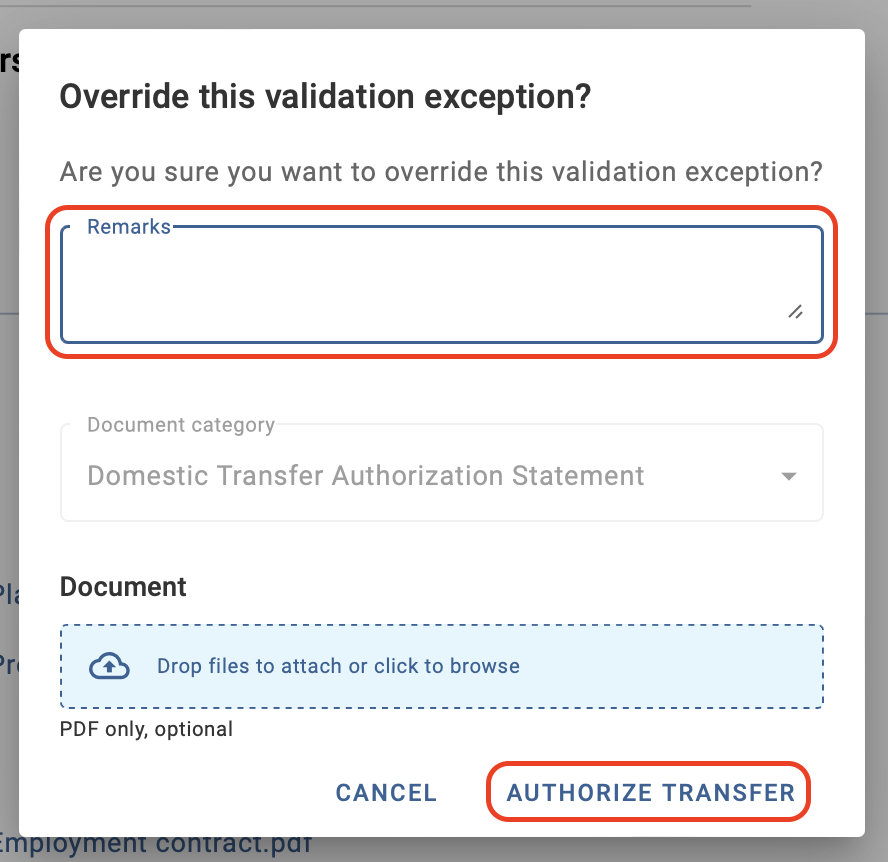
Authorise transfer
A confirmation window will appear, prompting you to confirm that you want to override the validation exception. Remarks must be provided, and you may also upload a supporting document, if applicable. Once the required information has been entered, click “Authorise Transfer” again. The transfer status will then update to either “Awaiting Transfer Approval” or “Awaiting Registration Confirmation”, depending on the type of validation exception.
Reject transfer
A similar confirmation window will appear, prompting you to confirm rejection of the transfer. Remarks must be provided, and you may also upload a supporting document, if applicable. Once the required information has been entered, click “Reject Transfer” again, updating the transfer status to “Rejected”.
Confirming the player’s registration
Following approval or authorisation of a domestic transfer, the Member Association must confirm the player’s registration with the new club to complete the transfer process. To do so, locate the relevant domestic transfer under Transfers > Overview and click “Update Transfer Details”.
Review the transfer details and, when ready, click “Confirm Registration”.
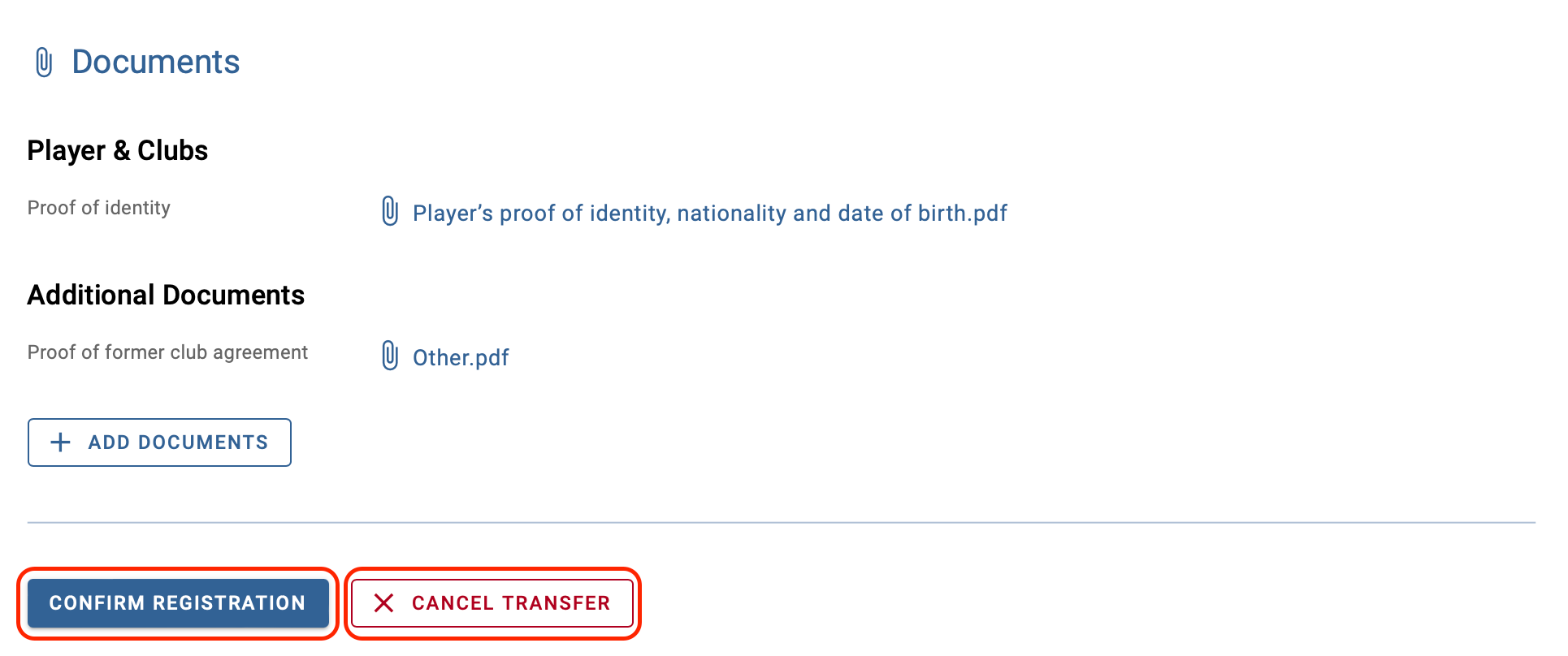 Another window will open, asking you to confirm your decision. You will then be asked to enter the player’s eligibility date.
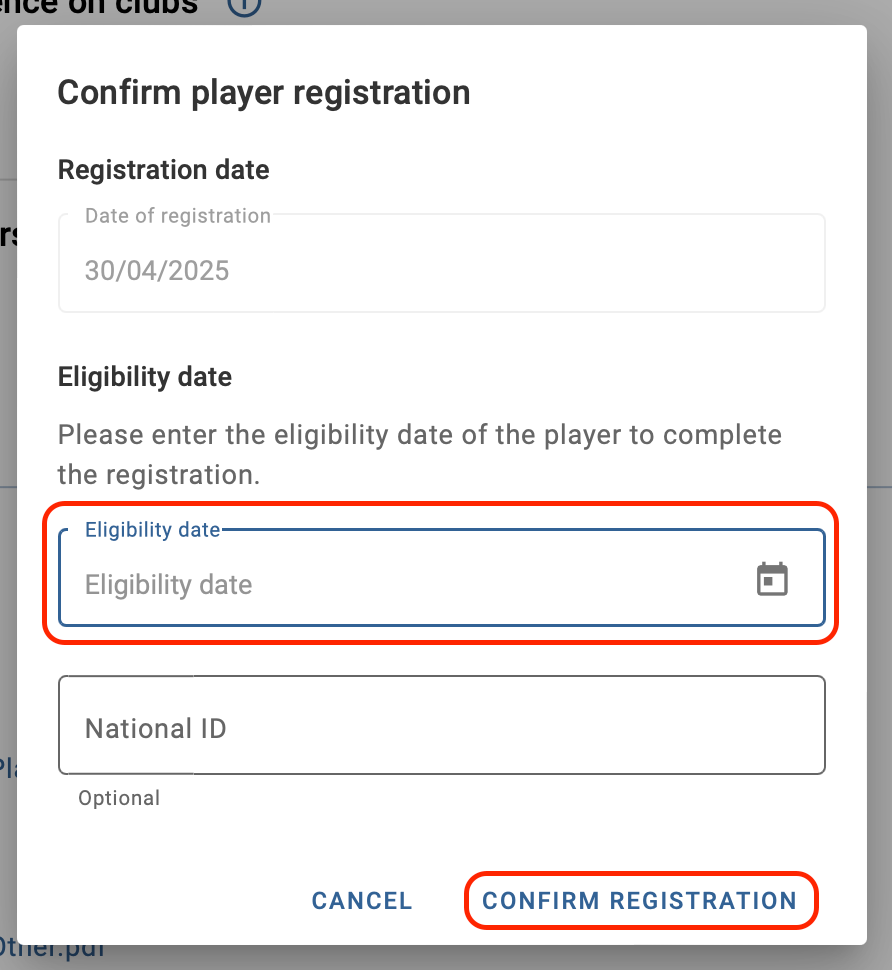
Once you have confirmed the registration, the transfer status will update to “Closed” or “Closed - Awaiting payments” in the case of a permanent transfer and “On loan – awaiting payments” or “On loan – awaiting conclusion” in the case of a loan transfer.
At this point, the domestic transfer certificate (DTC) will be generated and remain visible in the “History” tab of the transfer.