Table of contents
Club information is available under “Stakeholders > Clubs”, which lists all clubs in TMS.
You will find different filters to help you narrow your searches. You can display them by clicking on the double-arrow icon. Member Associations can filter the list to show only their affiliated clubs by selecting “Only show clubs of my association”.
You can also sort the search results by clicking on the header of each column.



For each club, you can see its status (“Active” or “Disaffiliated”) (1) and whether it participates in TMS (2). The status of clubs with FIFA IDs is synchronised with your National Registration System. The participation indicator means that the club has at least one active TMS user who can access the system and process transfers on its behalf.
If the club is subject to a registration ban, a warning message and icon appear below its shield (3). For more information on registration bans, see the section “Validation issues”.
Click “View details” (4) to open the club’s general information, contacts and bank details.

General club details
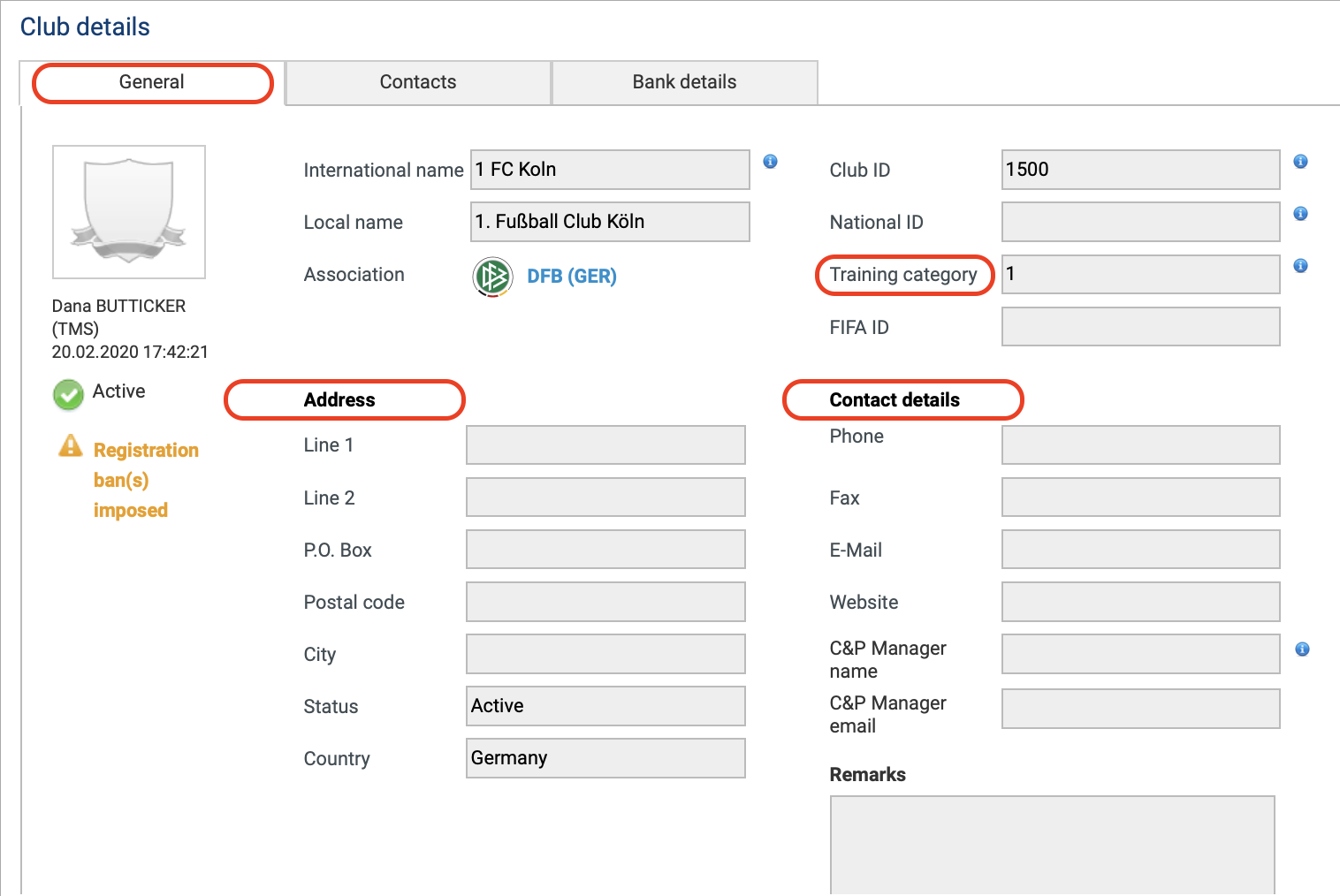
The “General” section shows the club’s name, its Member Association, its training category, as well as the club address and general contact details.
Clubs must keep their address, telephone number and email address valid and up to date at all times. Member Associations must ensure that their clubs’ address, telephone number, email address and training category are valid and up to date.
Failure to maintain accurate, complete and up-to-date club details is an offence subject to the administrative sanction procedure (ASP).
Circular letters issued by FIFA provide additional details regarding the club training category. You can find the list of circular letters on https://www.fifa.com/legal/documents.
The FIFA Clearing House compliance and payment manager (FCH C&P manager) named in the club profile is used for FIFA Clearing House processes if the club has no active TMS users and therefore does not participate in TMS.
When the FIFA ID is assigned to a club in TMS, the club’s details in TMS will be updated according to the information in your National Registration System (via FIFA Connect ID). For more information on this topic, see the section “Editing club details”.
The email address in the club’s contact details is used to create the club’s FIFA Legal Portal account if a case is opened.
Contacts
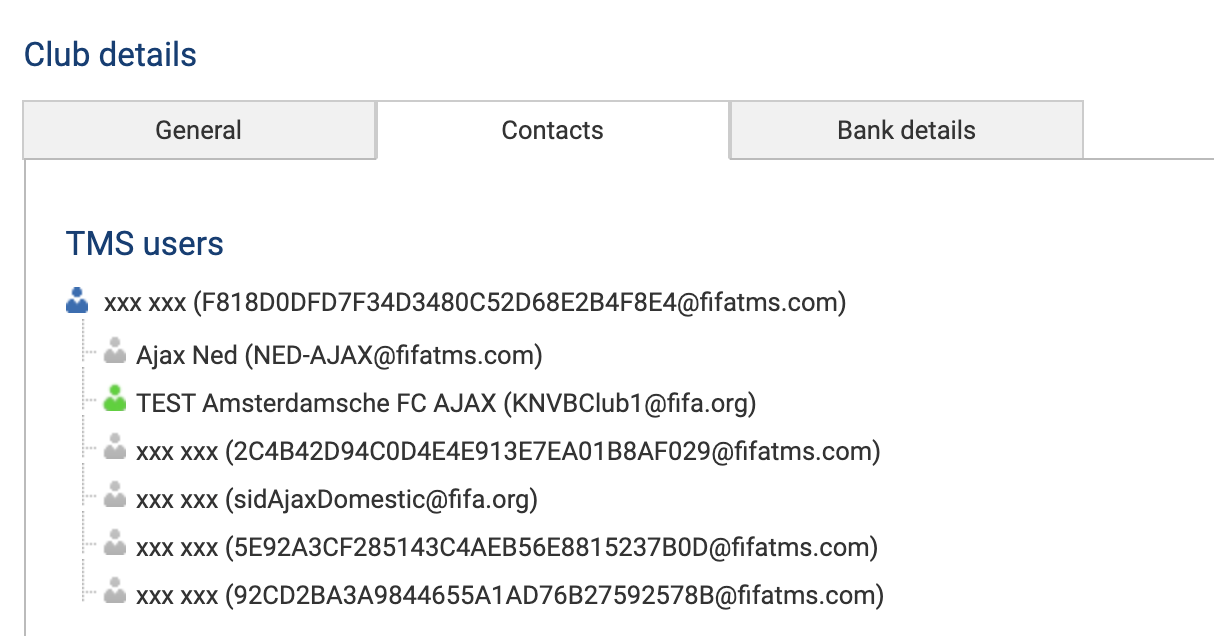
Under the “Contacts” section, you can view the list of active TMS users assigned to the relevant club. The TMS manager, the club’s main point of contact, is listed first and denoted by a blue person icon. The remaining individuals are TMS users.
If the FCH C&P manager is not the TMS manager, a green icon identifies their profile in the club’s TMS user contact list.
For more information on how to make changes to TMS users, see the sections under “User management”.
You can also view the contact details of the club president and general secretary. For more information on this topic, see the section “Editing club details”.
Bank details
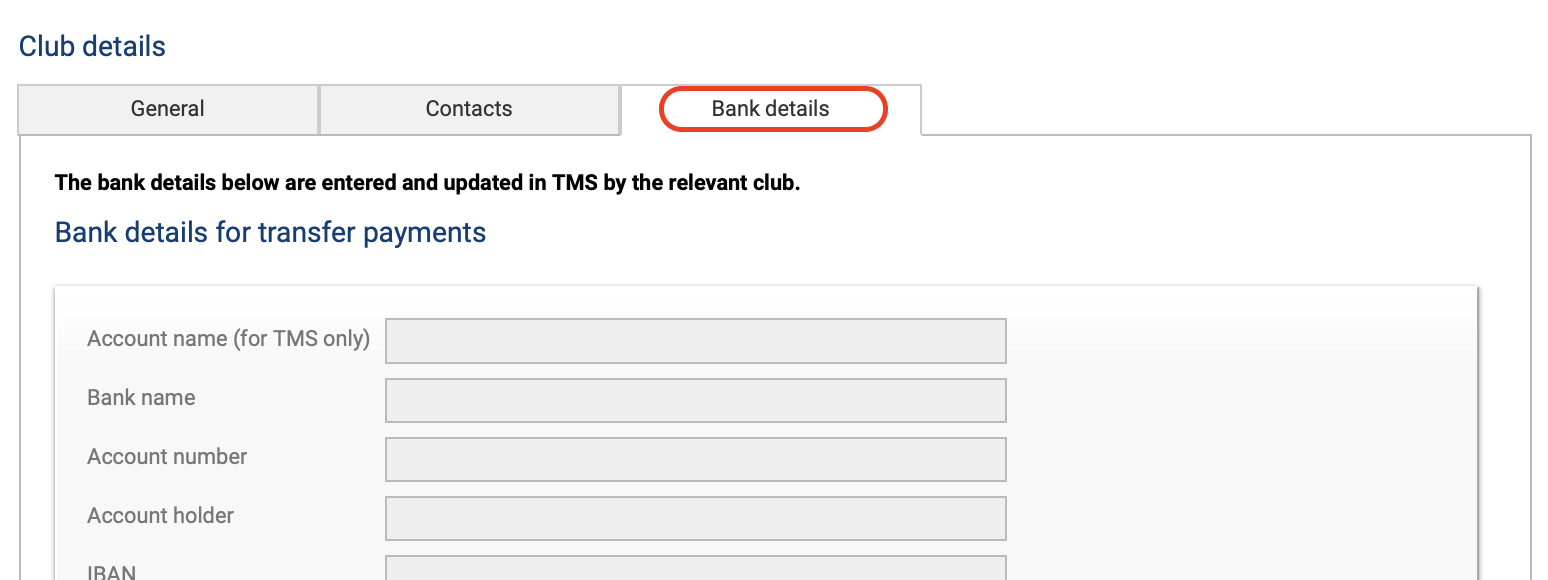
Under the “Bank details” section, you can view the bank details of the relevant club. The club enters and updates these bank details in TMS. They are required when processing a transfer and are visible to all TMS stakeholders.