Table of contents
Before starting a claim under the “Claims” module in TMS, we advise all users to consult the following:
- The scope of the Claims module
- The Procedural Rules Governing the Football Tribunal (outlining time limits and rules regarding advances of costs).
Claims must be entered in TMS by the club holding a TMS account or, in the case of a club without a TMS account, by the Member Association concerned.
To create the claim, click on “Claim training compensation”.
“Player” section
The details of the player involved in the claim must be provided. To do so, search for the player by entering the player’s name, nationality, date of birth or player ID. If the player is in the TMS database, the player’s name will appear in the drop-down list. To avoid creating a duplicate player record, ensure that you use the correct spelling of the player’s name (as stated in the player’s proof of identity), nationality (or nationalities) and date of birth. For more information on how to search for, create and edit players, see “Searching for players in TMS”.
If the player is not in the TMS database, you can create a new player manually by clicking on “Create new player”.
Once you have selected the player, the player’s details will appear in the “Player” section.
“Claimant” section
Club view
If you are acting as a club, your club will automatically be selected as the claimant, and this information cannot be changed.
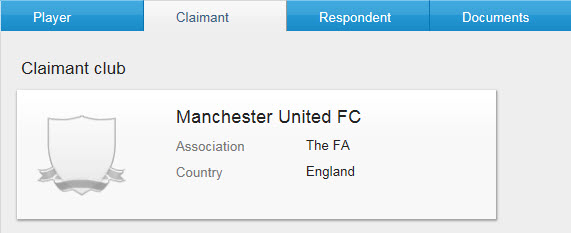
You will then be asked to select the training category of your club and to indicate whether your club is within the EU/EEA territory.
Member Association view
If you are acting as a Member Association, you must select the claimant club by typing its name in the relevant field. If the club is registered in TMS, the name will appear in the drop-down list. If the club is not registered in TMS, add the club manually by clicking on “Add club”.
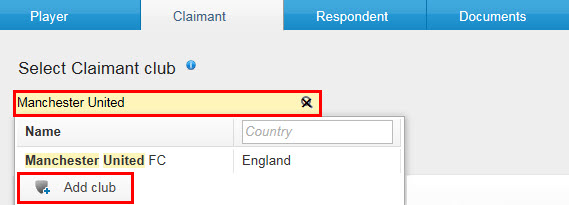
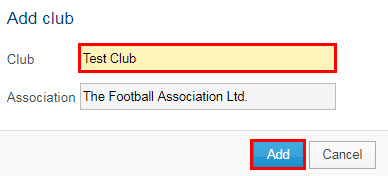
Enter the club’s name. Note that the name of your Member Association will automatically appear because you can only select or add claimant clubs that are affiliated to your Member Association. Click on “Add” to complete the action.
You will be asked to provide more information about the claimant, starting with the training category.
You must then indicate whether the claimant club is within the EU/EEA territory and whether it has ceased to participate in organised football and/or no longer exists.
If you select “Yes” for the statement “Claimant has ceased to participate in organised football and/or no longer exists”, you will be required to upload a document that proves this information is true.
“Respondent” section
The respondent club, meaning the player’s new club, must be selected by typing its name in the relevant field. If the club is registered in TMS, the name will appear in the drop-down list.
If the club is not registered in TMS, please contact the TMS Helpdesk.
You will then be asked to enter the training category of the respondent club and to indicate whether the respondent club is within the EU/EEA territory.
Complete the “Transfer information” section as accurately as possible by entering the transfer type and the month and year of the registration or transfer.
“Documents” section
The system will ask you to upload certain mandatory documents.
Once all mandatory documents have been uploaded, you can upload optional documents before clicking on “Submit claim”. After the claim has been submitted, it will no longer be possible for the claimant to edit or remove any uploaded document.
Confirmation
The system will display a summary of the information you have entered, allowing you to verify the claim details one last time before submitting it. Once the claim has been submitted, it will no longer be possible for you to edit the details of the claim.
Check the relevant box to certify that all the information is true and correct, then click “Submit claim”.
The claim will appear in the system with “Submitted” status.