Table of contents
Review the completion request
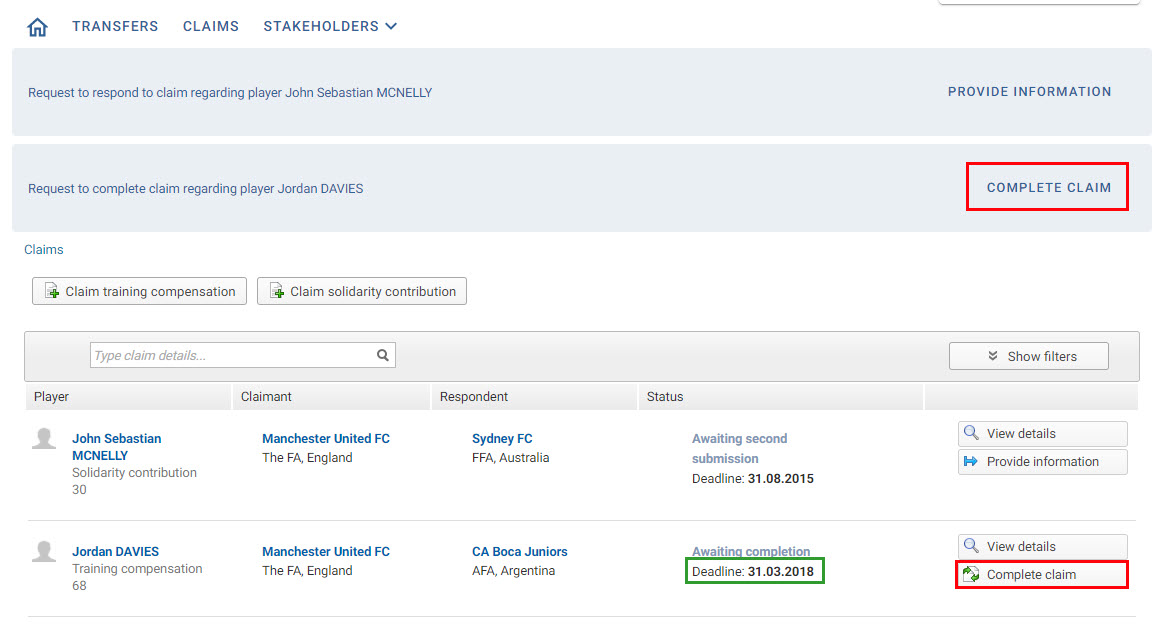
In the “Claims” tab, search for claims with the status “Awaiting completion”. You will also see a notification banner requesting you to complete the claim in question. Underneath the claim status, you will see the deadline for completion.
Click “Complete claim” to proceed.
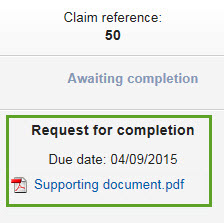
The panel on the right displays FIFA’s request letter, which explains any additional action required to complete the claim. The due date is also displayed.
The document is also visible in the “Additional documents” section of the drop-down menu at the bottom of the page.
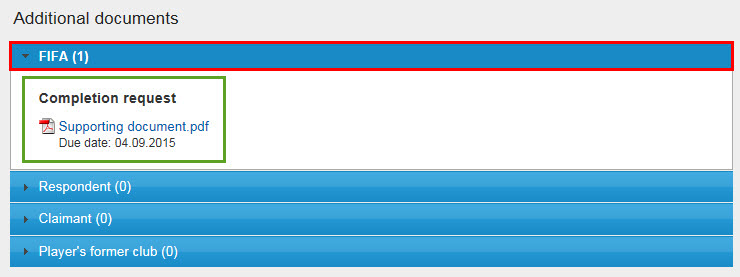
In this example, FIFA is asking the club to upload a complete player passport, as the player passport uploaded by the club does not contain the player’s exact registration dates.
Upload the requested documents
In the same section, go to the corresponding document category and click “Upload document”.
Once the document has been uploaded, it will appear under the previous one. If you uploaded the wrong document, click the cross icon to remove it.

Submit and monitor the claim
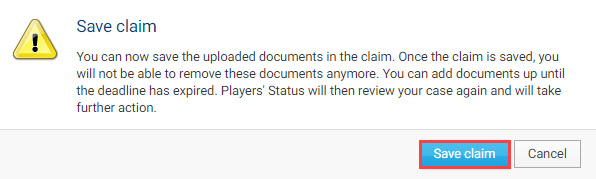
Once the required document has been uploaded, click “Save claim”.

You can add documents until the deadline expires. Click “Save claim” to continue.
The claim will remain in “Awaiting completion” status until the deadline expires. After the deadline has passed, the status of the claim will change to “Under consideration” (if any document has been uploaded). For more information about claim deadlines, see “Navigation in the claims module”.
