TABLE OF CONTENTS
Introduction
Two types of content are available on the e-learning platform: learning paths and courses.
A course covers a specific topic, such as “Declaring payments”, while a learning path is a collection of courses required to obtain a certificate for a specific topic.
Learners can select from nine learning paths based on their role. The learning paths for clubs and Member Associations are separate and are titled either “Club training” or “Association training”. Before enrolling, select the role that most closely matches your TMS role. When selecting a learning path, consider whether you work with domestic or international transfers and amateur or professional transfers so that you select the appropriate path.
The training certificate is only applicable to learning paths, not to individual courses or practice sessions. Completing individual courses will not reflect progress in a learning path. To obtain a certificate, select a learning path and complete its courses from within that learning path.
Enrolling in learning content
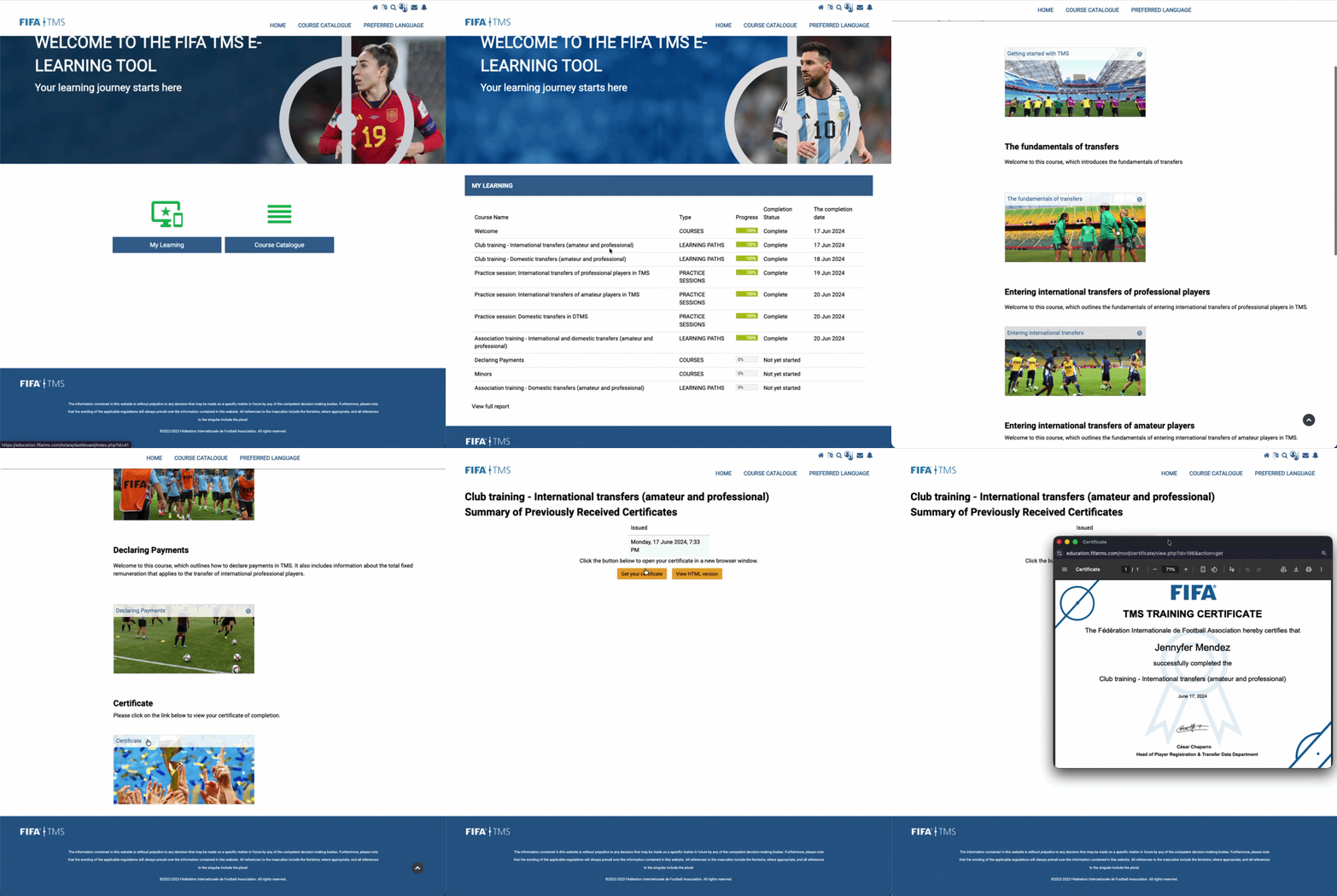
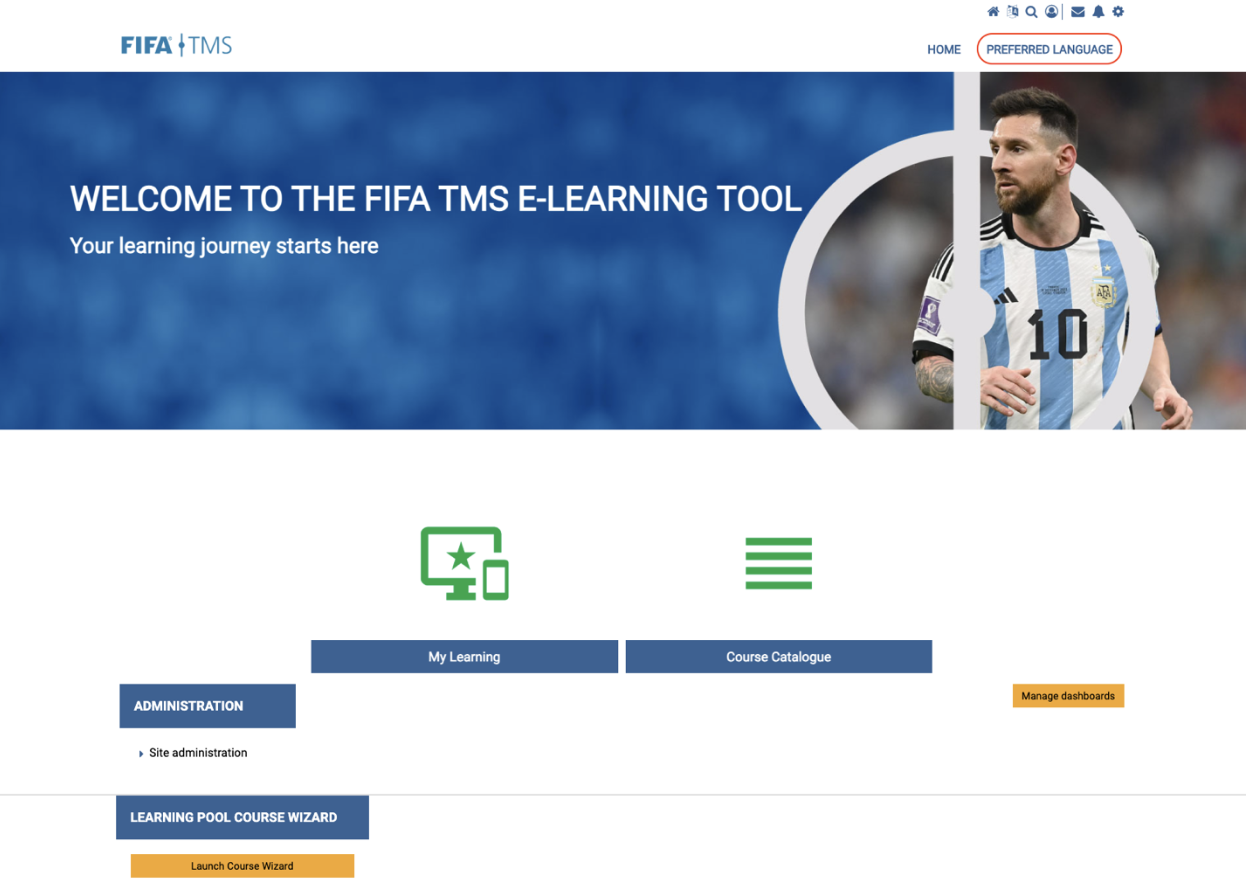
After logging in to your e-learning account, your dashboard will display two options: “My Learning” and “Course Catalogue”. If you selected a learning path when registering for an account, the relevant learning path will already be assigned to you, and it will be accessible from the “My Learning” page. You will also be automatically enrolled in the FIFA Clearing House learning path relevant to your user role (Member Association or club user).
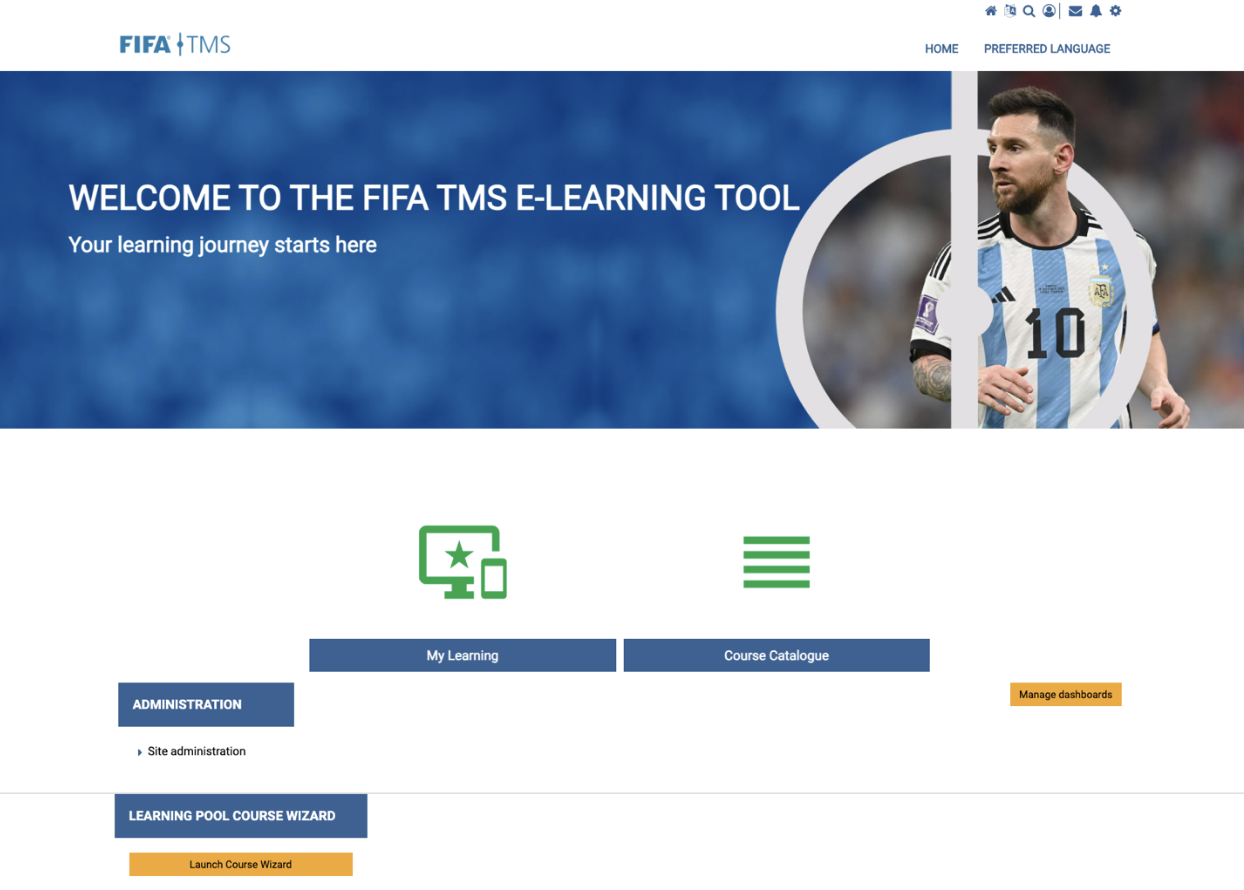
To enrol in new training content, open the “Course Catalogue”, where you can find all the courses and learning paths. Use the filters to show or hide the relevant training type.
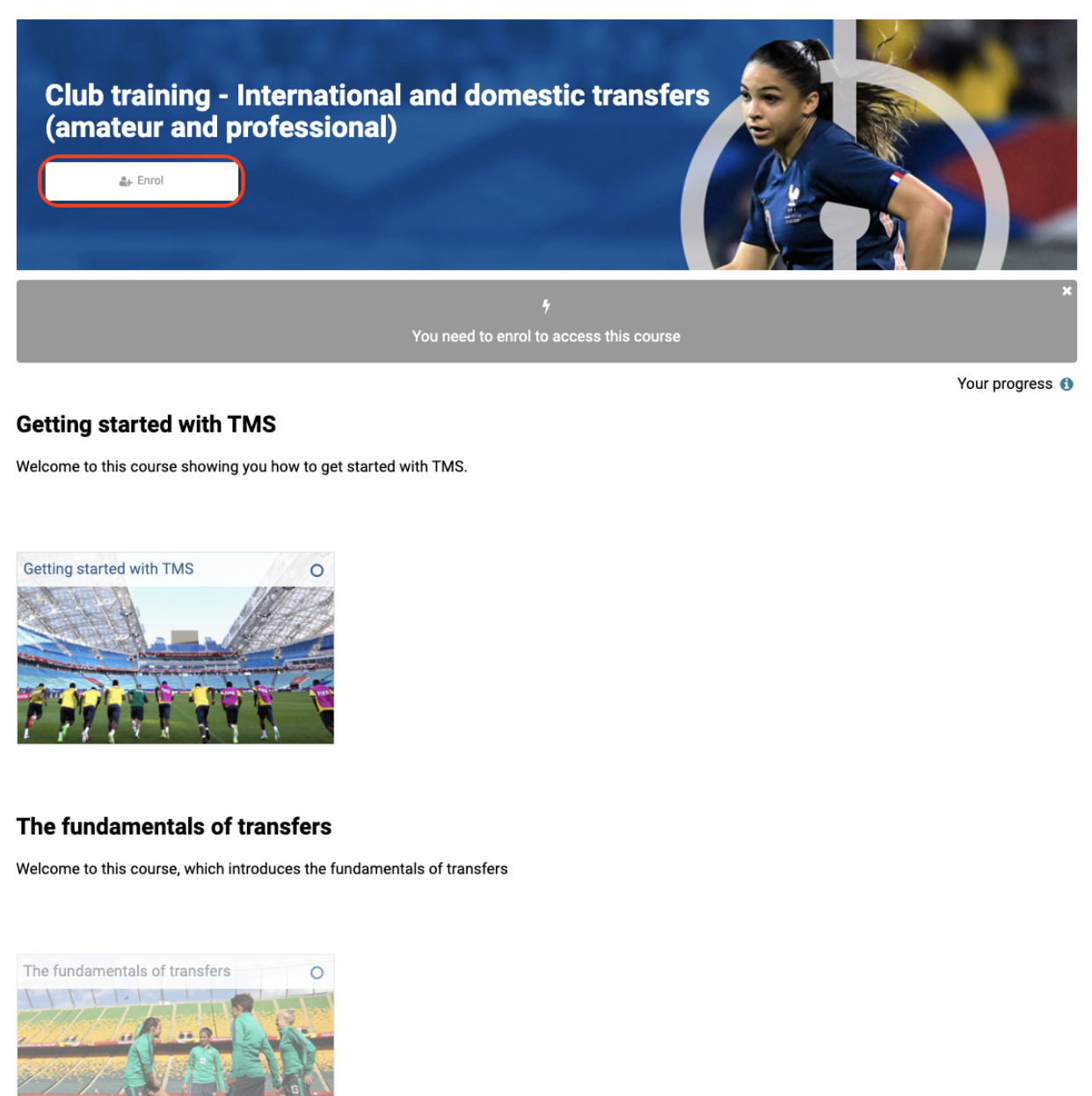
You can enrol on a particular course or learning path by selecting the relevant training and clicking “Go to course”. Then click “Enrol” and select the course title to access the content.
If the content does not launch automatically due to the pop-up blocker, select “Click to Launch Manually”. To avoid getting this message in the future, you can allow pop-ups in your browser.
Some courses require practice sessions to be completed using the FIFA TMS test system. For more information on accessing this test system, see “Login details for test accounts”.
For a course to be marked as complete, all its sections must be completed, including all required interactions. You can confirm this by opening the course and checking that each section shows a solid green progress bar.
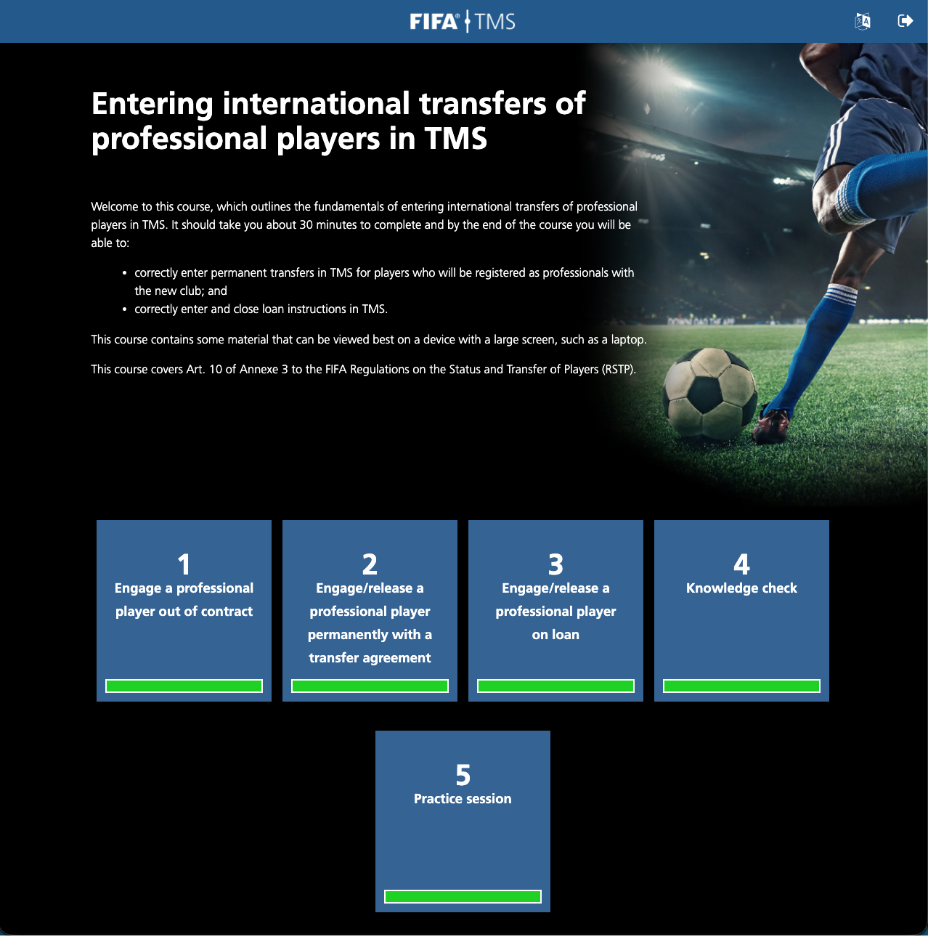
If any bar is not yet full, select that section to open it, then click the green bar at the top of the page. This will display the list of remaining items you still need to complete in that section.
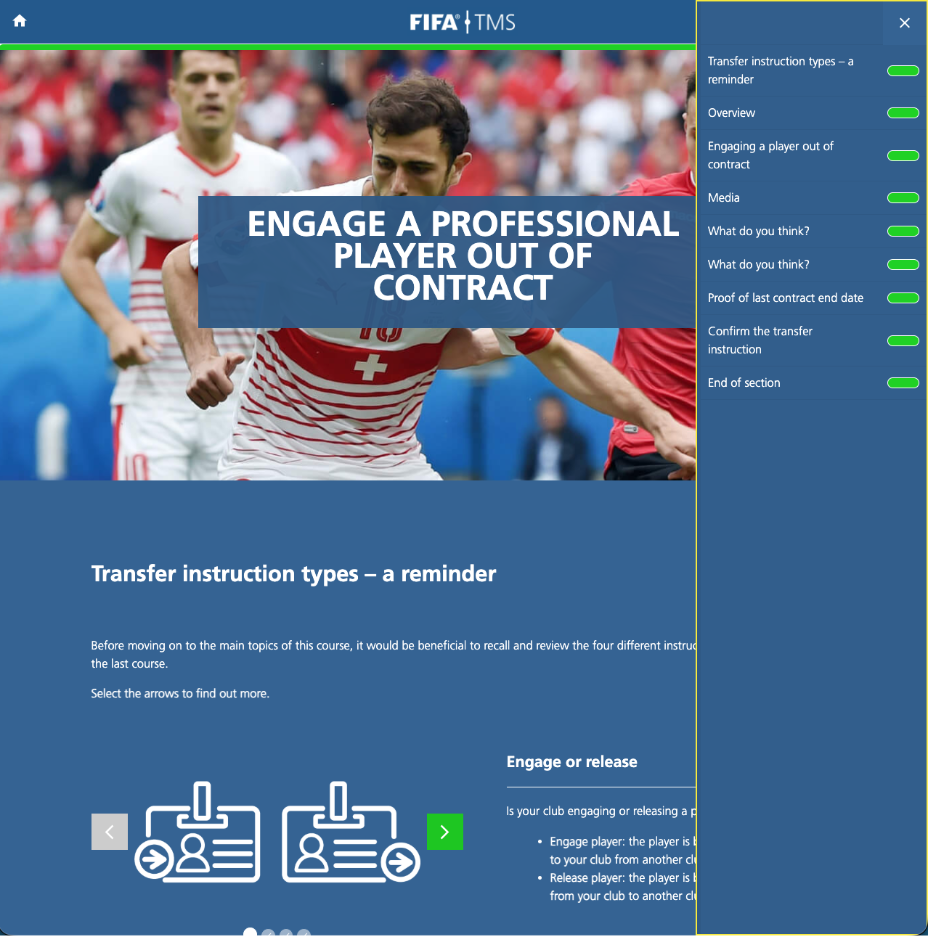
For FIFA Clearing House related courses, select the three-line menu icon at the top left of the page to see which sections remain to be completed.
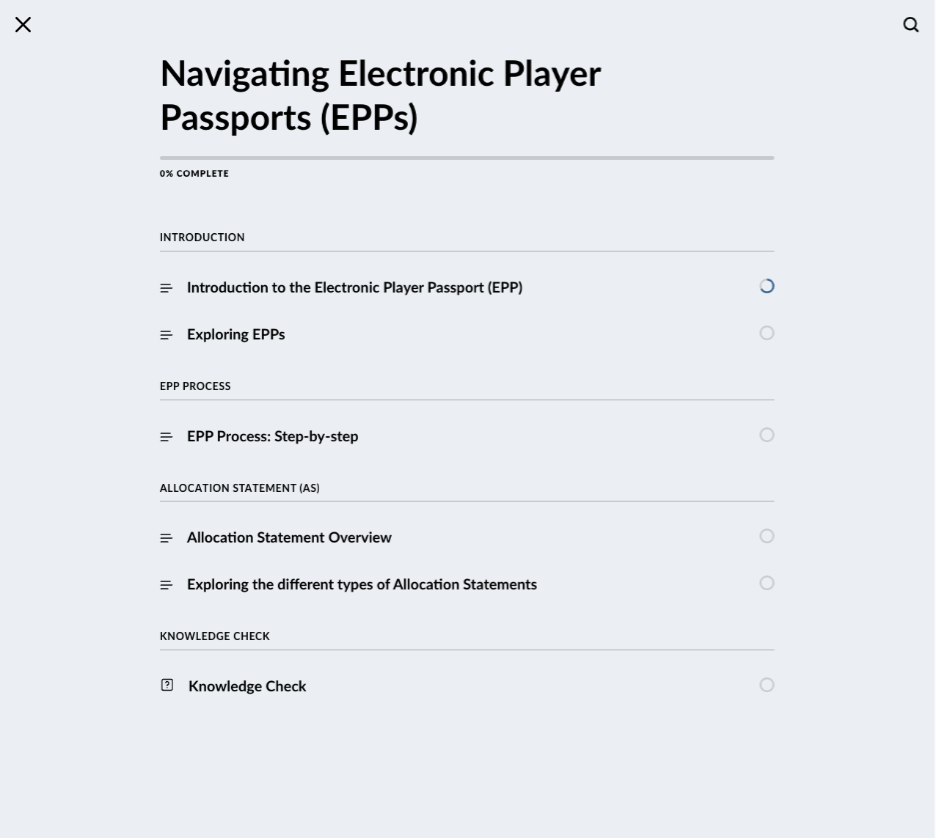
When you have finished a course, click on the exit button in the top-right corner and you will be taken to the course or learning path page. If you are completing a learning path, you can continue with the next course. Once you have completed the learning path, you will be able to download the training certificate.
Changing the language
Click on the tab in the top right-hand corner and select “Preferred language” to change your account language.
The content language and content available to you depend on the account/system language. After changing your preferred language, allow an hour for this change to be fully reflected in the learning paths available to you.
For additional questions or feedback, contact tmshelpdesk@fifa.org.
Accessing your certificate
Certificates of completion are issued only after finishing an entire learning path, not individual courses. Once all courses in your selected path are completed, a “Certificate” item will appear as the final step.
To download the certificate, click the “Certificate” icon and select “Get your certificate”. The certificate will open in a new window, where you can view, download or print it. If the certificate appears unavailable or greyed out, at least one course still has pending content. Completed courses will appear active, while those with remaining items will be greyed out. Open any unfinished course to review and complete the remaining sections.
Individuals seeking access to TMS must complete their designated TMS training, and Member Associations are required to upload the certificate of completion when submitting a new user request, when they select “Via the e-learning tool” as the training method.