Table of contents
Introduction
Scenario: the player was transferred on loan from club A to club B. At the end of the loan, both clubs agree on the permanent transfer of the player to club B.
The transfer agreement information must be entered as accurately as possible, and the mandatory documents must be uploaded by both clubs. For more information on the mandatory documents, see “Transfer documents in TMS: mandatory documents, upload rules and evidence”. The information provided by both clubs must match for the transfer to proceed to the next stage. For more information on this topic, see the “Matching process and matching exception” section.
Since the player’s transfer certificate process and registration were already processed during the original loan transfer, the ITC/DTC process does not apply to the loan to permanent instruction. Thus, the loan to permanent instruction can be processed in TMS at the appropriate time even if the registration period is closed.
Creating the instruction
To enter a loan to permanent transfer, search for the original loan and click on “From loan to permanent”.

“Player & Clubs” section
Player
Information on the player is taken from the related transfer, i.e. the initial loan transfer.
New and former club
The new and former clubs are automatically retrieved from the initial loan transfer.
The date on which the transfer agreement was formed must be entered by using the calendar search or by typing the date manually. This date must match the date provided in the transfer agreement. The transfer agreement must then be uploaded by clicking on “Drop files to attach or click to browse”.
Ensure that the document being uploaded complies with the requirements set out in the “Transfer document guidelines”. Failure to upload a document in compliance with these requirements will constitute a breach of the Regulations.

“Employment” section
Fill out all fields relating to the player’s employment contract accurately. For more information on how to use the player’s salary calculator, see the section “Total fixed remuneration calculator”.
Then upload the player’s complete employment contract. All pages of the employment contract must be uploaded, including all annexes and amendments.
“Football Agents” section
If your club and/or the player have an agent representing them in relation to this transfer, this information must be entered in TMS by clicking “Yes”. You will then be required to declare the agent information within the transfer. For more information, see “Declaring agent information”.
“Payments & TPO” section
If the transfer includes any fixed transfer fee, conditional transfer fee and/or sell-on fee payments, select “Yes” to the payment question under the “Payments” tab. If it does not, select “No”.
If you click “Yes”, enter the payment details accordingly, i.e. the currency in which the payment will be made, the payment amount, details of instalments (if any), and your club’s banking details. For more information on how to declare the payments within a transfer instruction, see the section “Club-to-club payments within the transfer instruction”.
Declaration on third-party payments and influence on clubs
Prior to confirming the transfer, you must, on behalf of your club, either declare “Yes” or “No” to the declaration on third-party influence on clubs. For more information on this topic, see the section “Third-party influence”.
Failure to provide mandatory information or entering incorrect information in ITMS is an offence subject to the Administrative Sanction Procedure (ASP).
Declaration on third-party ownership of player’s economic rights
Prior to confirming the transfer, you must, on behalf of your club, either declare “Yes” or “No” to the declaration on third-party ownership (TPO) of a player’s economic rights.
For more information on this topic, see the section “Third-party ownership”.
Training rewards waiver
This section is optional. If a club has waived its right to receive training rewards, you may upload any relevant supporting documentation.
Confirmation
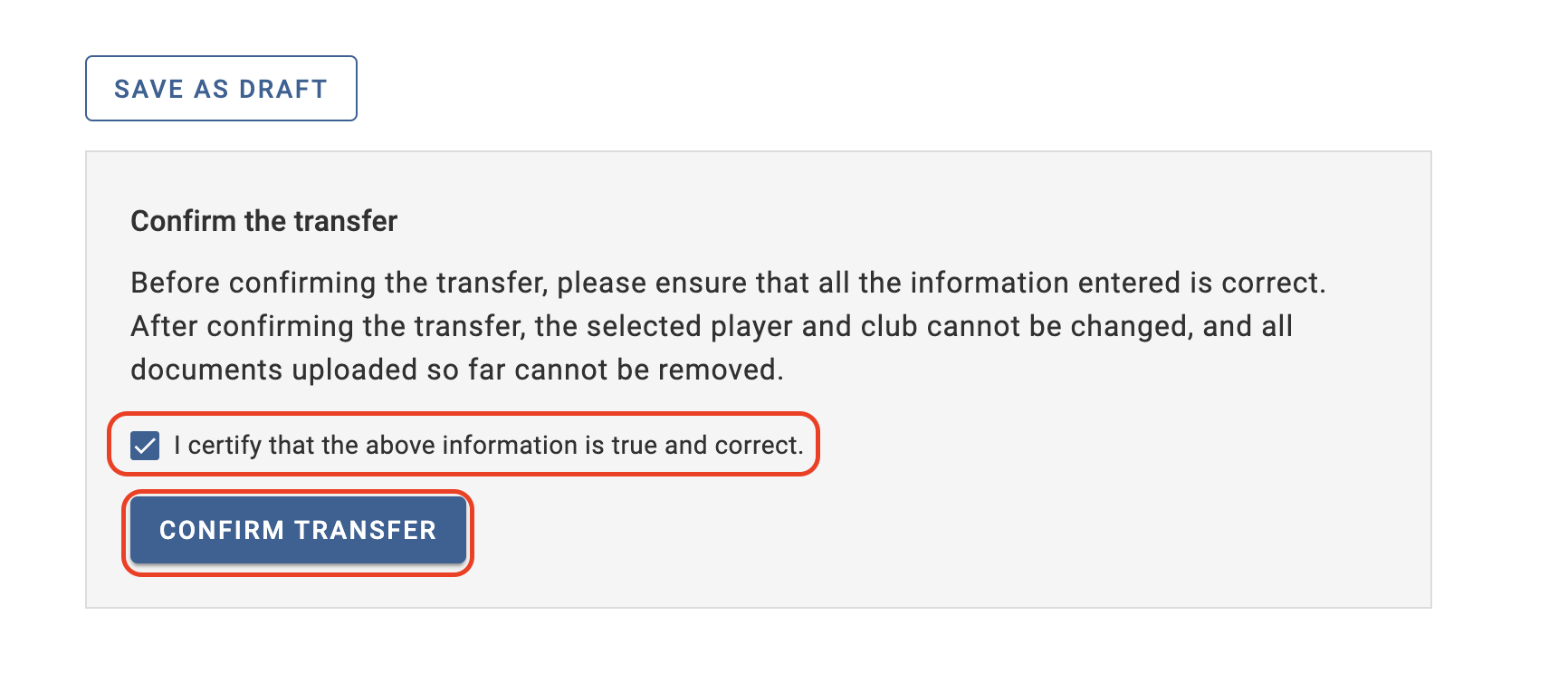
Once you have entered all the necessary details in the instruction and have uploaded all the mandatory documents, you may either confirm the transfer or save it as a draft and return later. If you choose to save as draft, the status of the transfer will change to “Pending” until it is confirmed.
Certify that all the information is true and correct by clicking on the relevant box, and once you are certain that everything is in order, click on “Confirm transfer”.
Once you have confirmed the instruction, the transfer status will change to “Awaiting counter instruction”.
If the transfer remains in “Awaiting counter instruction” status or if the transfer changes its status to “Matching exception”, contact the counter club directly to resolve the mismatch. For more information on this topic, see the section “Matching process and matching exception”.