Table of contents
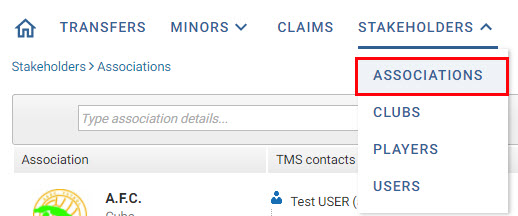
All relevant information about Member Associations is available under the “Stakeholders” tab.
There are different filters to help you narrow your search. You can display them by clicking on “Show filters”.

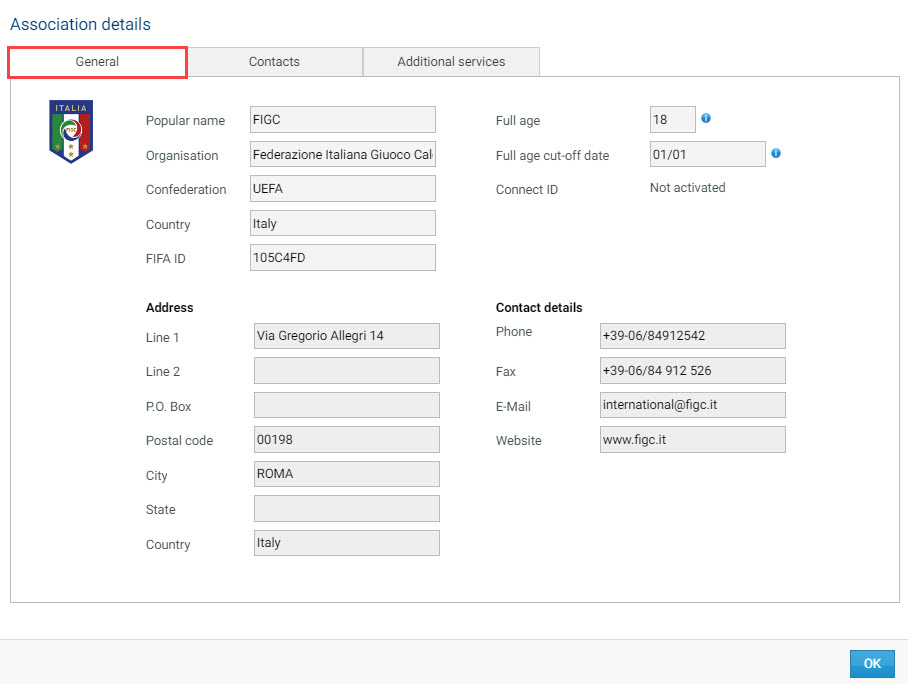
Click “View details” (1) to open the Member Association’s general information, TMS contacts and activated additional services.
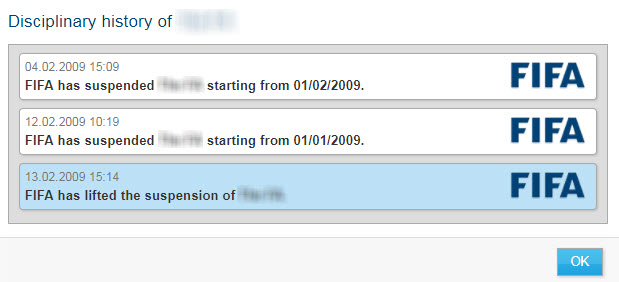
You can also view the Member Association’s disciplinary history by clicking on the relevant button (2).
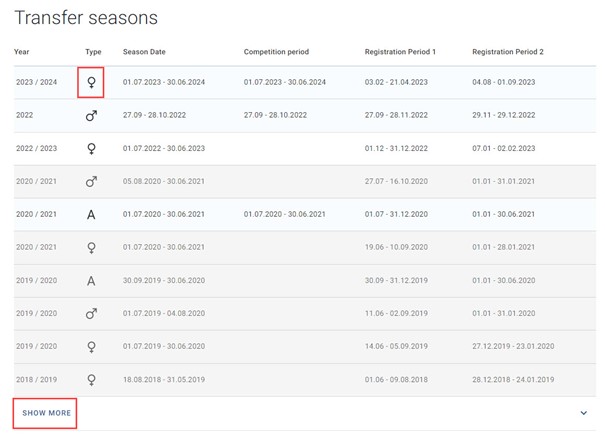
By clicking on “Transfer seasons” (3), a new page will open, displaying complete details of the season, competition period and registration period dates.
If a Member Association has been granted a limited minor exemption (LME), has been suspended or has failed to upload the LME report, a message will be displayed below its shield (4). For more information on this topic, see the section “Limited exemption to register minors”.

Transfer seasons
In the “Transfer seasons” section, you can view the past, current and future season, competition period and registration period dates defined by the Member Association concerned. Member Associations must enter registration periods for:
- competitions in which professional (and amateur) male players participate;
- competitions in which professional (and amateur) female players participate; and
- competitions in which only amateur players participate.
For more information on this topic, see the section “Season, competition period and registration period dates”.
General association details
The “General” section shows the Member Association’s name, address and general contact details. For information on how to update general information, see the section “Editing association details”.
Contacts
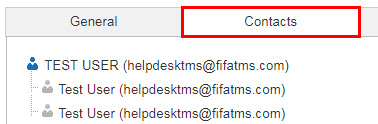
Under the “Contacts” section, you can view the list of active TMS users assigned to the Member Association concerned. The first individual is the TMS manager (the main point of contact of the Member Association) and the remaining individuals are TMS users.
If the user assigned as the FIFA Clearing House compliance and payment manager (FCH C&P manager) is not the same as the TMS manager, their profile will be highlighted in green in the Member Association’s TMS user contact list.
For more information on how to make changes to TMS users, see the sections under “User management”.
Additional services
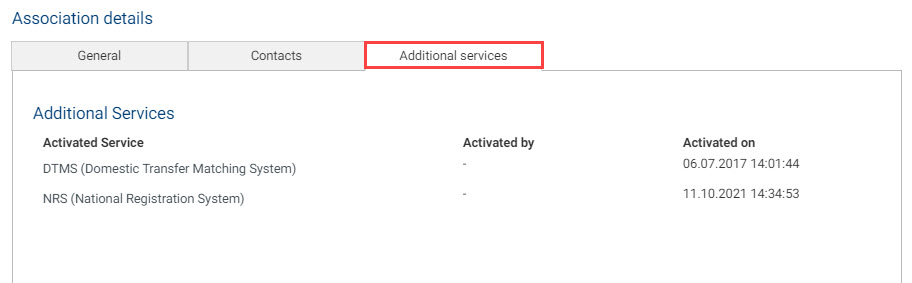
Under the “Additional services” section, you can check whether the Member Association concerned has any additional services activated (DTMS and NRS interface).
Disciplinary history
Click “Disciplinary history” next to the Member Association concerned to view its suspension details, if any. For more information on Member Association suspensions, see the section “Validation issues”.