Table of contents
- Introduction
- Assigning the FIFA ID to the club
- Option A: selecting a possible duplicate and overwriting the entry for the club
- Option B: manually entering the club’s FIFA ID
- Additional verification of FIFA ID
- Scenario 1: the two clubs are the same legal entity
- Scenario 2: the two clubs are different clubs
- Common difficulties and error messages
Introduction
As part of the FIFA Connect ID-TMS integration process, your Member Association must assign the correct FIFA ID to all its clubs, whether active or disaffiliated, in TMS. If you are unsure of a club’s FIFA ID, verify it in your National Registration System (NRS).
This process will apply when the club’s FIFA ID is missing from TMS.
Note: as a general rule, each club (considered to be a single legal entity) must have a unique FIFA ID assigned in the NRS, in Connect ID and in TMS. Teams belonging to the same club must be represented by that same club as a single entity (with a unique FIFA ID). Alternatively, teams can coexist with the main club in the NRS but will be categorised as “teams” and linked to the parent club.
When engaging or releasing a player, the relevant Member Association must resolve possible duplicates by either:
- selecting a possible duplicate from FIFA Connect ID and overwriting the entry for the club in TMS; or
- manually entering the club’s FIFA ID.
Assigning the FIFA ID to the club
Follow these steps to resolve a club duplicate in TMS:
Navigate to “Duplicates > Clubs” in the Association Task Manager to view the possible duplicate(s).
The club’s details from TMS will be displayed on the left (“Club in TMS (without FIFA ID)”) and the possible duplicate(s) from the FIFA Connect ID database will be displayed on the right (“Possible club duplicates from Connect ID (with FIFA ID)”). Use the arrows to navigate from one possible duplicate to the next and view the relevant details.
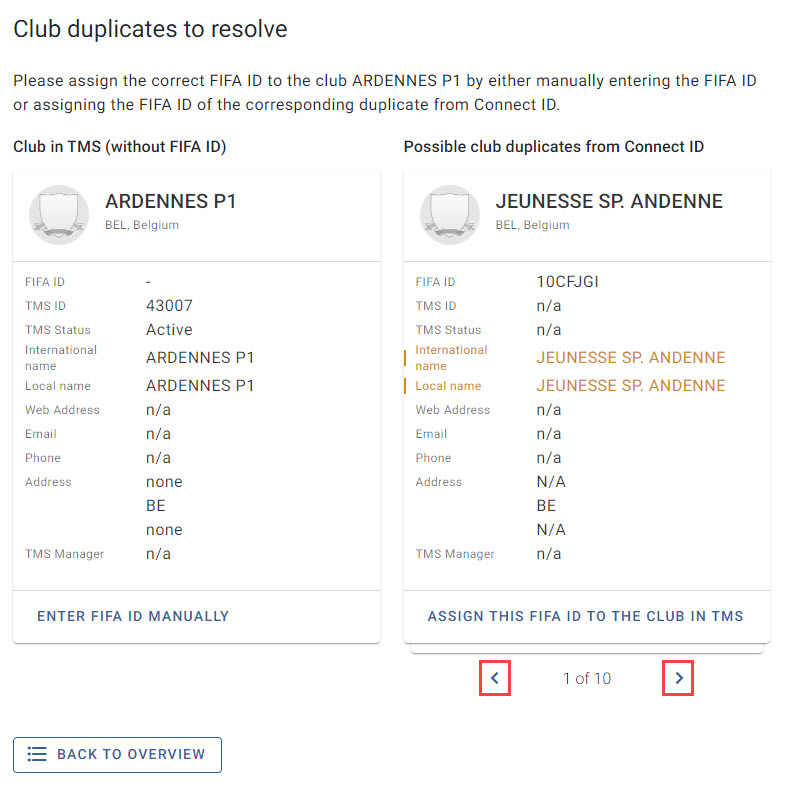
Review options A and B below and complete the relevant steps according to the specific case.
Option A: selecting a possible duplicate and overwriting the entry for the club
Click on “Assign this FIFA ID to the club in TMS” if the possible duplicate is the same club as the one in TMS.
The system will ask you to confirm that the possible duplicate is identical to the club in TMS. Click on “Assign FIFA ID” to proceed.
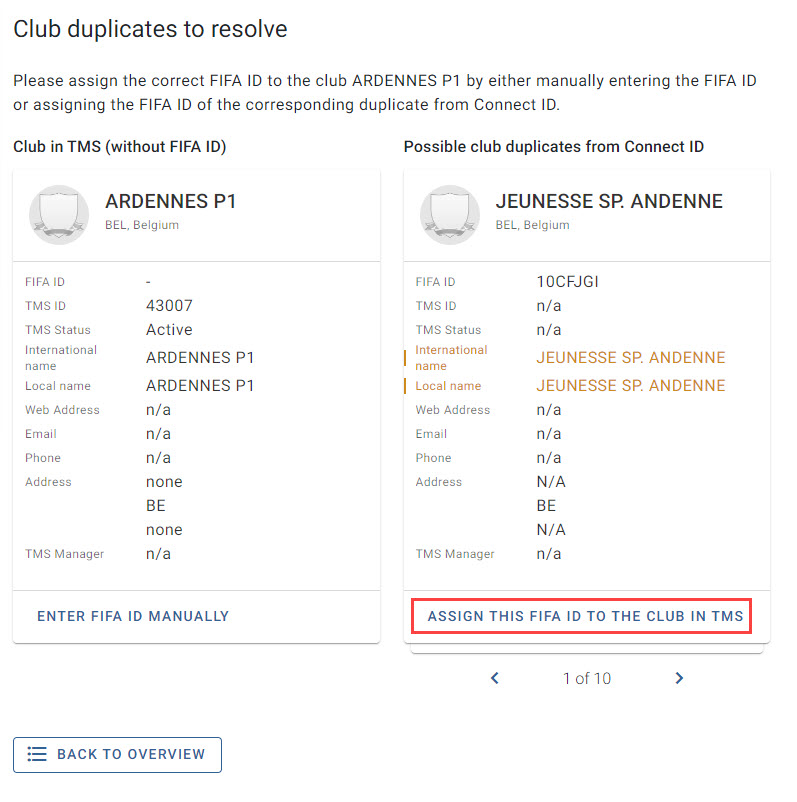
The details of the FIFA ID assignment will be verified and, if successful, the FIFA ID will be assigned to the club in TMS.
If the verification process requires further input from your Member Association, you will be directed to a new window. For more information, see “Additional verification of FIFA ID” below.
Option B: manually entering the club’s FIFA ID
If the club in TMS does not match the possible club duplicate(s) from Connect ID, or if no possible duplicates are displayed, you must enter the FIFA ID manually by clicking on “Enter FIFA ID manually”.
Verify the club’s correct FIFA ID in your National Registration System. Enter the FIFA ID and click on “Assign FIFA ID”.
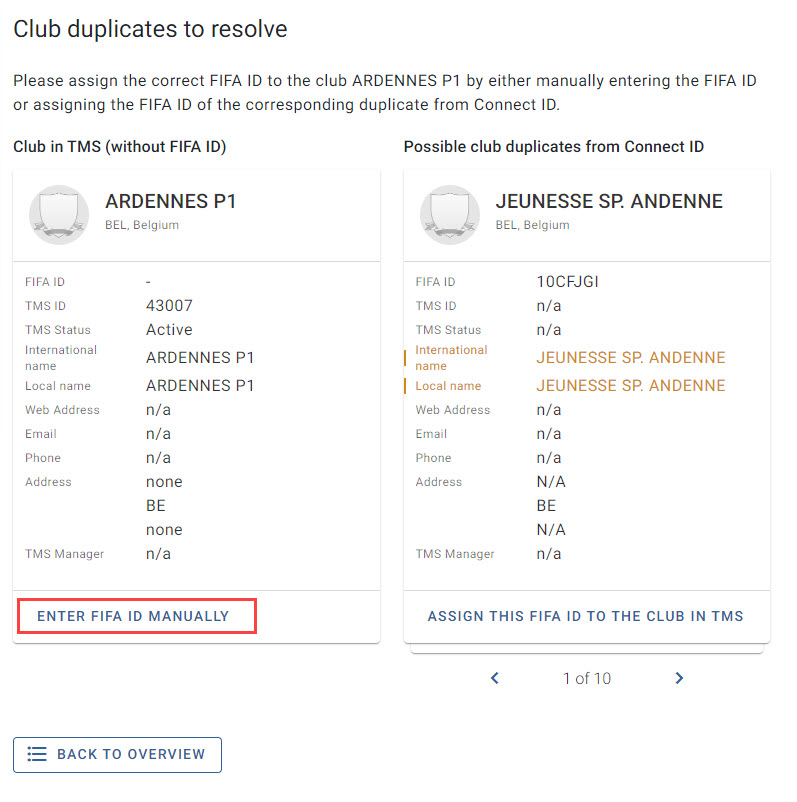
The details of the FIFA ID assignment will be verified and, if successful, the FIFA ID will be assigned to the club in TMS.
If the verification process requires further input from your Member Association, you will be directed to a new window. For more information, see “Additional verification of FIFA ID” below.
Additional verification of FIFA ID
When assigning a FIFA ID to a club in TMS, the system checks whether the FIFA ID is already assigned to another club. If an existing assignment is detected, your Member Association will be redirected to a new window to provide additional information.
The club’s details from TMS (without a FIFA ID) will be displayed on the left (“Club in TMS without FIFA ID”), and the club that already exists in TMS with the selected FIFA ID will be displayed on the right (“Club in TMS with assigned FIFA ID XXXXX”).
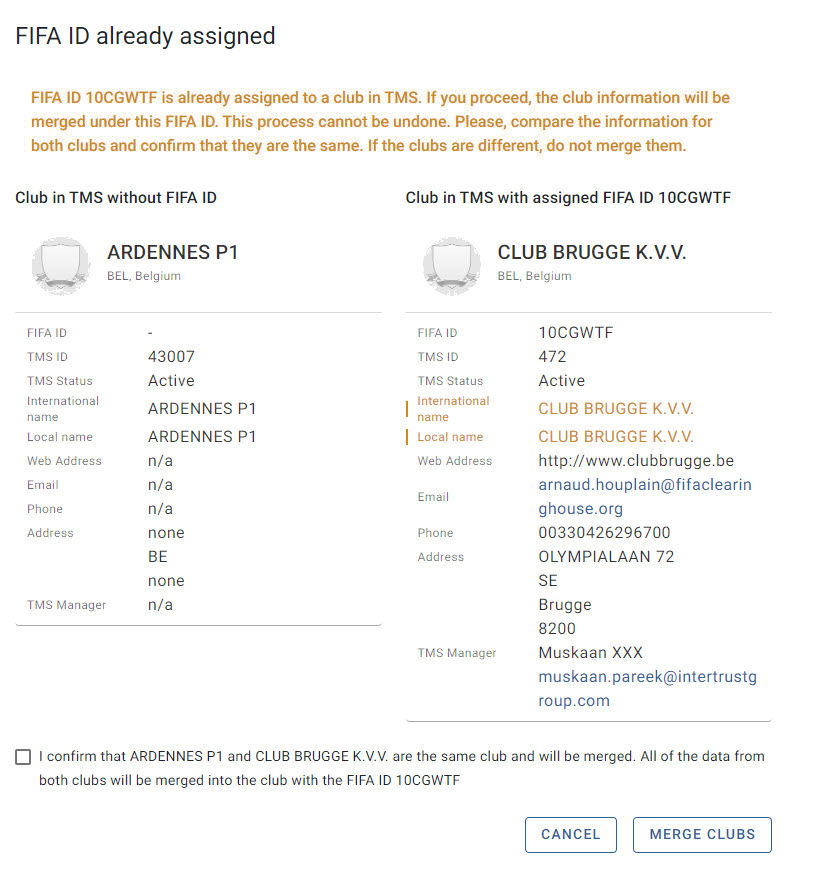
Your Member Association must thoroughly review the data for both clubs in TMS and in the NRS to determine whether the two clubs are either:
- the same club (i.e. the same legal entity); or
- different clubs (i.e. separate legal entities)
Scenario 1: the two clubs are the same legal entity
If the two clubs are the same legal entity, this means that the club has been duplicated in TMS and the data for the clubs should be merged.
During this process, your Member Association may merge the clubs automatically without the intervention of the TMS Helpdesk.
If your Member Association is certain that the two clubs are the same, it must first confirm this information and then select “Merge clubs”.
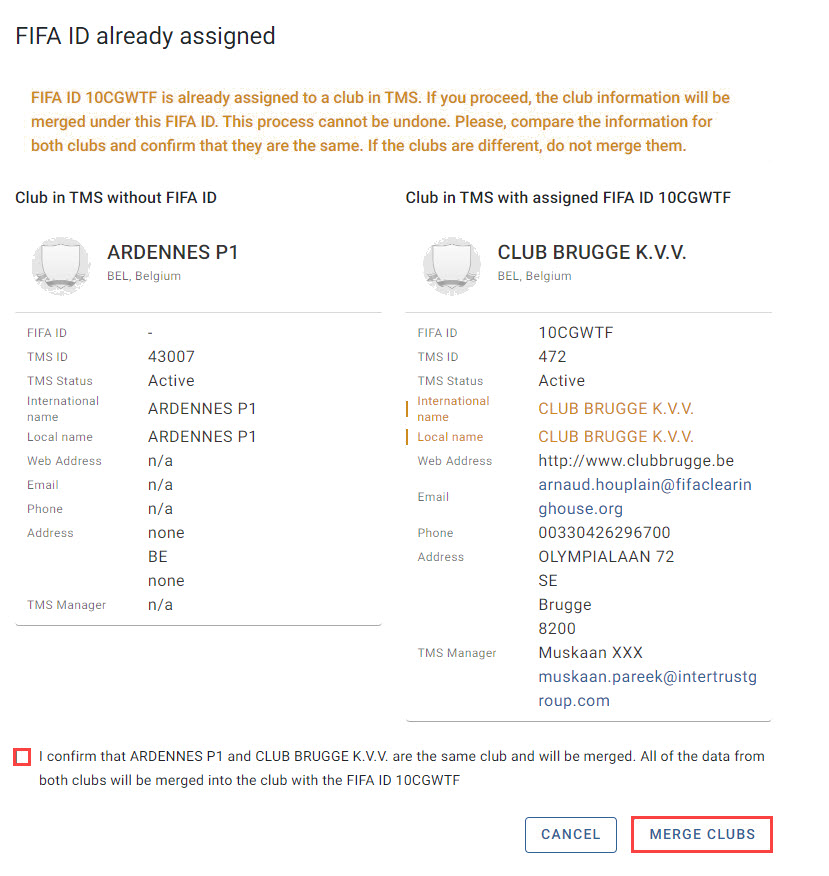
The data for both clubs will be merged accordingly. All transactions, TMS users and data from the club without a FIFA ID will be transferred to the club that already exists in TMS with that FIFA ID.
Scenario 2: the two clubs are different clubs
If the two clubs are different clubs, this means that your Member Association selected or entered an incorrect FIFA ID for the club in TMS (without a FIFA ID).
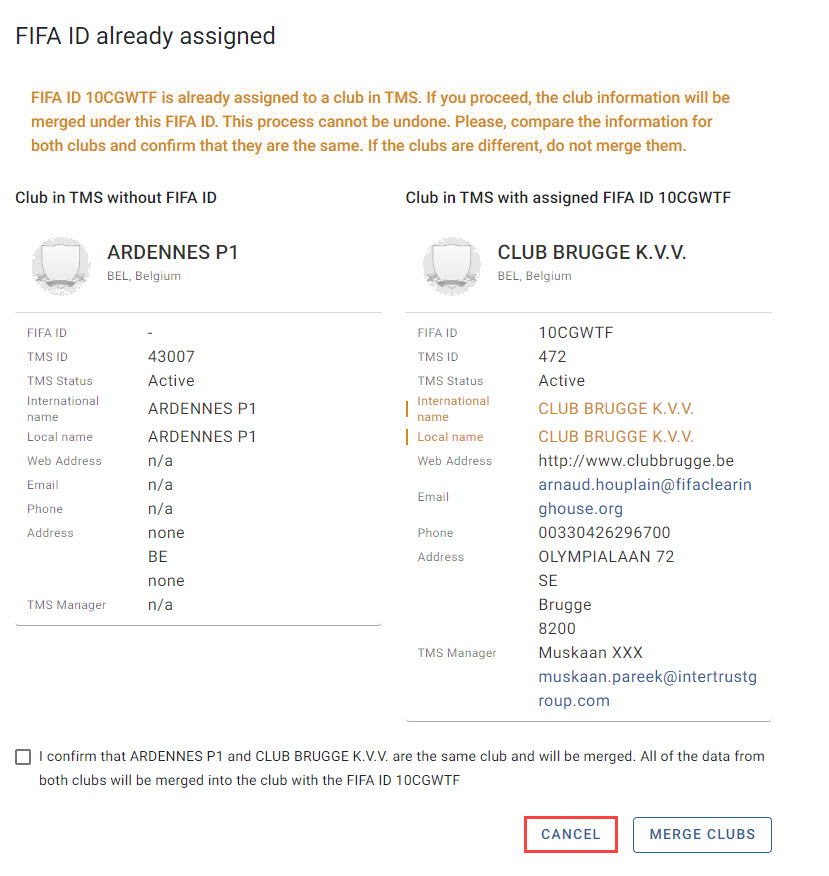
If the clubs are different, or if your Member Association requires more time to review the data for both clubs, it must select “Cancel”.
Common difficulties and error messages
If the FIFA ID is not assigned after your Member Association enters it manually and the duplicate-resolution task remains on the dashboard, the FIFA ID may be invalid or may belong to an organisation that is not categorised as a “club” in your NRS.
To proceed, verify the information for the club in your NRS to ensure that it is categorised as a “club” and that you are manually entering the correct FIFA ID in TMS.
If the issue persists, contact the TMS Helpdesk.