Table of contents
Requirements to become a TMS user
The requirements to become a TMS user are listed in the relevant section “Requirements to be a TMS user”.
Requesting new TMS user accounts
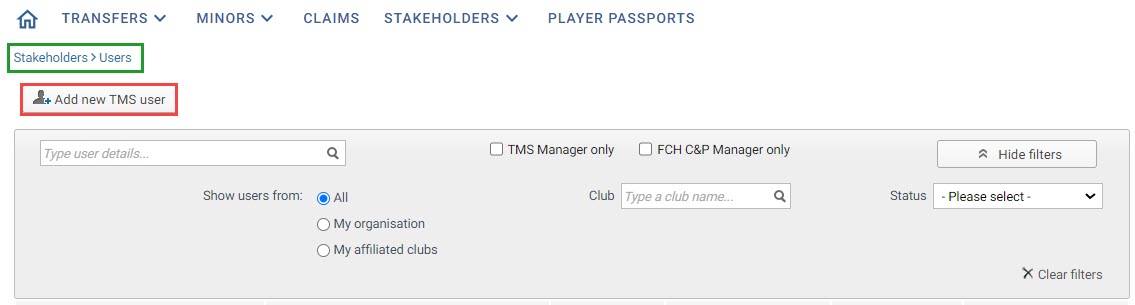
Only Member Association users can add new TMS users for their own organisation and their affiliated clubs. To add a user, navigate to “Stakeholders > Users” and click “Add new TMS user”.
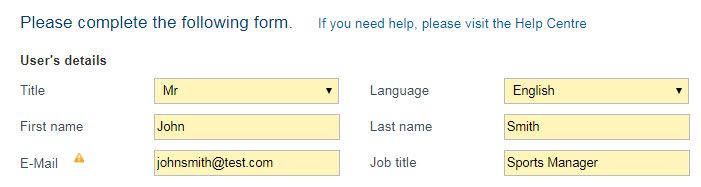
Complete all fields accurately. Enter the user’s full name, including any middle names, exactly as it appears on the proof of identity.
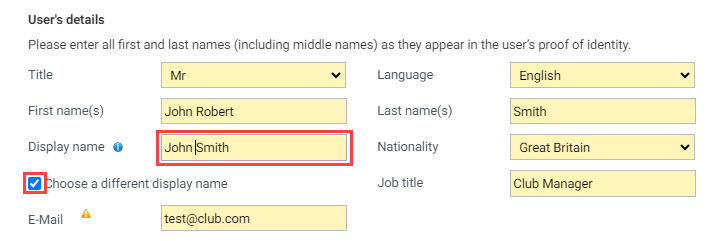
To use a different name in TMS, select “Choose a different display name” and edit the name accordingly. The display name will appear everywhere in TMS instead of the user’s official first and last names.
For security reasons, the user must have an individual email address; general or shared email addresses are not accepted. FIFA may reject a new user request that does not meet this requirement. The system will display a validation message if the email address of the new user is already being used by an existing user.
You will also need to select the organisation for which you are adding the new user. If you are adding a user for one of your affiliated clubs, select “Club” and type the name of the club in the relevant field. Search thoroughly for the club to avoid creating a duplicate. If a new club is not already in TMS, click “Add club” and add it manually.
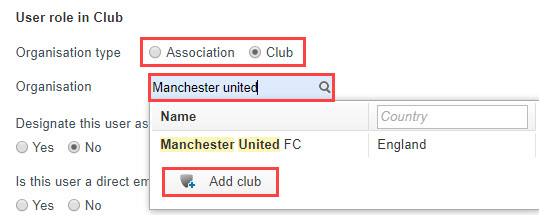
Then answer the questions about the new user. For more information, see “Requirements to become a TMS user”.
Main contact
Clubs and Member Associations must take particular care when choosing their main contact, the TMS manager. The TMS manager receives communications and letters from FIFA and must be available to respond to TMS requests from FIFA or other users.
If the organisation already has a TMS manager, the Member Association must confirm that it wishes to assign a different user to the role.
Responsibilities
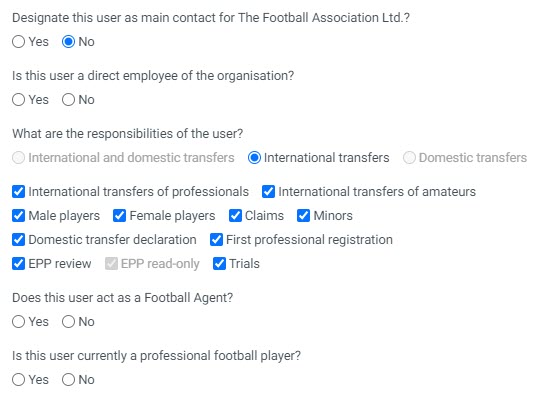
By default, all TMS modules will be selected based on the new user’s organisation type. You can restrict access to any of the modules (male/female player transfers, claims, minors) by unticking the relevant checkbox.
Note: if access to a TMS module is restricted, the new user cannot create, process or view transactions in that module.
Transfer region (DTMS)
If your organisation has DTMS activated, you will be able to choose which transfer region the new user will be responsible for. Depending on the option selected, the excluded region will be restricted, and the user will not be able to create, process or view any transfers from that region.
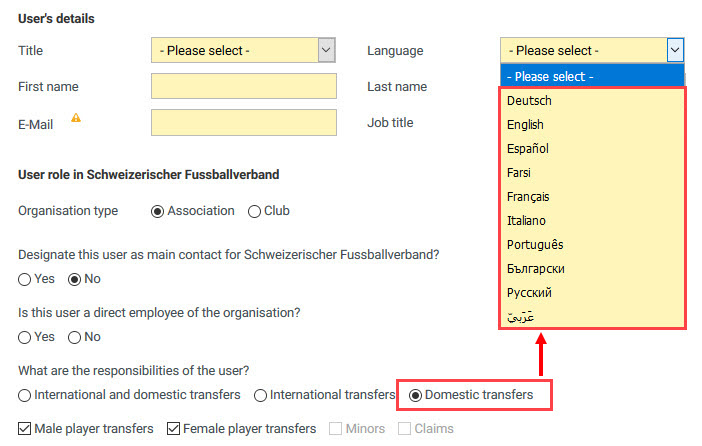
If the new user is responsible only for “Domestic transfers”, they may be able to use the system in languages other than the three official FIFA languages.
Required documents
You will then be asked to upload a valid proof of identity for the user. The uploaded document must be in PDF format and must not exceed 5 MB.
Training method
Enter the training method. To access the training material, navigate to the “Training” section.
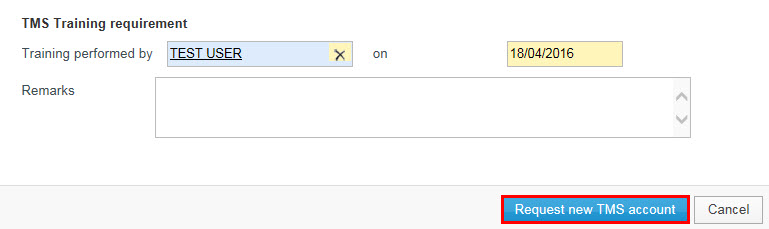
If the TMS user was trained by an existing TMS user, you must indicate the name of the trainer and the date on which the training was given. The trainer must be selected from the list of already registered TMS users. New users should be trained by the Member Association’s TMS users or the club’s existing TMS users.
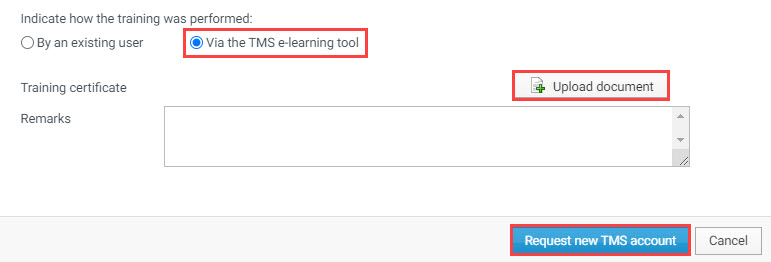
If the TMS user was trained via the TMS e-learning tool, you must upload a copy of the training certificate, which is issued upon the successful completion of the online “Club training” or “Association training” learning path. For more information, see “Navigating the e-learning platform”.
Click on “Request new TMS account” to continue.
Reviewing the new user activation request
Your request will appear in the list of existing users with the status “Submitted”.
FIFA will review your request. If a document is incomplete or illegible, the TMS Helpdesk will ask you for a new copy and set the request status to “Awaiting completion”.
Once FIFA has completed its review, the status changes to “Active” if the account has been activated or “Rejected” if the account could not be activated. You will not receive an email when the request has been processed. Check the account status directly in TMS.
If the account has been activated, the new user will receive an email with an activation link to create a password. The activation link is only valid for 24 hours, after which the password must be reset. For more information on how to log into the TMS system and use the “Lost password” functionality, see the sections under “Login”.
If a request is rejected, click “View details” to see the reason.
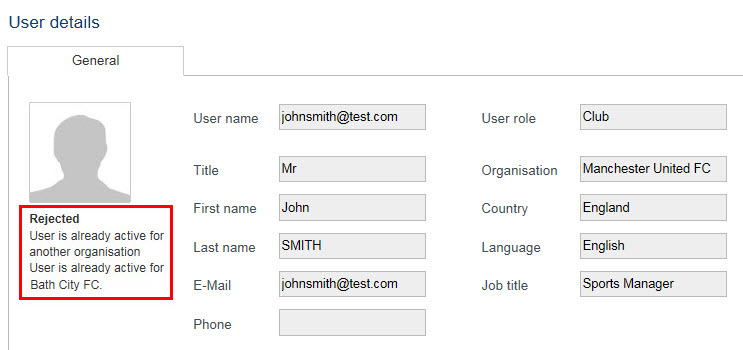
If a request is rejected, you can submit a request for another user. For questions about the rejection, contact the TMS Helpdesk through the support portal.