Table of contents
- Use a supported browser
- Why only these browsers?
- How do I find out which version of the browser I am using?
- What happens if I am not using one of these browsers?
- What does the “minimum version” mean?
- Do I need any plugins to use TMS?
- Refresh the screen
- PC users
- Mac users
- Clearing the browser cache
- Try “private” browsing
- Trusted site
TMS has been designed to be as reliable as possible. However, because it is a web application that relies on a connection between your browser and the TMS servers, issues can sometimes occur. These can include:
- Strange error messages
- Odd-looking screens
- A lack of response when clicking on a button
Before contacting the TMS Helpdesk, there are a few simple steps you can take to try to resolve the issue yourself.
Use a supported browser
TMS has been developed to work on the latest official versions of:
 | Google Chrome | (official website) |
 | Mozilla Firefox | (official website) |
 | Microsoft Edge | (official website) |
Why only these browsers?
The list represents the most commonly used browsers according to recent market research.
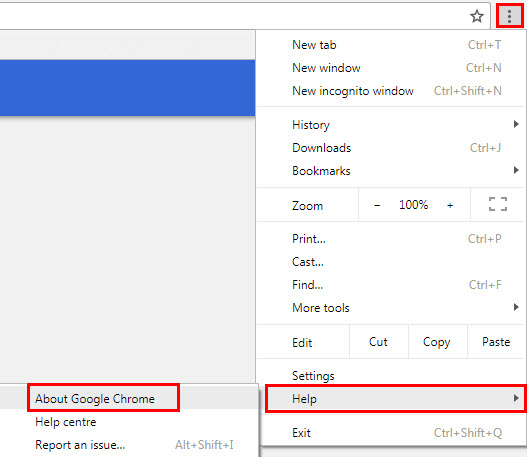
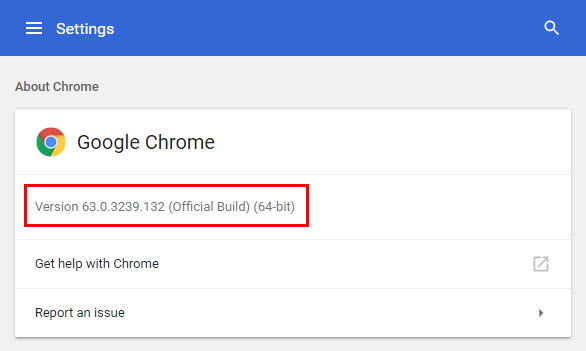
How do I find out which version of the browser I am using?
The version number of most browsers can be found under the “Help > About” menu.
Example for Google Chrome:
What happens if I am not using one of these browsers?
If your browser is not on the list above, you may still be able to use TMS but we cannot guarantee its performance. In case of an issue, we recommend that you first try to use an officially supported browser before contacting the TMS Helpdesk. The latest version of each browser can be downloaded free of charge from the manufacturer’s website.
What does the “minimum version” mean?
Newer browser versions generally include technical improvements and security updates that improve compatibility and security. As a general rule, the newer the browser version, the better the TMS experience will be. We recommend that all users regularly install updates from the browser manufacturer’s website.
Do I need any plugins to use TMS?
No, TMS has been designed to be used without the need for plugins.
Refresh the screen
Normally, your browser accurately reflects the information stored in TMS. However, the screen may occasionally become out of sync and need to be refreshed.
PC users
Press the Control and F5 keys together:

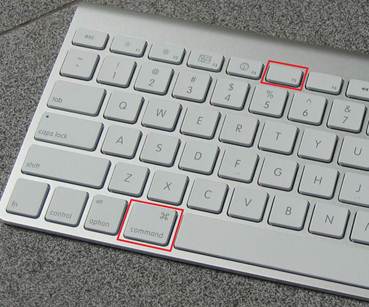
Mac users
Press the command key and the F5 key together.
Clearing the browser cache
To reduce unnecessary and time-consuming exchanges of information between your browser and the TMS server, local copies of some TMS web pages are stored in your browser’s memory (the “cache”). After some time (or if TMS has been upgraded), the local copies may become out of date and might need to be manually refreshed.
 | Google Chrome | Clear browsing data |
 | Mozilla Firefox | How to clear the Firefox cache |
 | Microsoft Edge | View and delete browser history in Microsoft Edge |
Try “private” browsing
An alternative to clearing the browser cache is to use your browser’s private browsing mode, which starts a session without using the usual stored browsing information, such as cookies, temporary files and browsing history.
If you have two-step verification enabled on your TMS account, you will be required to enter a verification code (received either by SMS or email) when logging in to TMS from a private internet browser. See the section “Two-step verification”.
 | Google Chrome | How Chrome Incognito keeps your browsing private |
 | Mozilla Firefox | Private Browsing - Use Firefox without saving history |
 | Microsoft Edge | Browse InPrivate in Microsoft Edge |
Trusted site
If you have problems viewing the login page or you do not see any transfers once you log in to TMS, this may indicate that some features are not activated in your browser. An easy way to activate them is by setting the TMS site as a trusted site.
 | Google Chrome | Change site permissions |
 | Mozilla Firefox | Add trusted sites to your allow list on Firefox |
 | Microsoft Edge | How to know whether to trust a website in Microsoft Edge |