Table of contents
There are several functions available to make it easier to navigate TMS.
Search fields
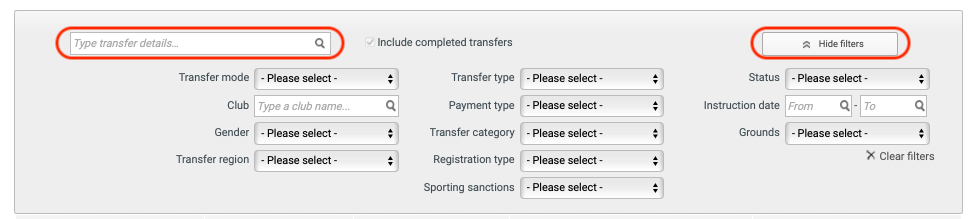
You can search using the general search field or by using the extended search filters that can be accessed by clicking on the “Show filters” button.
Page navigation
Instead of scrolling down to find a specific transfer, claim or entry in your TMS lists, you can use the page controls. You can choose to display 10, 25 or 50 items per page.

History
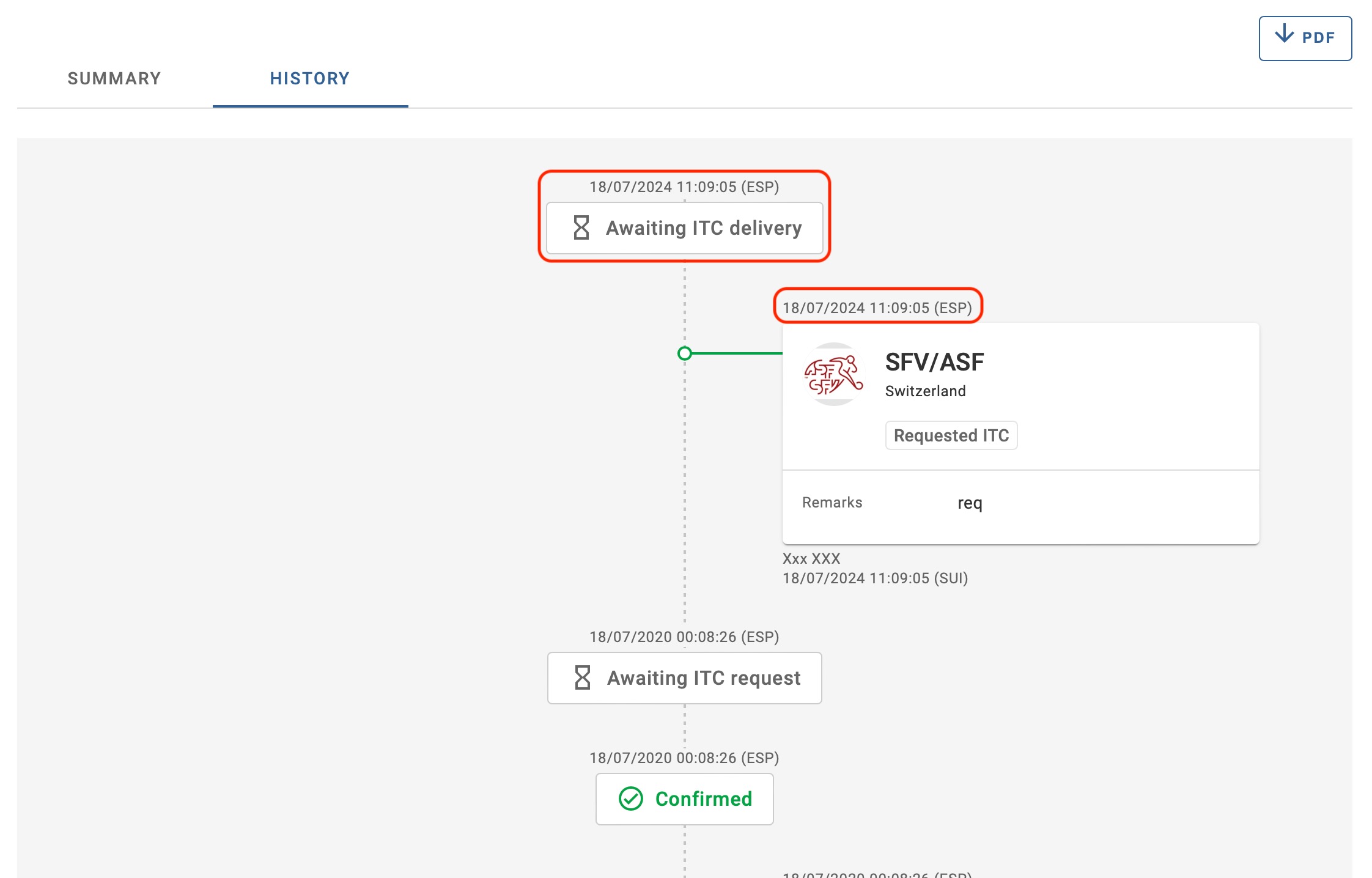
The “History” function of a transfer and minor application shows a chronological overview of the actions completed and the next action to perform to continue the transaction. The history can be accessed by clicking on the status of the transaction.

Transfer reports
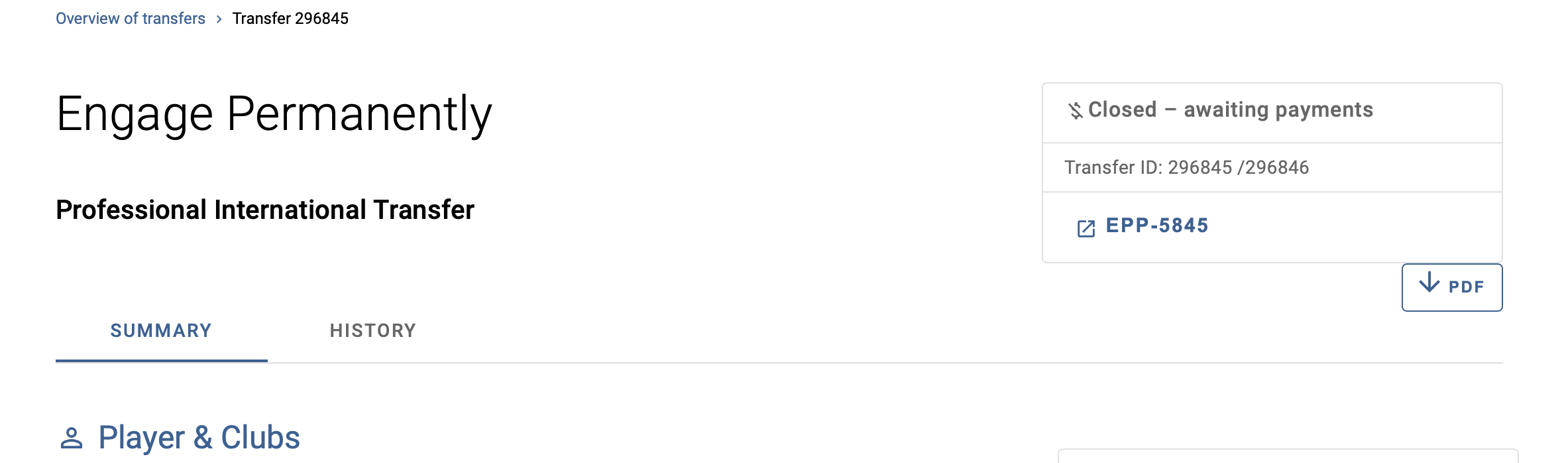
Users can view a PDF transfer report for each international professional transfer, international amateur transfer and domestic professional transfer. The report summarises the transfer information recorded in TMS, including, where applicable, transfer and player details, football agents, club payments, certificate information and documents. It also provides a chronological record of the transfer process and the actions recorded in TMS.
The report’s content varies according to the transfer type and reflects the transfer information and history entries that the user is permitted to view in the transfer instruction.
To access the report, open the transfer instruction and click the “PDF” button in the top-right corner.
Include completed transfers
Transfers with the status “Closed”, “Cancelled” or “Rejected by FIFA” (i.e. completed transfers) are excluded from the search results by default. You can include completed instructions in the transfer grid by clicking on the relevant checkbox.

Inline help text
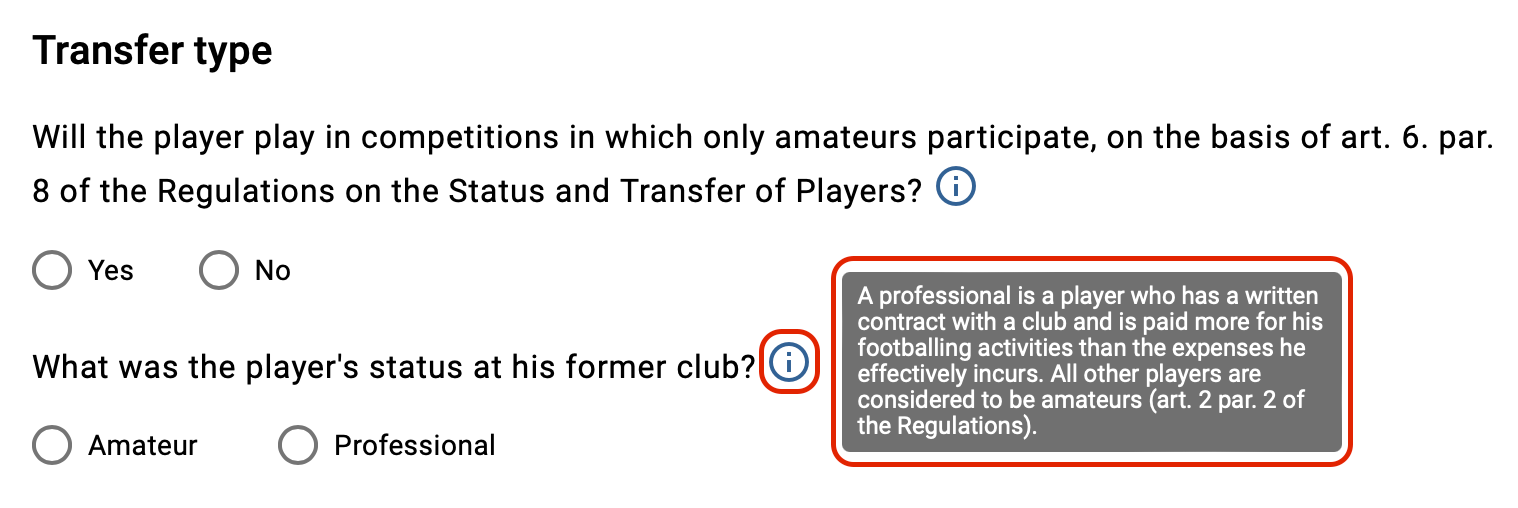
Some “in-line help text” icons have been added in TMS to provide a short definition of certain fields and help users enter the correct information in each field.
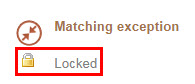
“Locked” icon
In the event of an engage/release instruction with the status “Matching exception”, a “locked” icon will appear below the status of your transfer if the counter club is editing it. This prevents users from the clubs involved from editing the transfer details at the same time. Once the counter club has closed the relevant transfer, the icon will disappear when you refresh the page.
Actions
A set of actions is available on the right-hand side of each transaction (transfer, minor application or claim). These actions depend on the transaction type (e.g. engage or release), its status and the user role (club or Member Association). Likewise, there are different actions available on the right-hand side of each organisation and player (in the “Stakeholders” tab), depending on the user role.
