Table of contents
Introduction
This instruction type applies to the transfer of players who will be registered as professionals with the new club, domestically or internationally.
The section “Entering permanent transfer instructions in TMS (ITMS and DTMS)” contains an overview of all the different transfer instruction types. Ensure that you select the correct instruction type before you enter the transfer.
The information must be entered as accurately as possible, and the necessary mandatory documents must be uploaded by the new club. For more information on the mandatory documents, see the section “Transfer documents in TMS: mandatory documents, upload rules and evidence”.
Creating the instruction
To enter a transfer of a player out of contract, click on “Engage player” in the Transfers > Overview tab and then select “Permanently” under either the International or Domestic categories.
“Players & Clubs” section
Player
The details of the player involved in the transfer must be disclosed. To do this, search for the player you wish to engage by entering their name, nationality, date of birth and/or player ID. If the player is in the TMS database, their name appears in the drop-down list.
If the player is not in the TMS database, you can expand the search across Connect ID, which includes player records from the National Registration System (NRS) of all Member Associations. Ensure that the player’s details match their proof of identity exactly. For more information on how to search for, create and edit players, see the section “Searching for players in TMS”.
If you create a new player, the former association must first confirm their identity details before the transfer can proceed. For more information on this topic, see the section “Player confirmation”.
The player’s proof of identity must be uploaded by clicking on “Drop files to attach or click to browse”. For document requirements, see the “Transfer documents in TMS: mandatory documents, upload rules and evidence”.
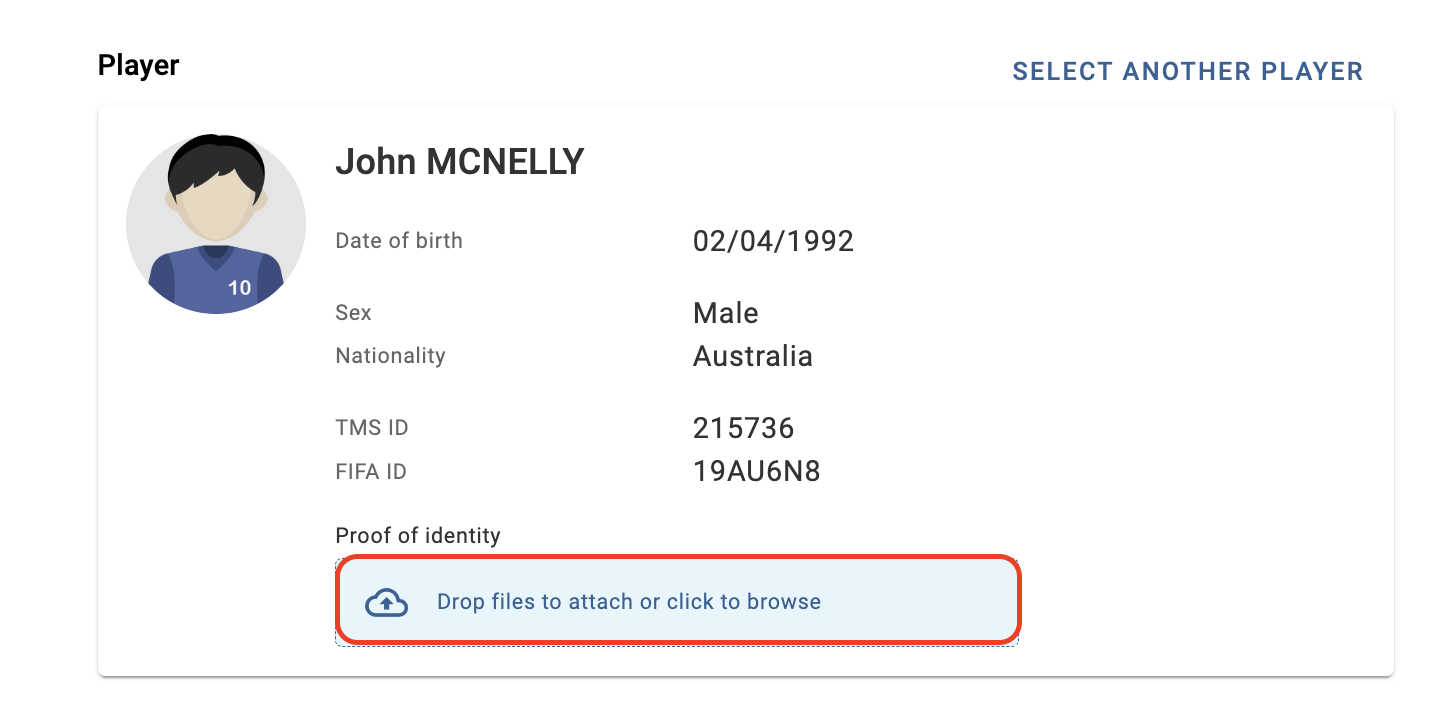
For domestic transfers, you will then be asked to confirm if the player will be registered as an amateur or a professional with the new club. Additionally, depending on the player’s nationality, you may also need to complete the details related to the work and/or residence permit. If either one of these documents is necessary for the engaged player, click on the relevant permit category and complete the dates, if known.
New club
As you are engaging the player, your club will automatically be selected as the player’s new club.
Former club
When engaging a player without a transfer agreement, the new club should be able to answer “No” to the question below. However, if you decide to select “Yes”, see “Engage player permanently with a transfer agreement”.
Note: For the purposes of the transfer instruction, the transfer agreement includes any agreement where the former club waives its right to receive training rewards in exchange for another payment in line with art. 10 par. 4 d) of Annexe 3 to the FIFA Regulations on the Status and Transfer of Players.
If the player was an amateur at their former club and is now being transferred with a transfer agreement against payment, the type of instruction that applies is “Engage permanently with transfer agreement against payment”.
This is because article 10 par. 4 a) of Annexe 3 of the Regulations requires that clubs enter the following information (depending on the transfer instruction type):
“Whether there is a transfer agreement with the former club; for the avoidance of doubt, this includes any agreement where the former club waives its right to receive training rewards in exchange for another payment in line with art. 10. par. 4 d) of this annexe.”

The counter club involved in the transfer agreement must be selected by typing its name in the relevant field. For domestic transfers, only clubs affiliated to your Member Association will be available to select. Ensure that the correct counter club is selected.
If the former club is not already registered in TMS, add it manually by typing its international name and click on “Create Club”.
You must indicate the player’s status at their former club by selecting “Amateur” or “Professional”, as appropriate. If you select “Amateur”, no further information is needed.
If you select “Professional”, you must select the reason for the former contract termination. There are three possible reasons to select from.
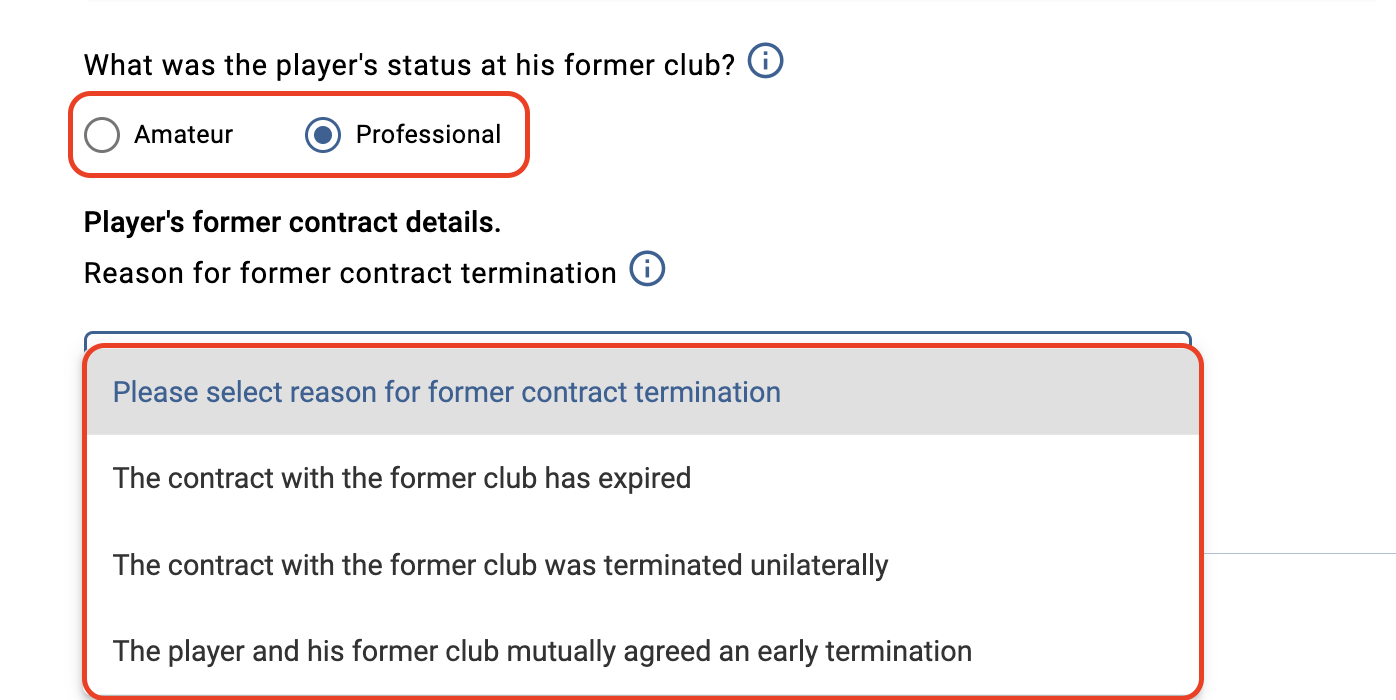
Depending on the selected reason for former contract termination, the system will ask you to enter the date of the player’s last contract termination. A document proving the player’s former contract termination must be uploaded by clicking on “Drop files to attach or click to browse”. The document uploaded must support the reason selected. For example, if you select the option “The contract with the former club has expired”, you must then upload a document signed by the former club confirming that the contract has expired and indicating the date of expiry.
The three reasons for the player’s former contract termination are:
a. The contract with the former club has expired (cf. art. 6.3 and how it applies)
=> The end date of the employment contract between the player and their former club has passed and no new contract or contract extension was agreed.
b. The contract with the former club was terminated unilaterally
=> The former club or the player terminated the employment contract unilaterally.
c. The player and their former club mutually agreed an early termination (cf. art. 6.3 and how it applies)
=> The former club and the player terminated the employment contract on the basis of a mutual agreement.
“Employment” section
Fill out all fields relating to the player’s employment contract accurately. For more information on how to use the player’s salary calculator, see the section “Total fixed remuneration calculator”.
Then upload the player’s complete employment contract. All pages of the employment contract must be uploaded, including all annexes and amendments.
“Football Agents” section
If your club or the player has an agent representing them in relation to this transfer, this information must be entered in TMS by clicking “Yes”. You will then be required to declare the agent information within the transfer. For more information, see “Declaring agent information”.
“Payments & TPO” section
If the transfer includes a release (buy-out) fee, select “Yes” to the payment question under the “Payments” tab. If it does not, select “No”.
Fixed transfer fee payments, conditional transfer fee payments and sell-on fee payments can only be declared in an “Engage/Release with transfer agreement” instruction and cannot be declared in an “Engage out of contract” instruction. Clubs must provide an indication of whether the transfer is being made against any of those (and other) payment types.
If you click “Yes”, enter the payment details accordingly, i.e. the currency in which the payment will be made, the payment amount, details of instalments (if any), the payment recipient (if different from the former club), any optional remarks and your club’s banking details. For more information on how to declare the payments within a transfer instruction, see the section “Club-to-club payments within the transfer instruction”.
For additional information on declaring transfer compensation and related training rewards, see the clarifications communicated by the FIFA Clearing House on 30 January 2023.
Declaration on third-party influence and ownership
Prior to confirming the transfer, you must, on behalf of your club, either declare “Yes” or “No” to the declaration on third-party influence on clubs and third-party ownership of a player’s economic rights. For more information on this topic, see the section “Third-party agreement library”.
Failure to provide mandatory information or entering incorrect information in an international transfer is an offence subject to the Administrative Sanction Procedure (ASP).
Training rewards waiver
This section is optional. If a club has waived its right to receive training rewards, you may upload any relevant supporting documentation.
Confirmation
Once you have entered all the necessary details in the instruction and have uploaded all the mandatory documents, you may either confirm the transfer or save it as a draft and return later. If you choose to save as draft, the status of the transfer will change to “Pending” until it is confirmed.
Certify that all the information is true and correct by clicking on the relevant box, and once you are certain that everything is in order, click on “Confirm transfer”.
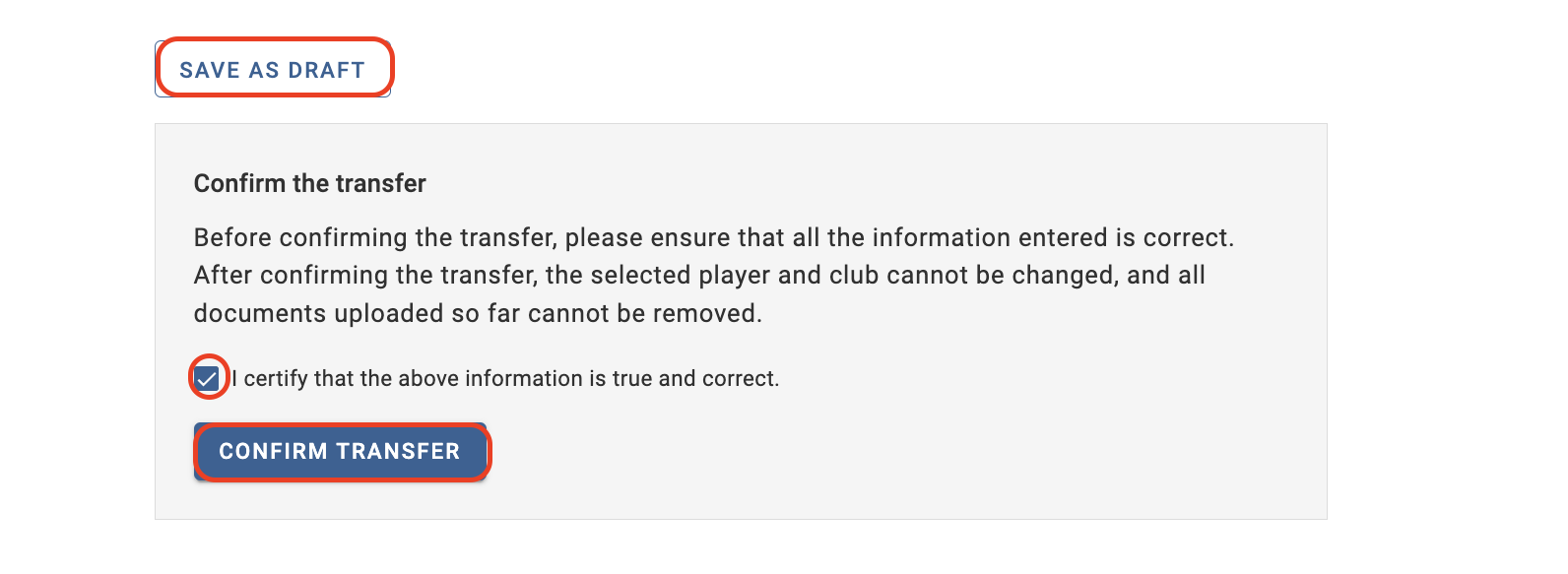
Once you have confirmed the instruction, the status of the transfer will change to either “Awaiting confirmation of player”, “Awaiting ITC request” for international transfers, or “Awaiting transfer approval” for domestic transfers.