When a transfer agreement exists, both clubs must enter and confirm the corresponding engage and release instructions in TMS as soon as the agreement is concluded. Each club can complete this action independently.
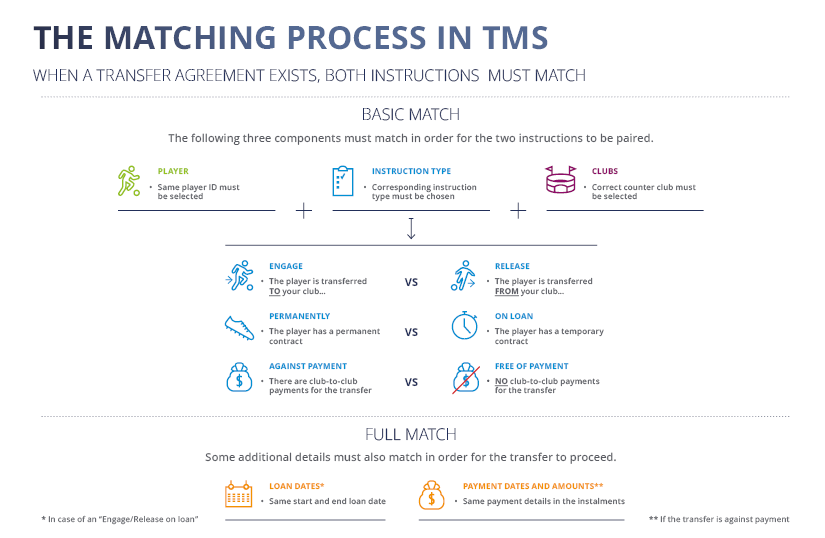
There are three components that create a basic match between instructions (“basic matching fields”):
- Player: both clubs must select the same player from the TMS database.
- Instruction type: the clubs must select corresponding instruction types;, i.e. one club engaging + one club releasing, permanently or on loan, against payment or free of payment.
- Counter club: each club must select the specific counterparty involved in the transfer.
Both clubs should coordinate to ensure that the correct instruction types have been selected and that the appropriate FIFA IDs have been used. This will help prevent issues when matching the corresponding transfer instructions in the system.
If only one of the two clubs involved in this transfer creates and confirms its instruction, the transfer remains in “Awaiting counter instruction” status until the counter club creates the appropriate counter instruction in the system.
If both clubs have entered the relevant transfer instruction but the “Awaiting counter instruction” status still appears, it could be due to one of the following reasons:
- The counter club entered the transfer instruction but did not confirm it, i.e. the instruction remains in “Pending” status.
- There is a discrepancy in one or more of the basic matching fields.
Whatever the reason, the clubs should contact each other to identify the error and take the necessary steps to match the two instructions.
Note: if there is a discrepancy in one or more of the basic matching fields, the transfer instruction with the incorrect information will have to be cancelled and re-entered in the system.
Failure to insert a counter instruction as soon as the transfer agreement is formed is an offence that is subject to the administrative sanction procedure (ASP).
The diagram below provides an overview of the matching process in TMS:
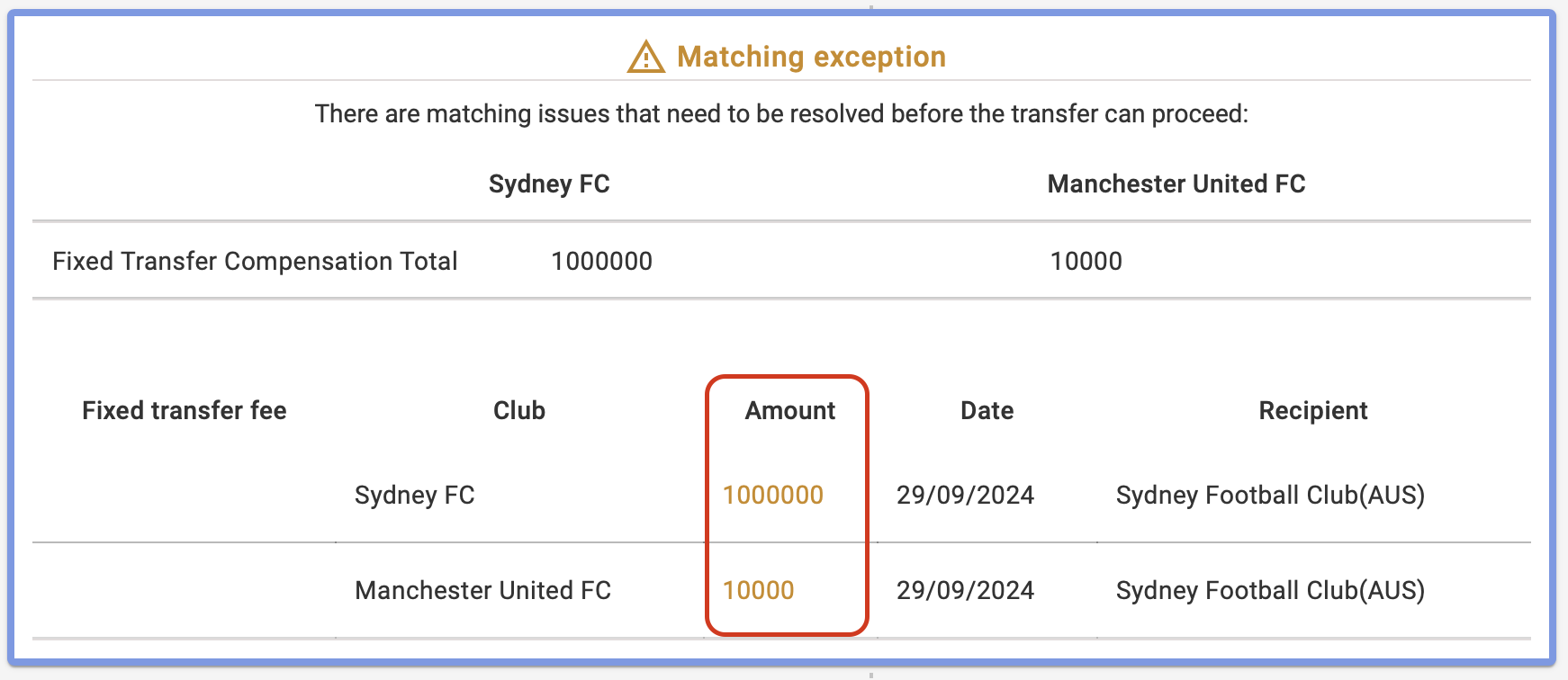
Matching exception on the transfer details
If some of the transfer details entered by the clubs do not match (namely loan dates or payment details), the transfer will be blocked with a “matching exception”. The clubs must then agree on the correct information and update it accordingly in TMS for the transfer to proceed to the next status.
By clicking on the transfer status, clubs will have access to the transfer history, which provides a clear overview of the information entered by each club and makes the mismatched fields easy to identify.
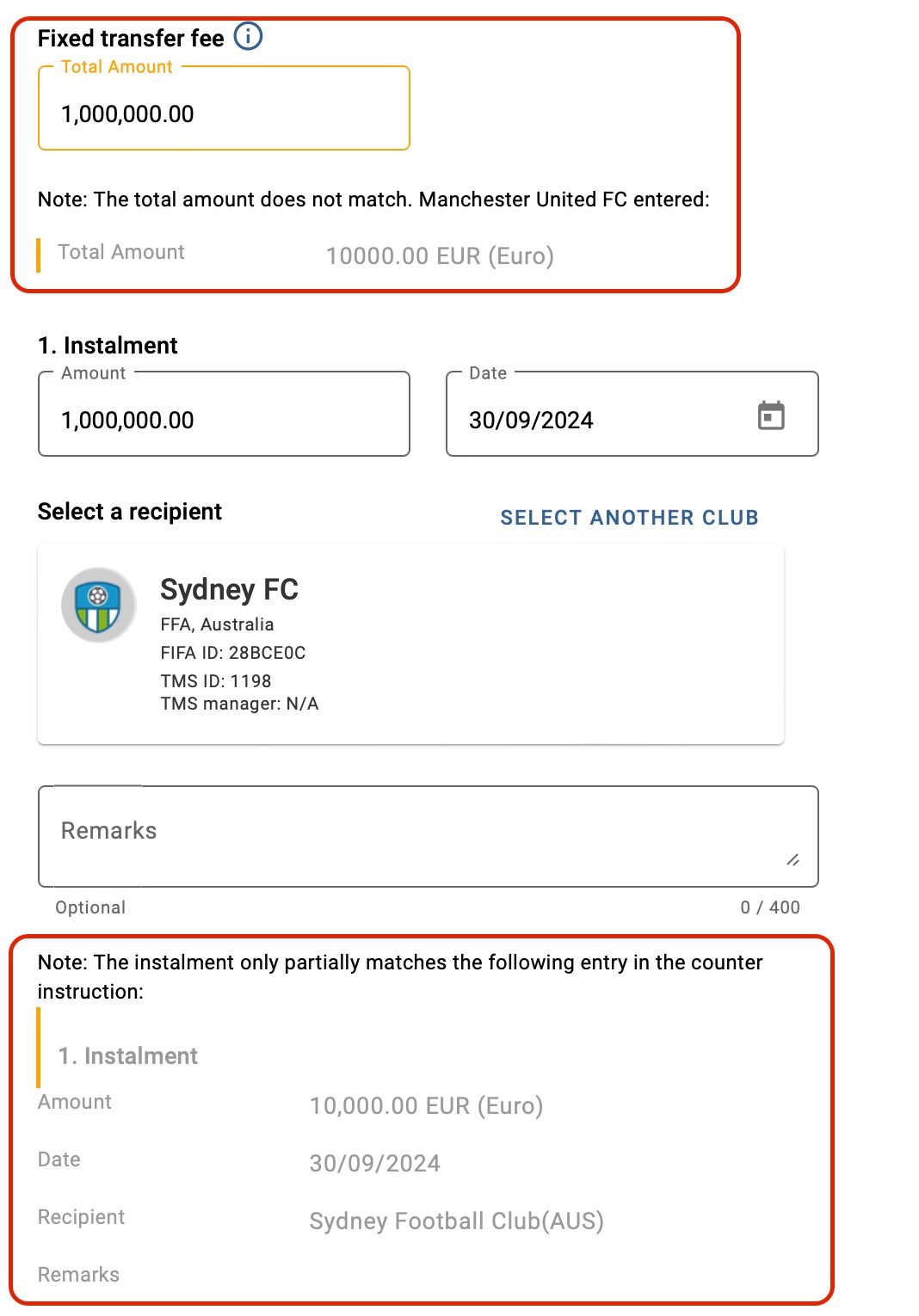
To edit the incorrect transfer details, search for the relevant transfer and click on “Edit”. The system highlights in yellow the field(s) where the matching exception is located and details the mismatch between the information entered by the two clubs.
Once the information has been corrected, check the box to certify that all the information is true and correct, then click on “Confirm transfer”.
When the clubs have entered their transfer in TMS and the information entered by both clubs fully matches, the transfer will then proceed to the ITC/DTC stage. The Member Associations involved must request, deliver and confirm receipt of the ITC for the player to be registered and therefore eligible to play for their new club. For more information, see the “ITC process” section.
Matching exception on new payments
If the payment term amendments entered by the clubs do not match (namely payment amounts or payment dates), the transfer will be blocked with a “matching exception on new payments”. The clubs must then agree on the correct information and update it accordingly in TMS for the payment term amendments to be finalised.
To edit the incorrect payment amendment details, search for the relevant transfer and click on “Amend payments”.
Under the relevant amendment, the system highlights in yellow the field(s) where the matching exception is located. The mismatch between the information entered by the two clubs is clearly explained below the field containing the matching exception.
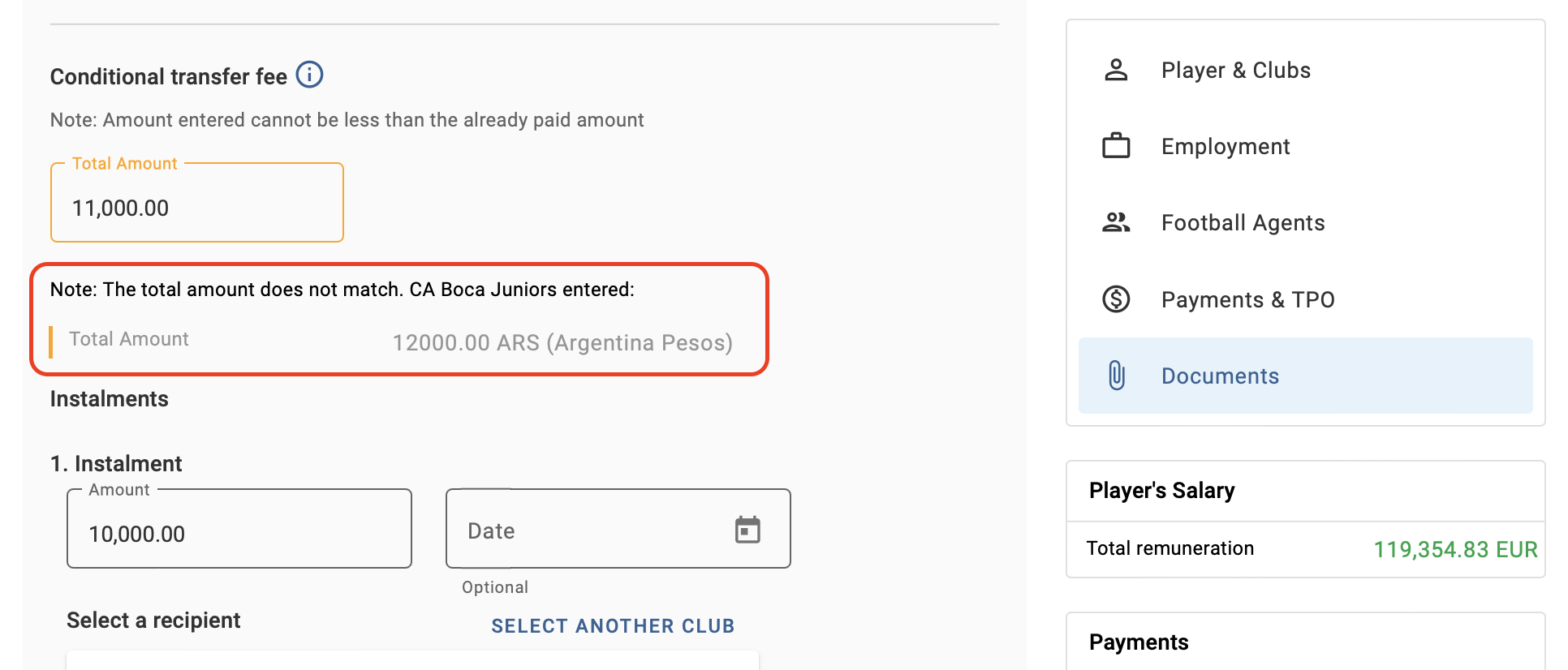
Once the information has been corrected, scroll to the bottom of the transfer to check the box and click on “Save and close” to submit the modifications. When the information entered by both clubs fully matches, the payment amendments will be saved, and the transfer status will change to “Closed – Awaiting Payments” or “Closed”.