TABLE OF CONTENTS
Introduction
The dashboard is a control centre that provides clubs with visibility over key TMS operations and facilitates the management of tasks where review or action is needed.
The club dashboard displays open tasks that need to be performed in the system, grouped by category. Clubs can view the details from this dashboard and perform the pending actions from the appropriate tabs. Clubs can use the arrows at the bottom of the tiles to navigate between and view all pending tasks in the same category.
Parties with a TMS account must review the relevant tabs in TMS daily for any communications from FIFA. Member Associations and clubs are responsible for any procedural disadvantage caused by failing to conduct this review properly.
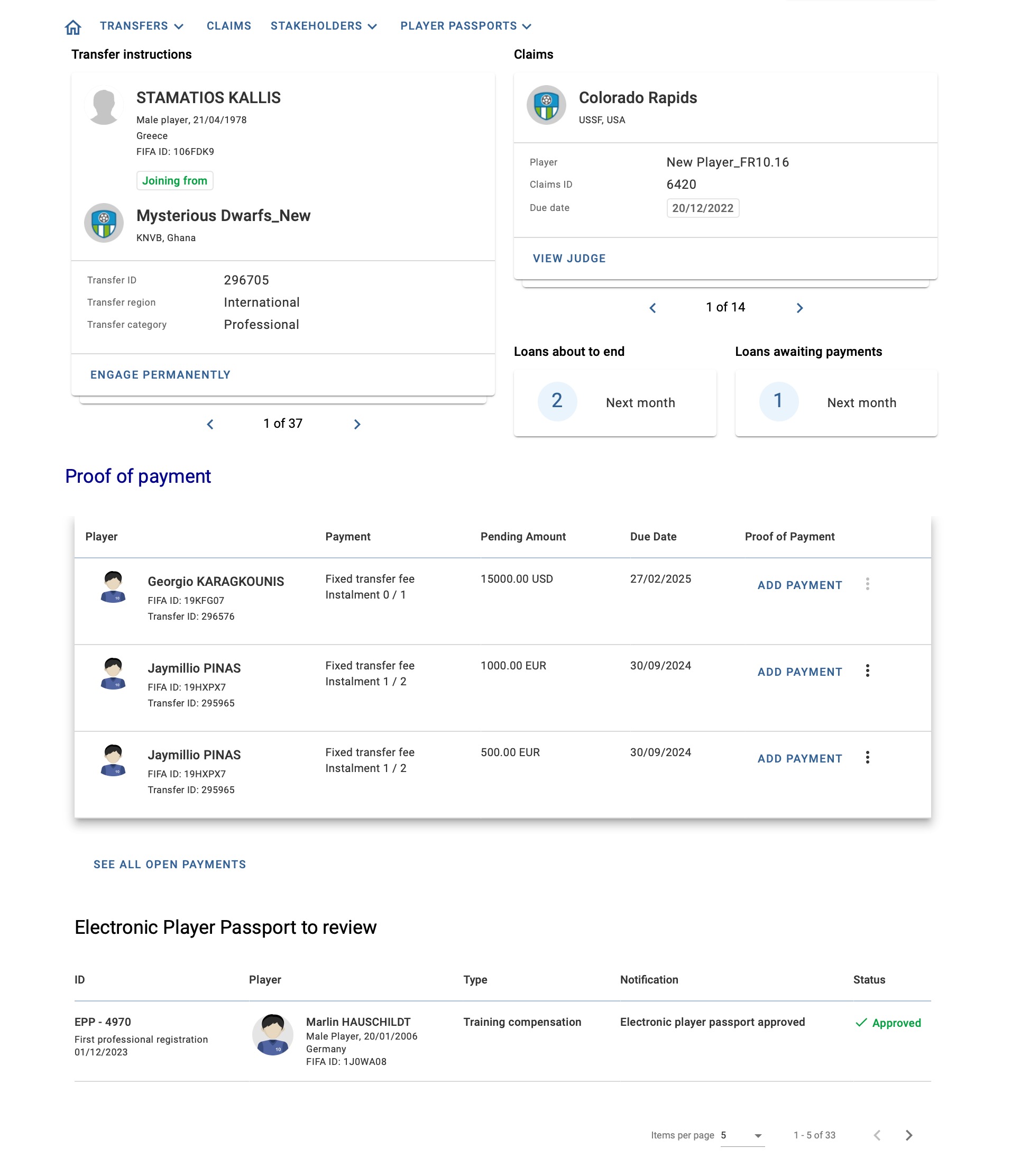
Transfer instructions
The “Transfer instructions” category includes open tasks related to international transfers such as counter instructions and matching exceptions. It also includes open tasks related to domestic transfers for Member Associations with DTMS enabled.
Counter instruction
When a club lists your club as the counter club in an engage/release instruction, you will see the applicable “Engage/Release” pending task under the “Transfer instructions” tile. Clubs may create the counter instruction by clicking on the relevant button. If you believe that your club has been incorrectly nominated in a transfer, you should contact the relevant club and inform them of the error.
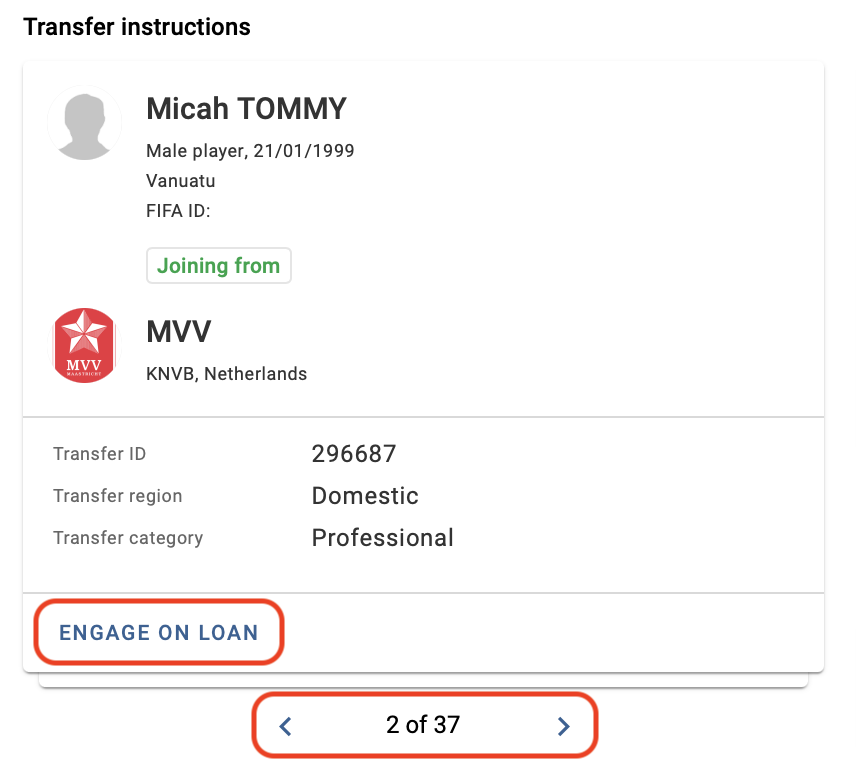
When you click on the relevant button, a new corresponding instruction will be created. Some of the data will be retrieved from the counter club’s instruction, such as the player and clubs involved in the transfer. This speeds up the process of entering the transfer and facilitates the matching of the two transfer instructions.
If you still see the “Engage/Release” pending task once you have completed and confirmed your transfer instruction and your transfer is in “Awaiting counter instruction” status, it means that the two instructions have not matched. In this case, you should contact the counter club and agree on how to reflect the transfer based on the terms of the agreement signed by both clubs.
Matching exception
A matching exception occurs when two transfer instructions have paired, but some of the additional details do not match. By clicking on the “View details” button, the system indicates where the mismatch is.
In this case, you should contact the counter club and agree on how to reflect the transfer based on the terms of the agreement signed by both clubs.
For more information on the matching process, see the section “Matching process and matching exception”.
Claims
The “Claims” category appears on your dashboard if your club is involved in a claim (as complainant, respondent, or former club) and needs to act in the system.
Details of the claim and any relevant due dates will be displayed. When you click on the relevant button, you will be redirected to the claim.
For claims that must be completed or processed, clubs also receive notifications directly in the “Claims” module via:
- banners at the top of the claims grid overview page;
- an “Action required” flag displayed in the status of the claim.
For more information, see the section on claims.
Loans
This category notifies clubs of “Loans about to end” (during the next few months) and “Loans awaiting payments”.
This concerns all loans with the status “On loan – awaiting conclusion” or “On loan – awaiting payments”, including engaging and releasing loans. It is visible for both engaging and releasing clubs. By clicking on the number, you will be taken to the transfer grid, where all loans with this status are visible.
The notification will disappear from the dashboard once the loan has been processed and the status changes to “Closed”.
For more information on the loans process, see the section on how to enter and process a loan in ITMS.
Proof of payment
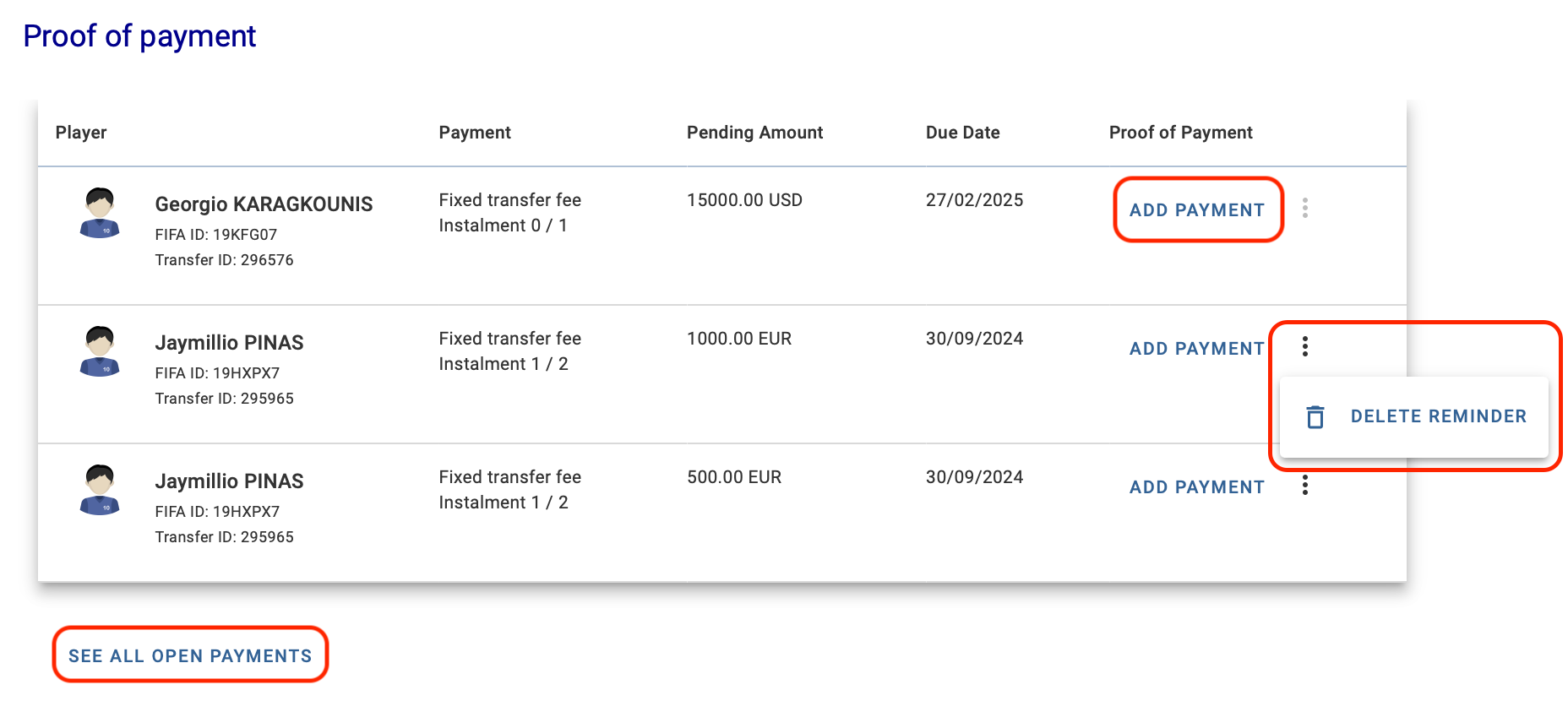
The “Proof of payment” category provides your club with an overview of upcoming and overdue payment instalments, sorted by due date. The payment type and amount of each instalment as well as the player’s name and FIFA ID are specified. As this list might be non-exhaustive, you can select “See all open payments” to view the complete list of your club’s outstanding payments.
You can directly upload the corresponding proof of payment document for each instalment by clicking on “Add payment”.
In transfers where there is a mismatch between the payments planned and proofs of payment declared, a payment might still appear outstanding in your club's dashboard, even if the proof of payment has been uploaded in TMS. You have the option of deleting these reminders to ensure that your dashboard remains up to date.
Note: payment reminders on the club dashboard apply only to transfers created on or after 16 November 2022, regardless of the payment due date.
Electronic Player Passport to review
Clubs participating in an EPP review process receive notifications when:
- the status of an EPP changes;
- a message is sent to the club in the EPP; or
- a change to the registration information submitted by the Member Association is processed by the FIFA general secretariat.
For more information, see the article on EPP notifications.
Email notifications
TMS users may also receive notification emails sent by TMS from the following two addresses.
- eppnotifications@fifa.org - for the electronic player passport review process
- tmsnotifications@fifa.org - for account activation, password reset, two-step verification and claims
Please make sure that these email addresses are added to your contacts to ensure that you receive all communications.
These addresses are used only for automated notifications and are not monitored for incoming emails.