Table of contents
Scope and trial form
The Explanatory Notes on the New Provisions in the Regulations on the Status and Transfer of Players Regarding the International Transfer of Minors provide details on the legal framework of the new article 19ter of the RSTP relating to trials (point 3 of the document, pages 5-10).
When a club decides to invite a player on trial in accordance with article 19ter of the RSTP, it will need to fill out and sign, together with the player (and, for a minor, the player’s parents), the FIFA Trial Form. This document is available in the TMS Help Centre library and on FIFA.com.
Once the club has finalised the form, it needs to declare the trial and upload the trial form to TMS. A trial may be declared either by the club (if it has an account in TMS) or by the Member Association on the club’s behalf (if the club does not have access to TMS).
Creating a new trial
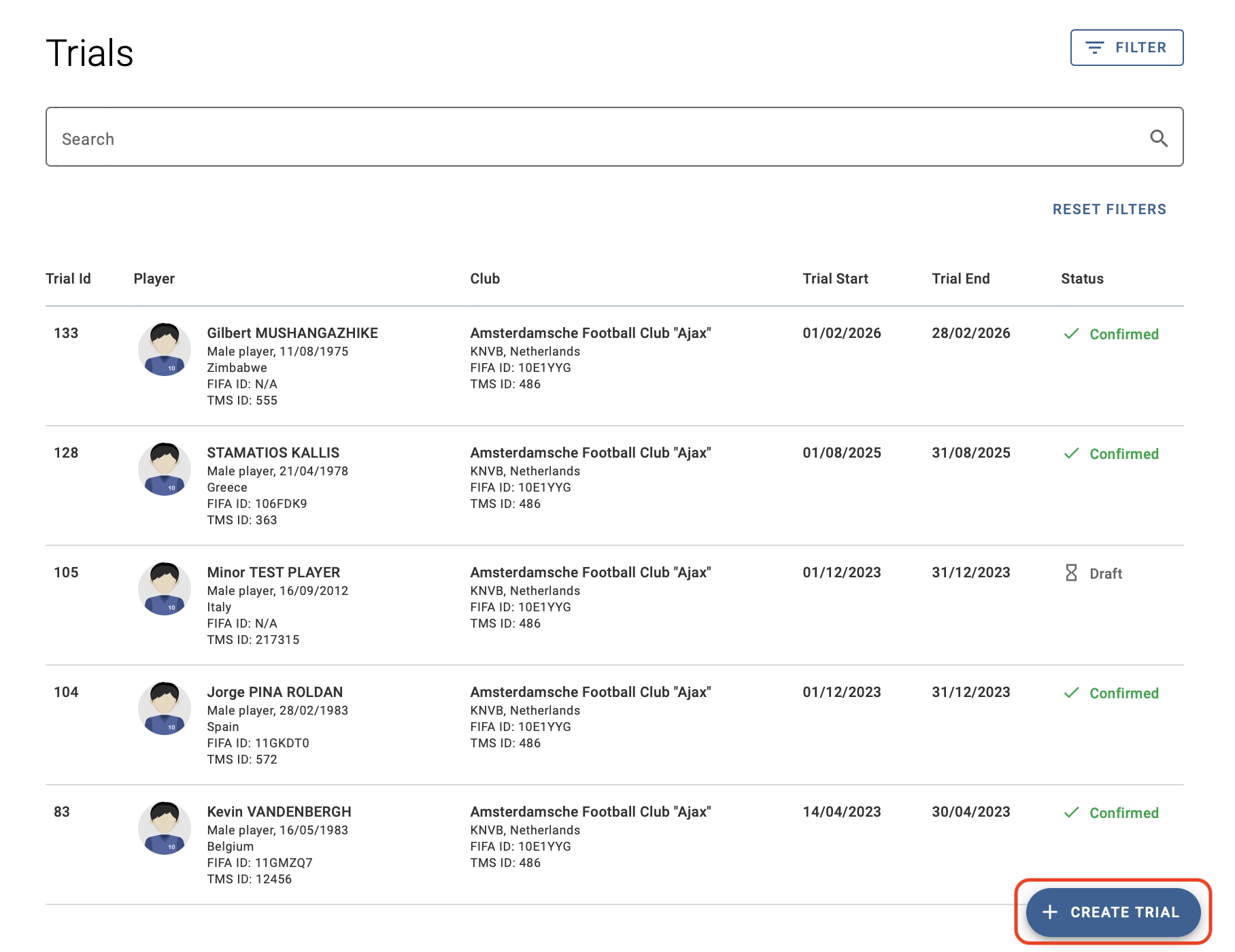
To declare a trial, go to Transfers > Trials and click on “Create trial”.
The Trials tab lists all trials declared by your organisation or, for a Member Association, by its affiliated clubs. Use the search field and filters to find trials that have already been declared.
Player and clubs
The details of the player involved in the trial must be disclosed. To do so, search for the player involved in the trial by entering their name. If the player is already in the database, the player’s name will appear in the drop-down list. To avoid duplicate player records, ensure that the player’s name is entered exactly as it appears on their proof of identity, and that their nationality (or nationalities) and date of birth are recorded accurately. For more information on how to search for, create and edit players, see the section “Searching for players in TMS”.
If you cannot find the player in the database after a thorough search, you can create a new player manually by clicking on “Create new player”.
Trial club – for Member Association users only
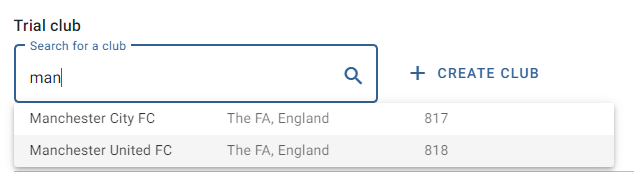
If you are acting as a Member Association on behalf of an affiliated club, you must select the club by typing its name in the relevant field. If the club is already in TMS, the club’s name will appear in the drop-down list. If the club is not found in TMS, you can add the club manually by clicking on “Create club”.
Trial information
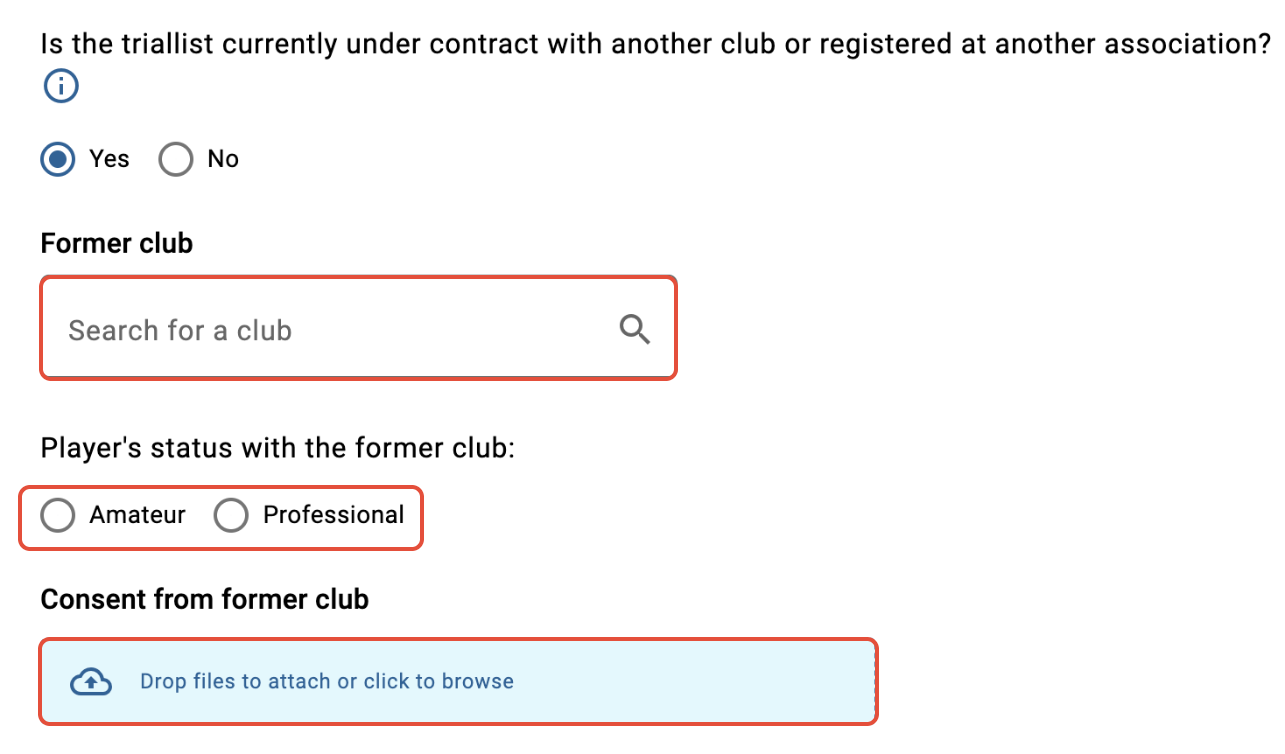
Enter the dates on which the trial will take place and indicate whether the player is currently under contract with another club or registered with another Member Association.
If you select “Yes”, you must complete additional information and upload written consent from the player’s former club.
Note: the former club cannot see the trial or any of its details in TMS. Only TMS users from your organisation (and TMS users of your Member Association) can see the trials that it declares in TMS.
Trial conditions
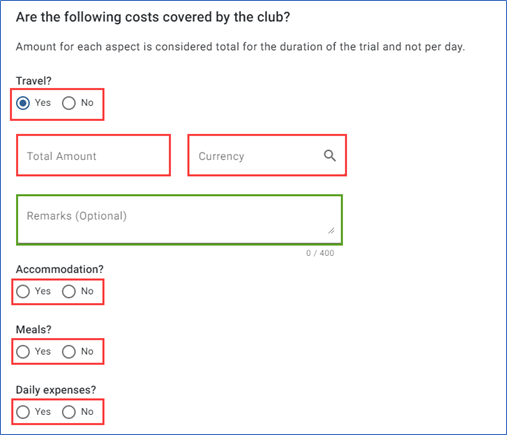
Enter information related to the conditions during the trial period. If you select “Yes”, you must declare additional information. You must also upload the completed trial form and any other relevant documents.
If the player is a minor, TMS will display fields for additional documents to be provided.
Confirming the trial
Before confirming the trial, you must certify that all information in the declaration is true and correct by selecting the relevant field. Once you are certain that everything is in order, click on “Confirm trial”.
Once you have confirmed the trial, you will be directed to the “Trials” tab in TMS and the trial status will be shown as “Confirmed”.
Uploading additional documents
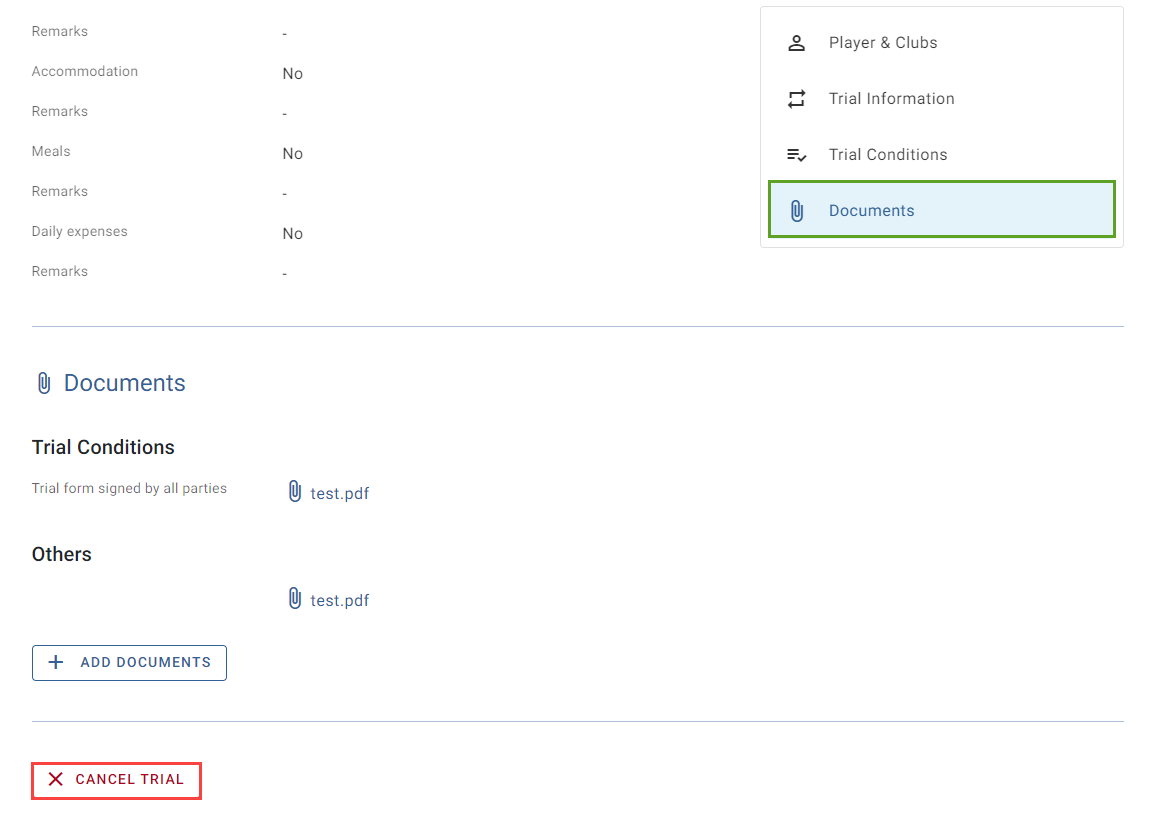
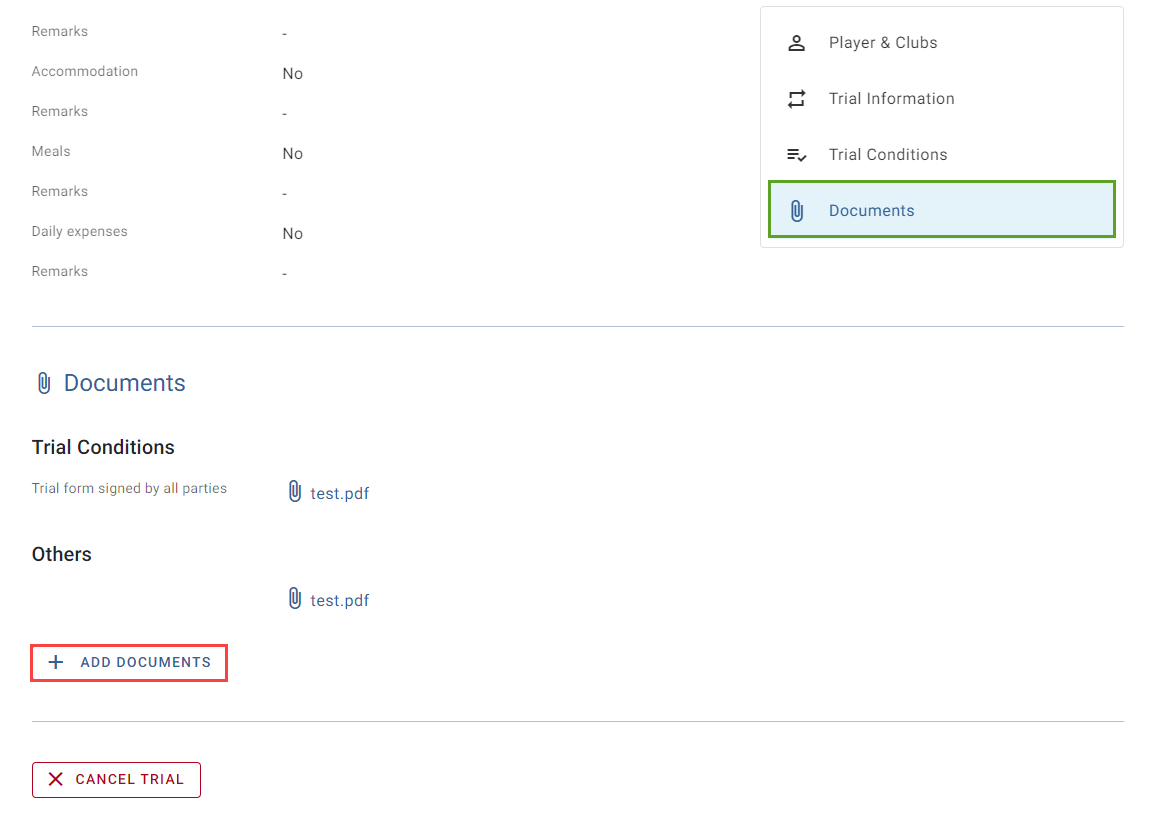
Only the organisation that declares a trial in TMS can upload additional documents to that trial. To upload additional documents, navigate to Transfers > Trials and select the relevant trial. From there, scroll to the bottom of the page and click on “Add documents”. A new window will appear where you can select additional documents, and then click on “Upload document”. The additional documents will appear under “Documents > Others” in the trial declaration.
Note: a Member Association cannot upload additional documents to a trial declared by an affiliated club.
Cancelling a trial
Only the organisation that declared a trial in TMS can cancel that trial.
To cancel a trial in TMS, navigate to Transfers > Trials and select the relevant trial. From there, scroll to the bottom of the page and click on “Cancel trial”. A new window will appear where you must enter remarks before clicking on “Cancel trial”.
Once you have cancelled the trial, you will be directed to the top of the trial declaration and its status will now be shown as “Cancelled”.
Note: a Member Association cannot cancel a trial declared by an affiliated club.